How to favorite a Project or folder
🕐 Read time: 2 min
Written By Clark Yuan
Last updated 3 months ago
Overview
Favoriting a Project or folder in Stitch3D saves it to your Favorites page for quick access so you won’t have to scroll through your full workspace to find it.
How to favorite a Project or folder
There are two ways to favorite a Project or folder.
Method 1 — From the Projects page
Go to your Projects page.
Hover over the Project or folder name in the list.
Click the ⋯ (three dots) icon that appears on the far right of the row.
Select Favorite (indicated by a ⭐ star icon) from the menu.
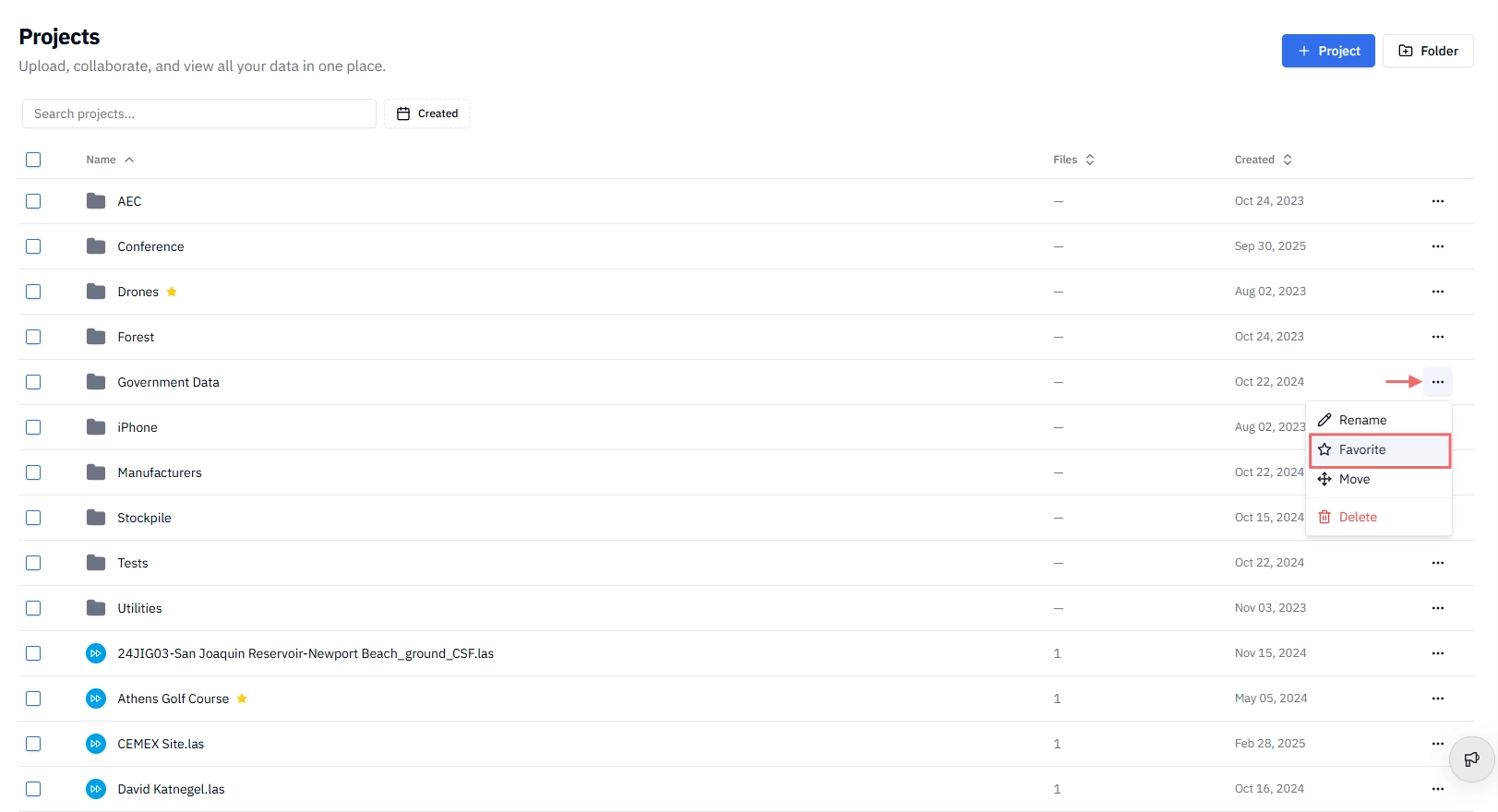
✅ The Project or folder is added to your Favorites list immediately.
Method 2 — From inside a Project
Open the Project you want to favorite.
Click the ⭐ star icon next to the Project name at the top of the page.
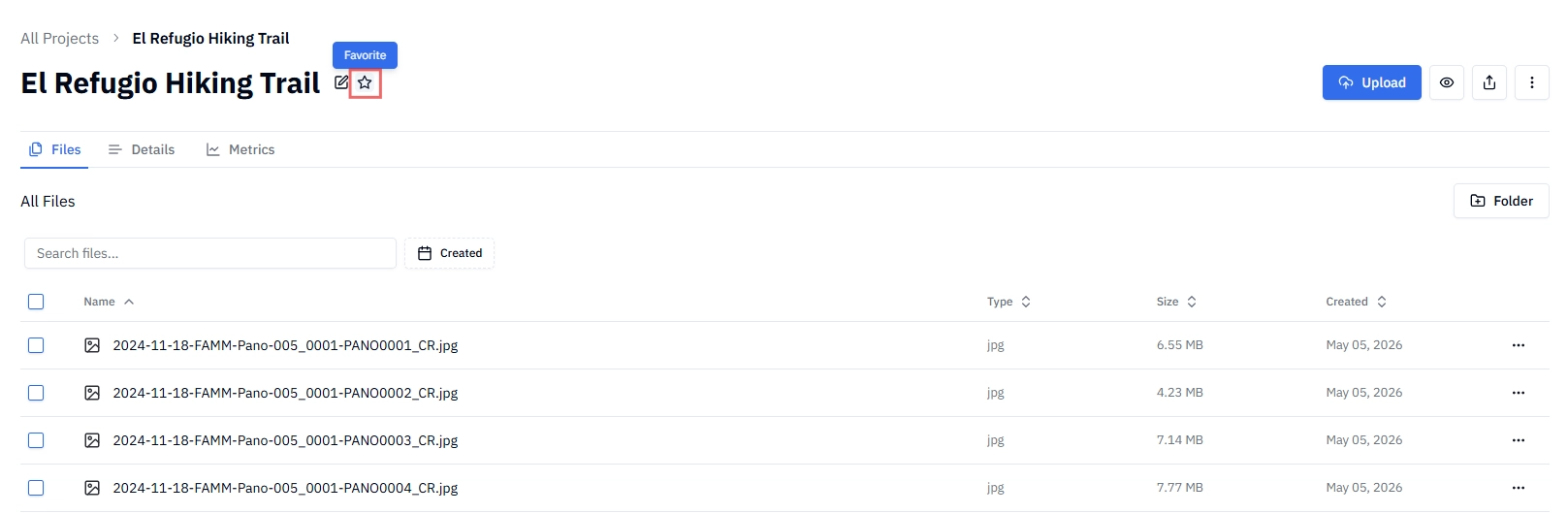
✅ The star fills in to confirm the Project has been added to your Favorites.
How to unfavorite a Project or folder
From the workspace dashboard:
Hover over the favorited Project or folder.
Click the ⋯ (three dots) icon.
Select Unfavorite from the menu.
From inside a Project:
Open the favorited Project.
Click the ⭐ star icon next to the Project name. It will return to its unfilled state, confirming the Project has been removed from Favorites.
Viewing your Favorites
All favorited Projects and folders appear in the Favorites page of your workspace sidebar for quick access.
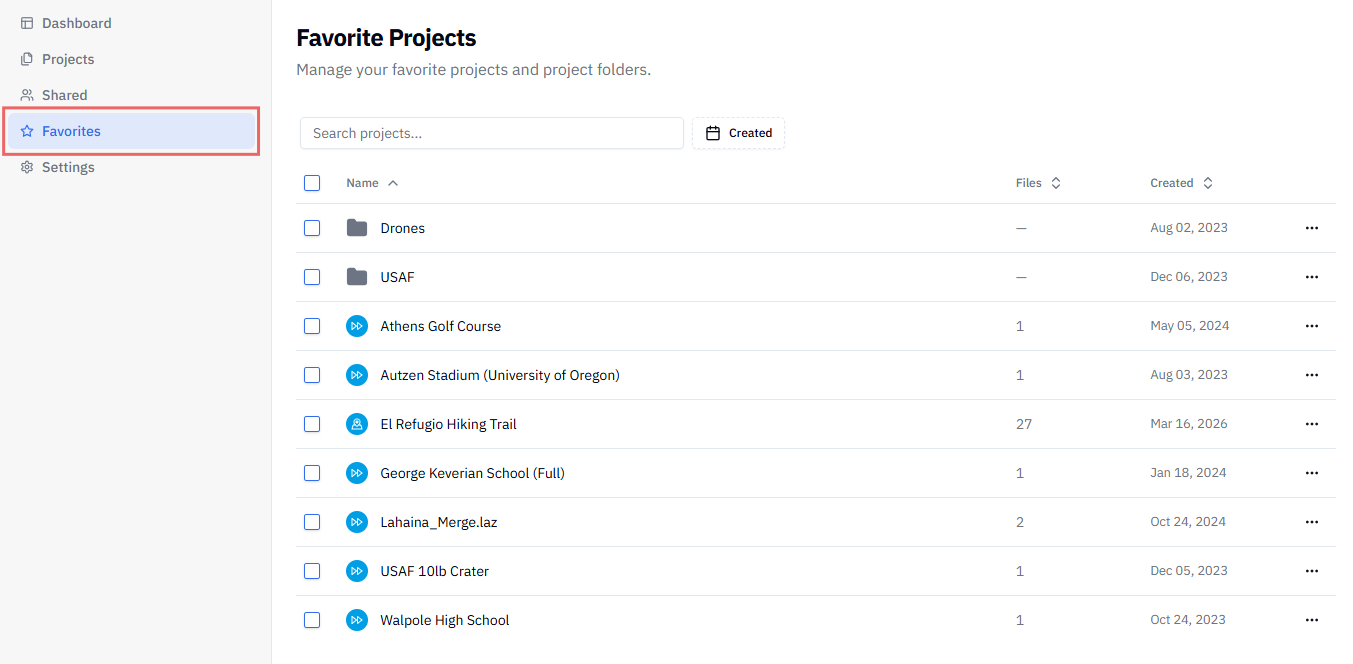
ℹ️ Note: Favorites are personal to your account. Favoriting a Project does not affect how it appears for any other user — teammates and collaborators each manage their own Favorites independently.