How to delete a Project, file, or folder
🕐 Read time: 3 min
Written By Clark Yuan
Last updated 3 months ago
Overview
You can delete Projects, folders, and individual files from Stitch3D at any time. All deletions require a confirmation step before anything is removed. Read the warnings below carefully before proceeding; deletion in Stitch3D is permanent.
⚠️ Deletion is permanent. Stitch3D does not have a trash or restore function. Once a Project, folder, or file is deleted, it cannot be recovered. Make sure you have downloaded or backed up anything you need before confirming a deletion.
⚠️ Deleting a folder deletes everything inside it. All Projects and files contained within the folder are permanently removed along with the folder itself.
How to delete a Project
There are two ways to delete a Project.
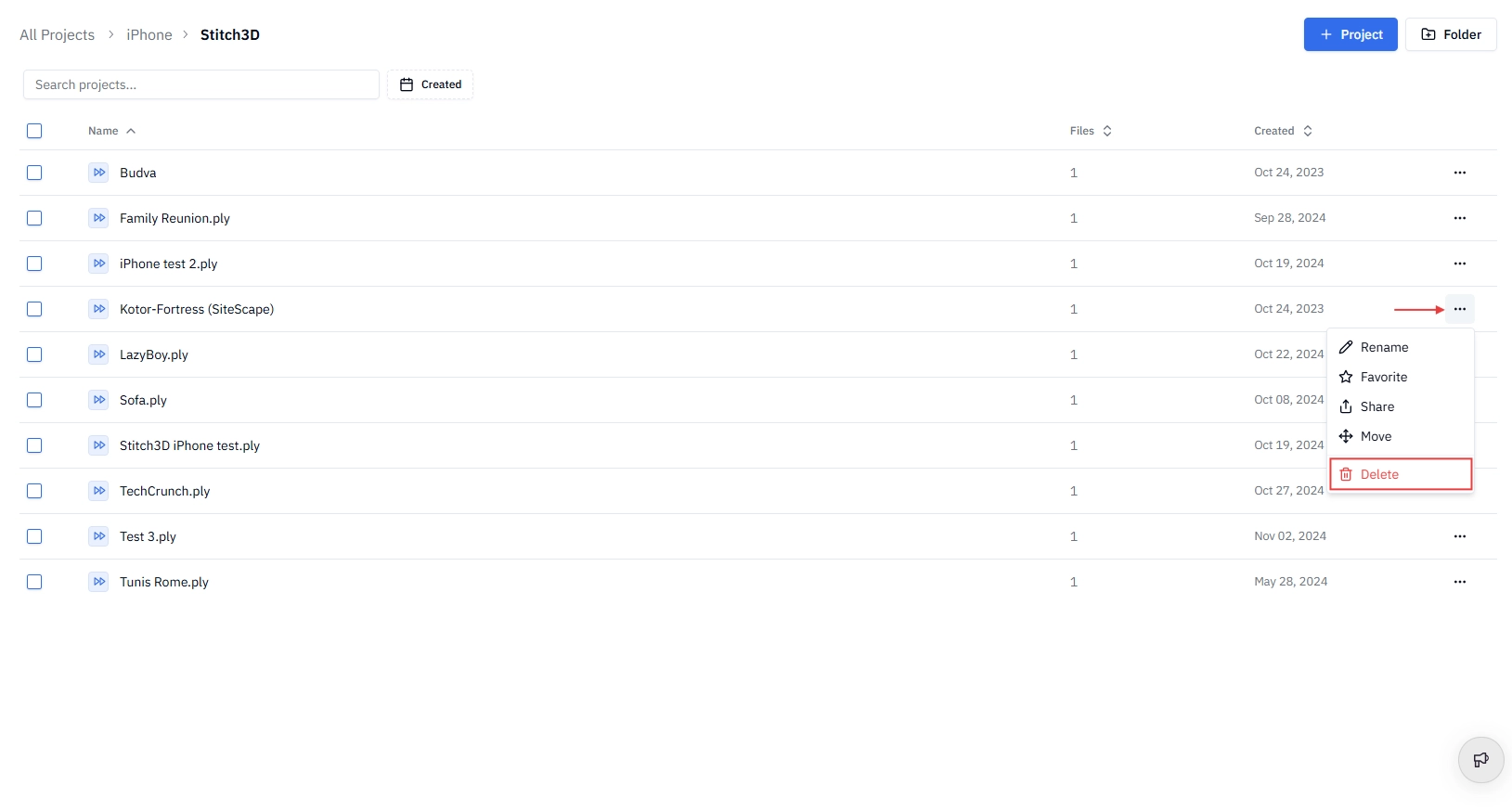
Method 1 — From the Projects page
Go to the Projects page from the Navigation Panel or into the folder where the Project is located.
Locate the Project you want to delete.
Click the ⋯ (three dot) menu on the right side of the Project row.
Click the red Delete option.
A confirmation dialog appears. Click the red Delete button to confirm, or Cancel to go back.
Method 2 — From inside the Project
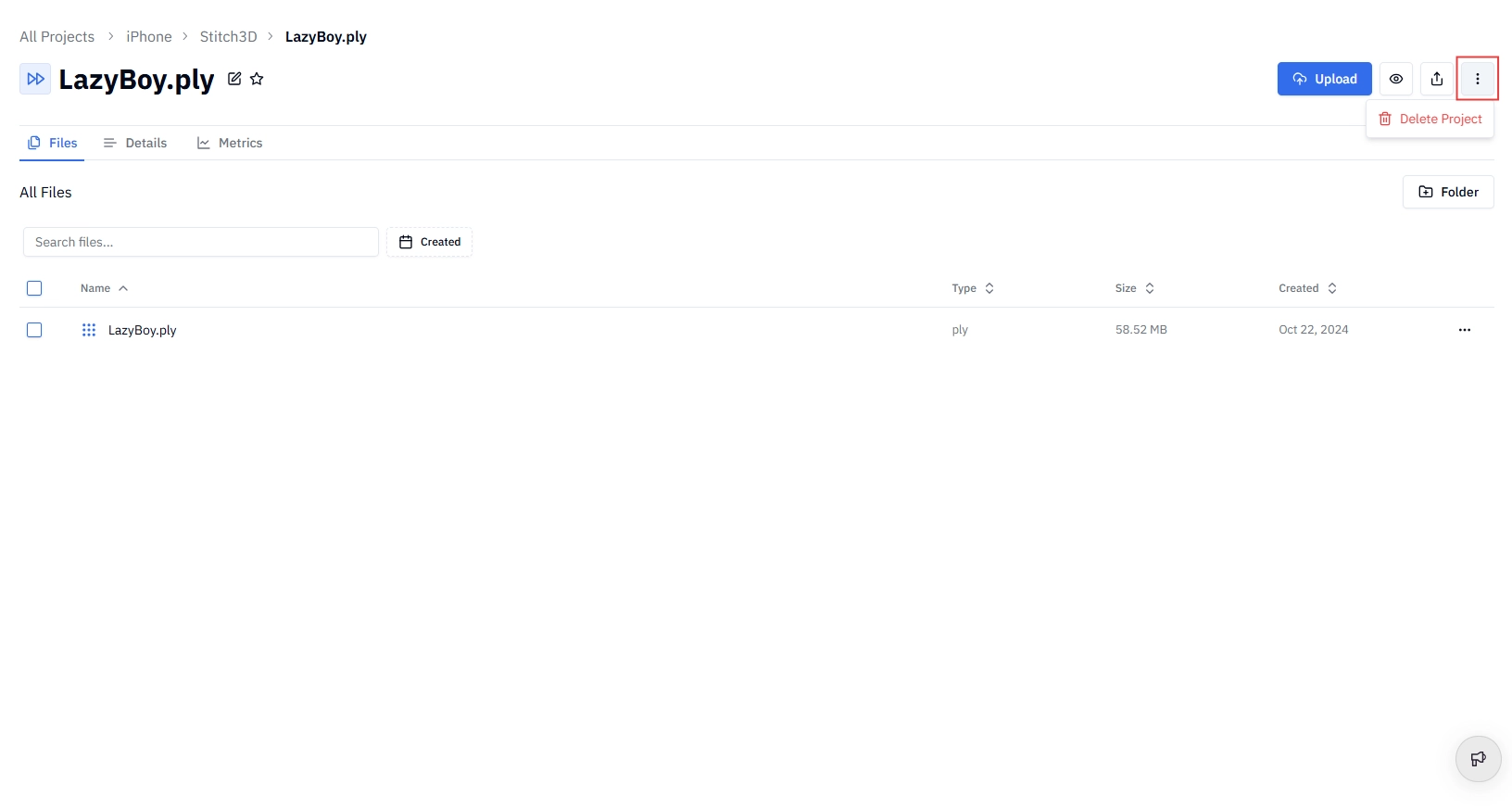
Open the Project you want to delete.
Click the ⋮ (vertical three dot) menu at the top of the page, next to the Share button.
Click Delete Project.
A confirmation dialog appears. Click the red Delete button to confirm, or Cancel to go back.
How to delete a folder
Go to the Projects page from the Navigation Panel.
Locate the folder you want to delete.
Click the ⋯ (three dot) menu on the right side of the folder row.
Click the red Delete option.
A confirmation dialog appears. Click the red Delete button to confirm, or Cancel to go back.
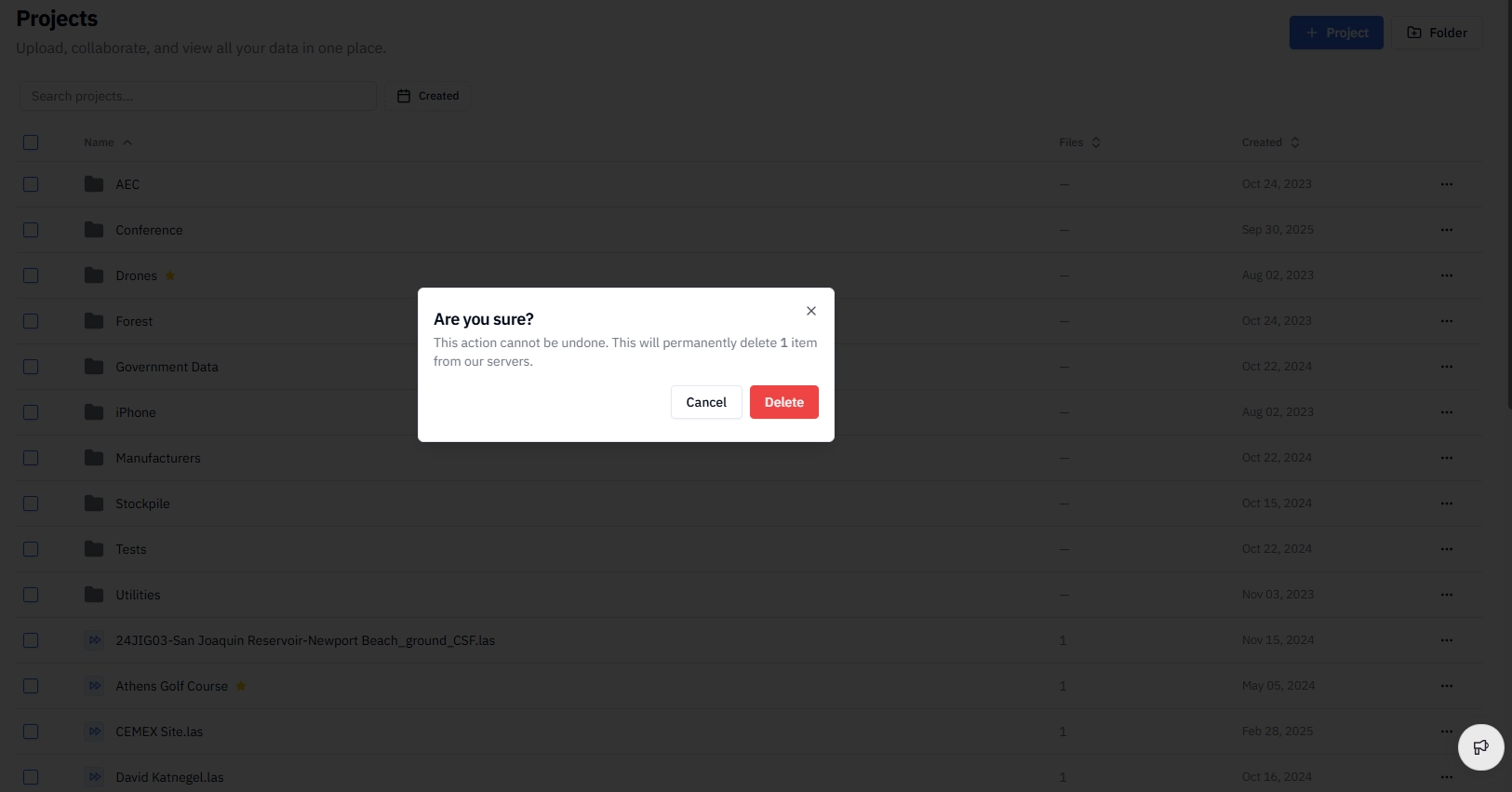
⚠️ Deleting a folder permanently deletes all Projects and files inside it. Review the contents of the folder before confirming. This action cannot be undone.
How to delete a file
There are two ways to delete an individual file from a Project.
Method 1 — From the Project page
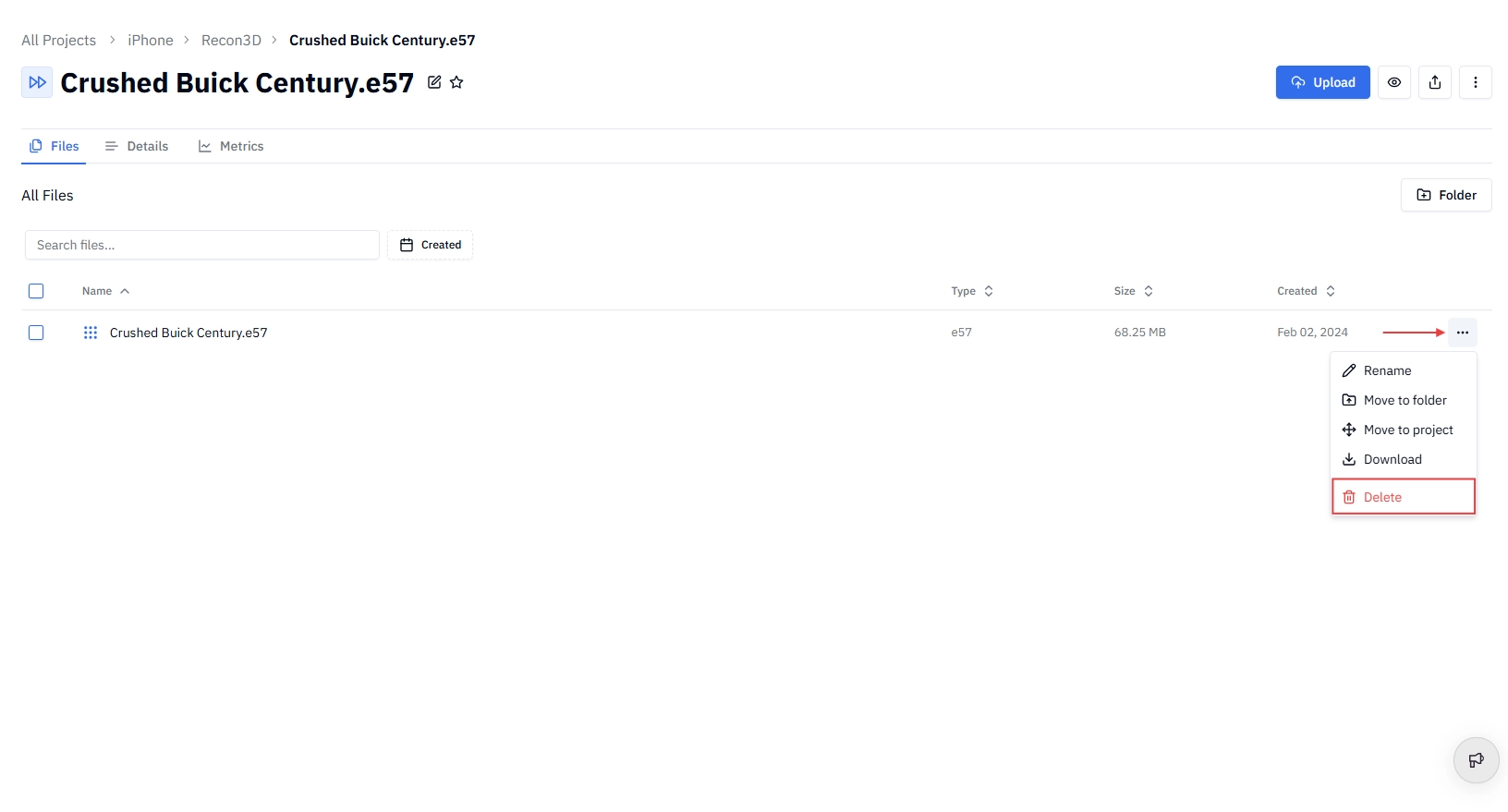
Open the Project containing the file you want to delete.
Locate the file in the Project file list.
Click the ⋯ (three dot) menu at the far right of the file row.
Click the red Delete option.
Confirm the deletion in the dialog that appears.
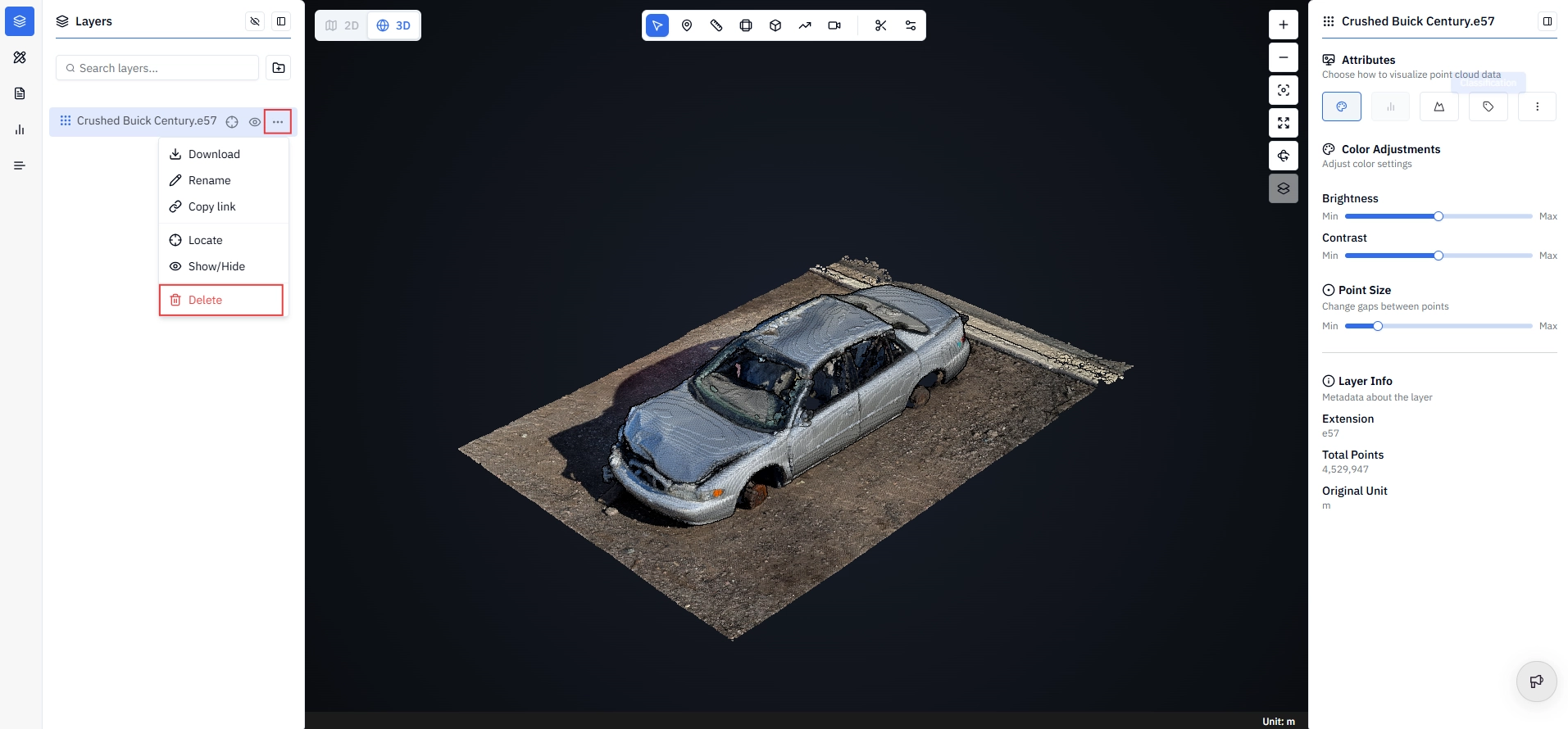
Method 2 — From the Viewer
Open the Project and enter the Viewer.
In the Layers Panel on the left, hover over the file you want to delete.
Click the ⋯ (three dot) menu that appears.
Select Delete.
Confirm the deletion in the dialog that appears.
Frequently asked questions
Can I recover a deleted file? No. Stitch3D does not have a trash or restore function. Once confirmed, deletions are permanent. Download any files you need before deleting them.
What happens to shared links when I delete a Project or file? Any active public links pointing to a deleted Project or file will immediately become inactive. Anyone who opens the link will see a "no longer available" message.
Can I delete a Project that has been shared with other users? Only the Project owner can delete a Project. If you have Editor access to a Project that belongs to someone else, you will not see the Delete option.
Related articles
How to rename a Project, file, or folder