How to create a Project
🕐 Read time: 3 min
Written By Clark Yuan
Last updated 3 months ago
Overview
Projects are the containers for your spatial data in Stitch3D. Each Project holds your uploaded files, annotations, measurements, and shared access settings in one place.
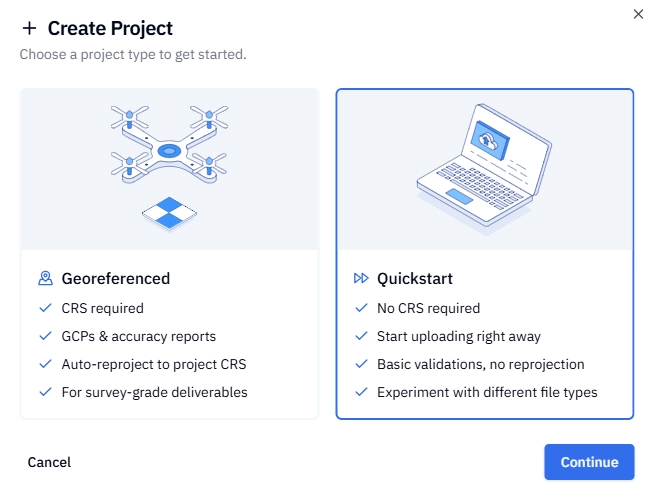
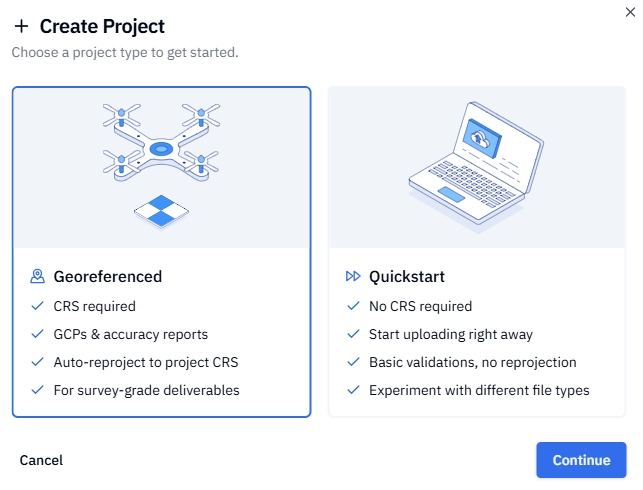
When you create a new Project, you'll choose between two options — Quickstart or Georeferenced — and that choice determines how your files are processed and displayed in the viewer.
💡 Tip: Not sure which Project type to use? Read the comparison below before you start. The Project type cannot be changed after creation.
Quickstart vs. Georeferenced — which should I choose?
ℹ️ Note: If your data is non-georeferenced or uses a local coordinate system, Quickstart is your only option.
Option A — Create a Quickstart Project
Log in to your Stitch3D account.
Click the + Project button from your Dashboard or Projects page.
Select Quickstart when prompted to choose a Project type. Click Continue.
Enter a Project name. You can update this later in your project settings.
Click Create Project.
✅ Your Project is ready. You can begin uploading files immediately.
Option B — Create a Georeferenced Project
A Georeferenced Project requires two setup steps before you can upload: setting a location and defining a Coordinate Reference System (CRS). This ensures every file you upload is automatically validated and reprojected into a consistent CRS so your data is always spatially accurate in the viewer.
Step 1 — Name your Project and set a location
Log in to your Stitch3D account.
Click + Project from your Dashboard or Projects page.
Select Georeferenced when prompted to choose a Project type. Click Continue.
Enter a Project name. You can update this later in your project settings.
Set your Project location using one of three methods:
Search — type an address, city, state, or coordinates into the search box
Locate me — click the Locate me button next to the Project location search bar to automatically use your current location
Pan the map — drag the map manually to your project area
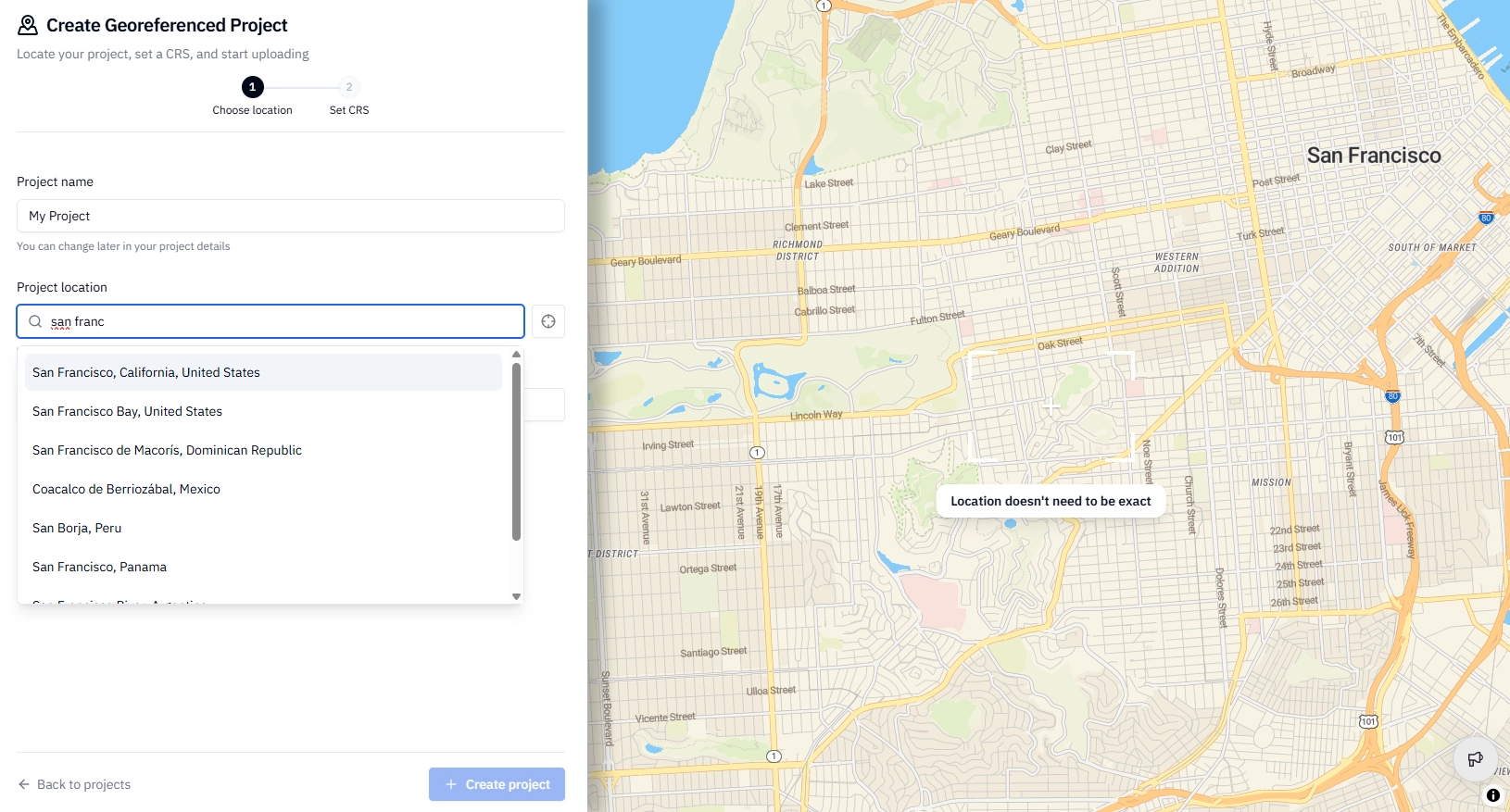
Click Set location & continue to proceed to Step 2.
💡 Tip: Your location doesn't need to be exact — Stitch3D uses it to recommend the most appropriate CRS for your area. You can refine it later if needed.
Step 2 — Set your Coordinate Reference System (CRS)
Both a horizontal and vertical CRS are required.
Review the CRS suggestions Stitch3D generates based on your Step 1 location. The best match is flagged as Most likely.
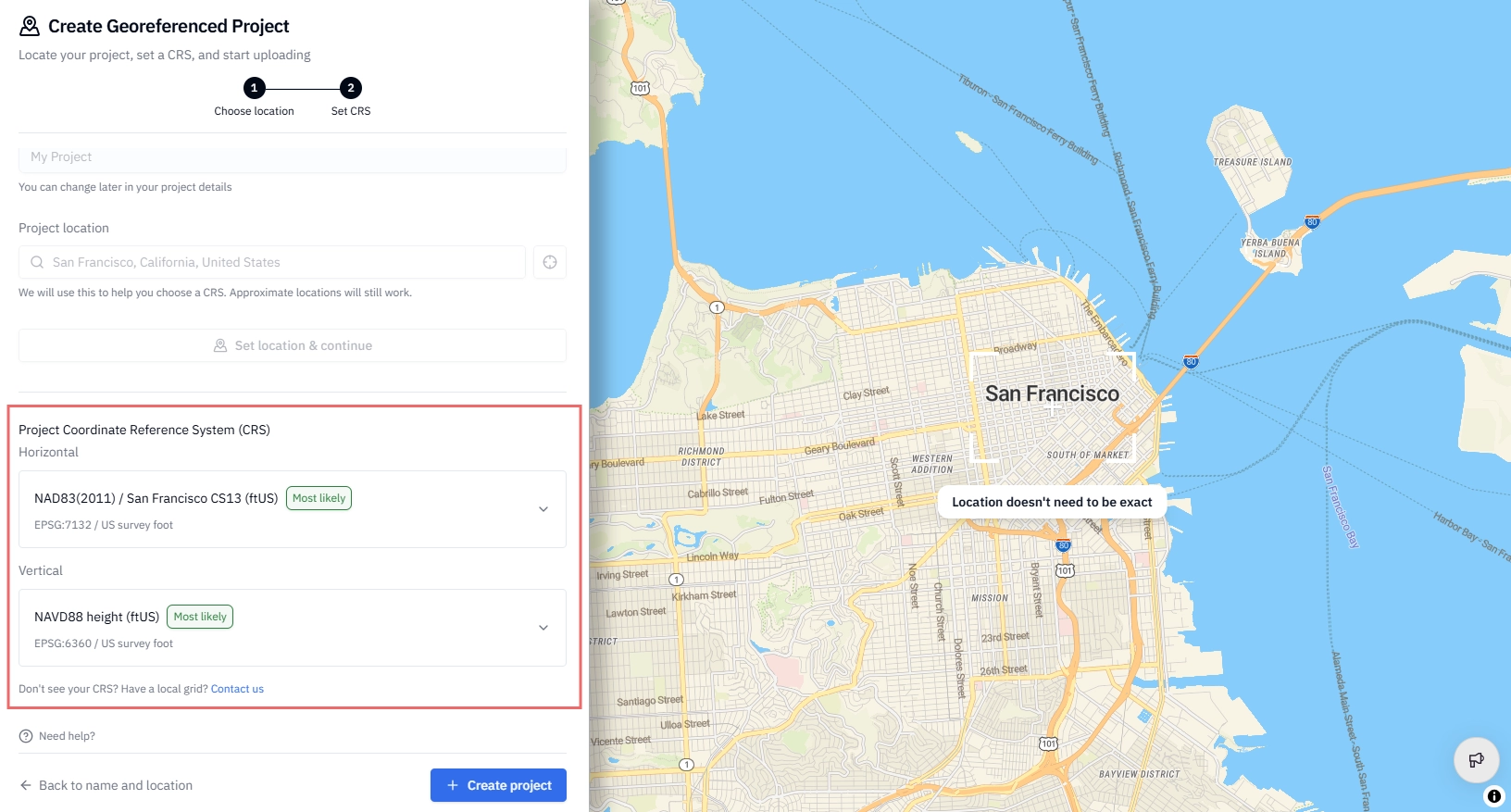
Use the search field to filter results by EPSG code or key word if you need to find a specific CRS.
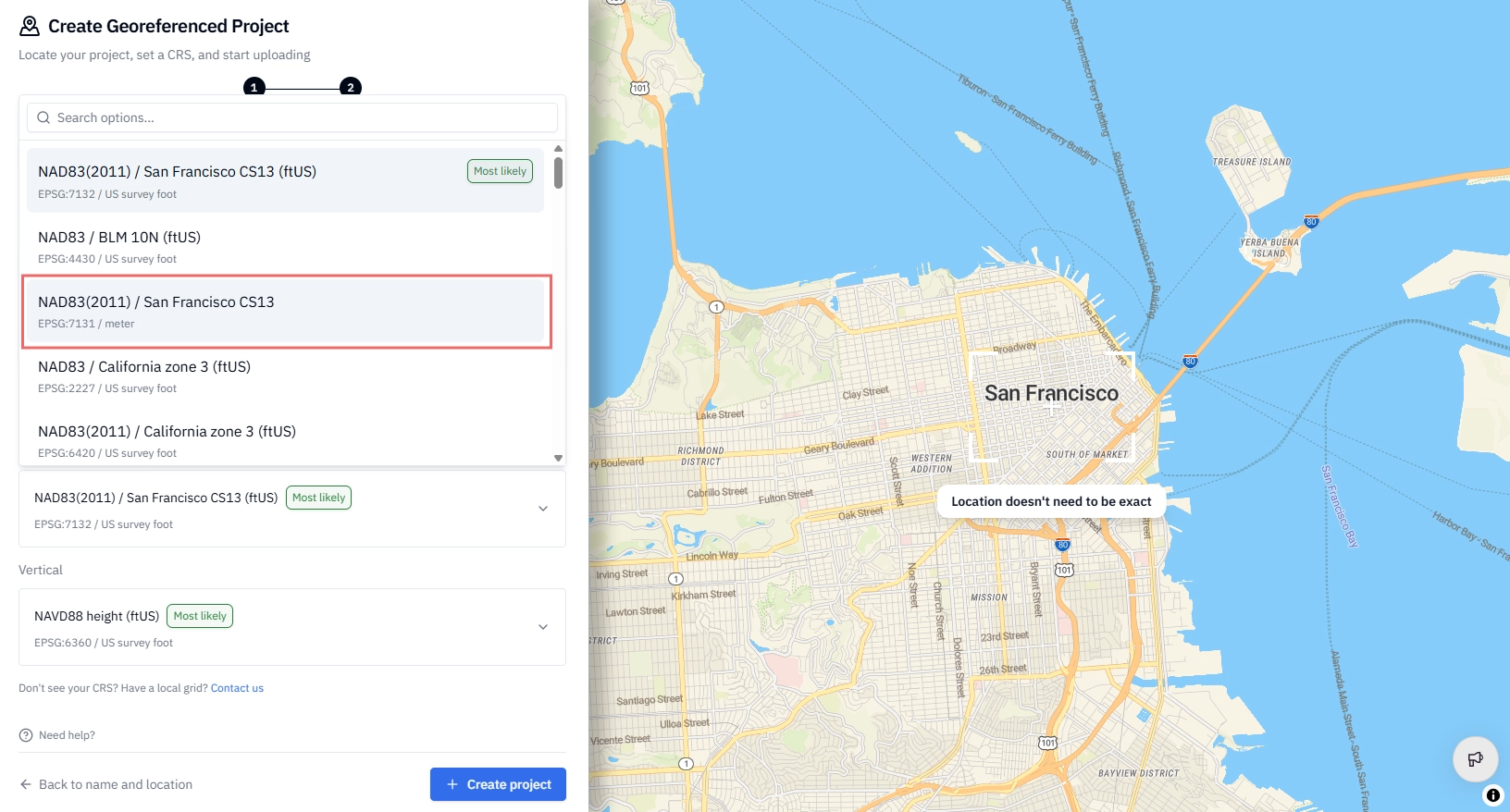
Select your horizontal CRS and your vertical CRS.
Click Create project to complete setup and begin uploading your data.
✅ Your Georeferenced Project is ready. Files uploaded to this Project will be automatically validated and reprojected into your selected CRS.
Important notes about CRS
ℹ️ EPSG codes only: Only EPSG-registered CRS are currently supported. Local or custom grid systems are not supported. You can look up EPSG codes at epsg.io.
ℹ️ Using a compound CRS? Stitch3D does not support compound (combined horizontal + vertical) CRS entries. Split your compound CRS into its individual components and enter each separately. For example, NAD83 / Michigan South + NAVD88 should be entered as NAD83 / Michigan South for the horizontal component and NAVD88 for the vertical component.
ℹ️ Not seeing the CRS you expect? Go back to Step 1 and confirm your Project location is set correctly — CRS recommendations are based on this. If the location is accurate and you're still not seeing the right CRS, contact our support team.
⚠️ CRS cannot be changed after creation. Once a CRS is set, it cannot be modified. This protects the data integrity of your Project. If you set the wrong CRS, delete the Project and start over.
Related articles
How to delete a Project, file, or folder