How to rename a Project, file, or folder
🕐 Read time: 2 min
Written By Clark Yuan
Last updated 3 months ago
Overview
You can rename any Project, file, or folder in Stitch3D at any time. Renaming only changes how something appears in your workspace; it does not affect the original file on your computer or change anything about how the data displays in the viewer.
How to rename a file or folder
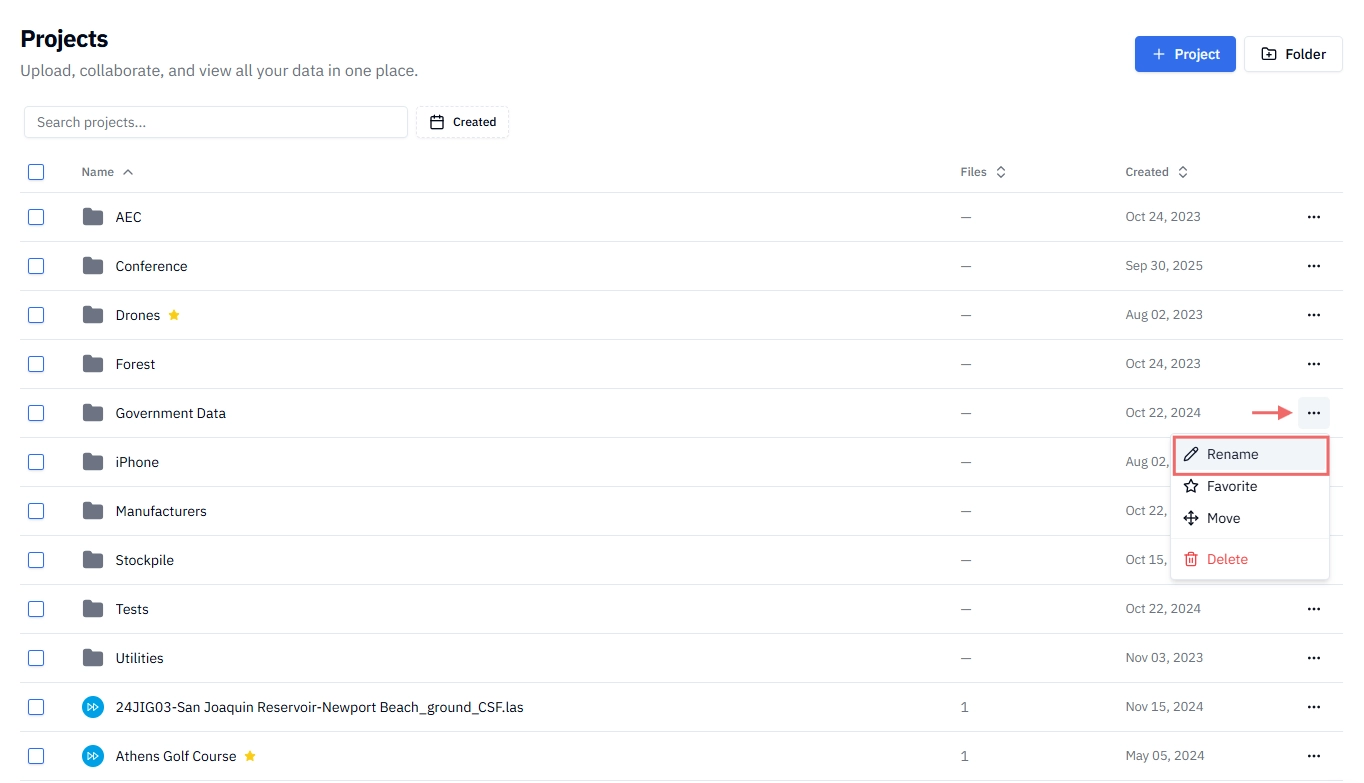
Go to your workspace and locate the file or folder you want to rename.
Hover over the name and click the ⋯ (three dots) icon on the far right of the row.
Select Rename from the menu.
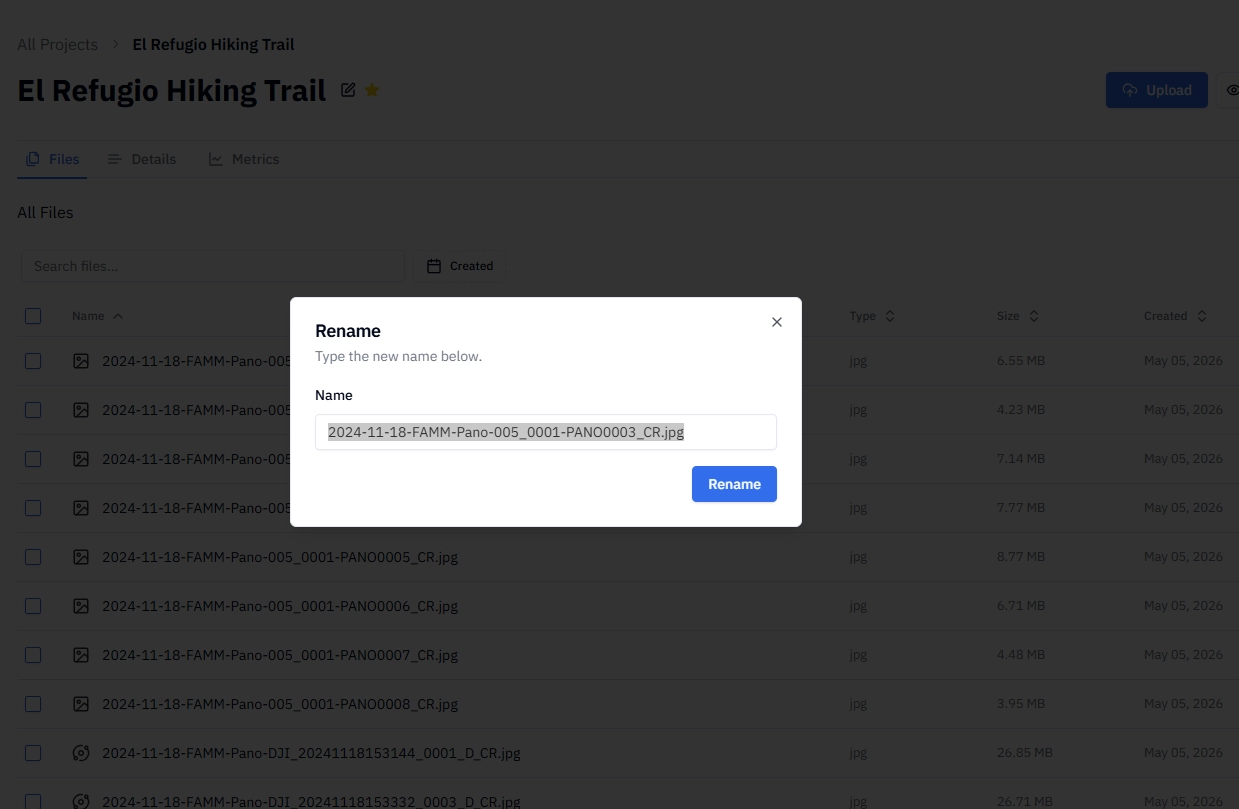
Type the new name.
Click Rename to confirm.
How to rename a Project
There are three ways to rename a Project.
Method 1 — From the Projects page
Hover over the Project name in your workspace.
Click the ⋯ (three dots) icon on the far right of the row.
Select Rename from the menu.
Type the new name and click Rename.
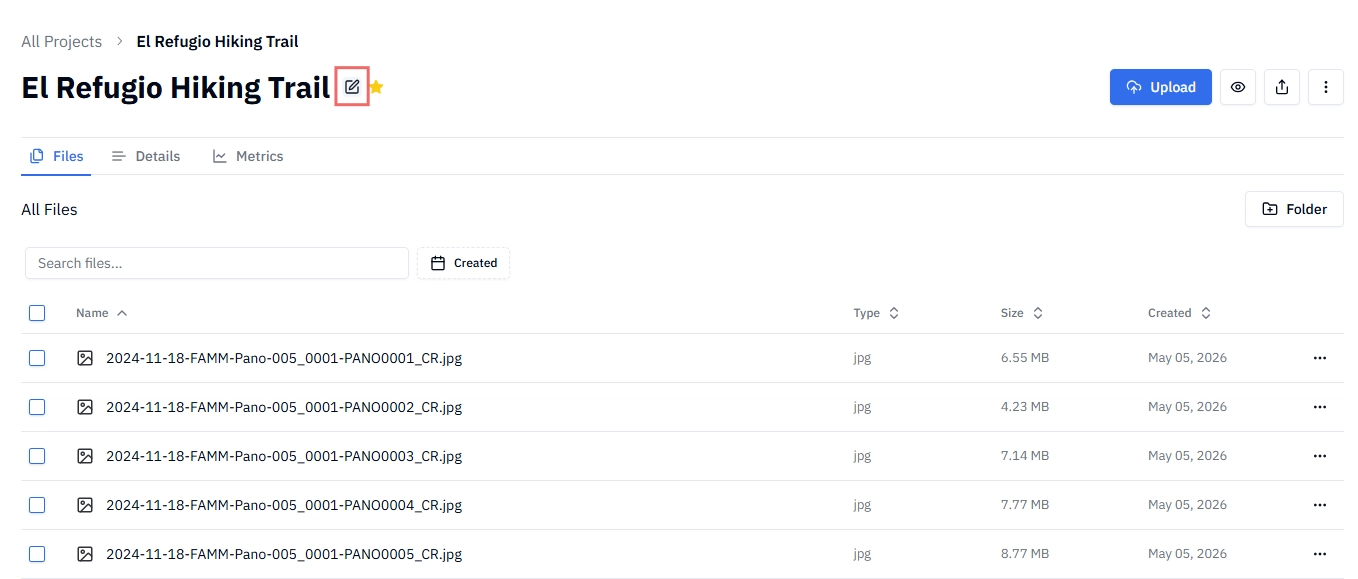
Method 2 — From the Project header
Open the Project.
Click the ✏️ pencil icon next to the Project name at the top of the page (just to the right of the ⭐ star icon).
Type the new name and press Rename to confirm.
Method 3 — From inside the viewer
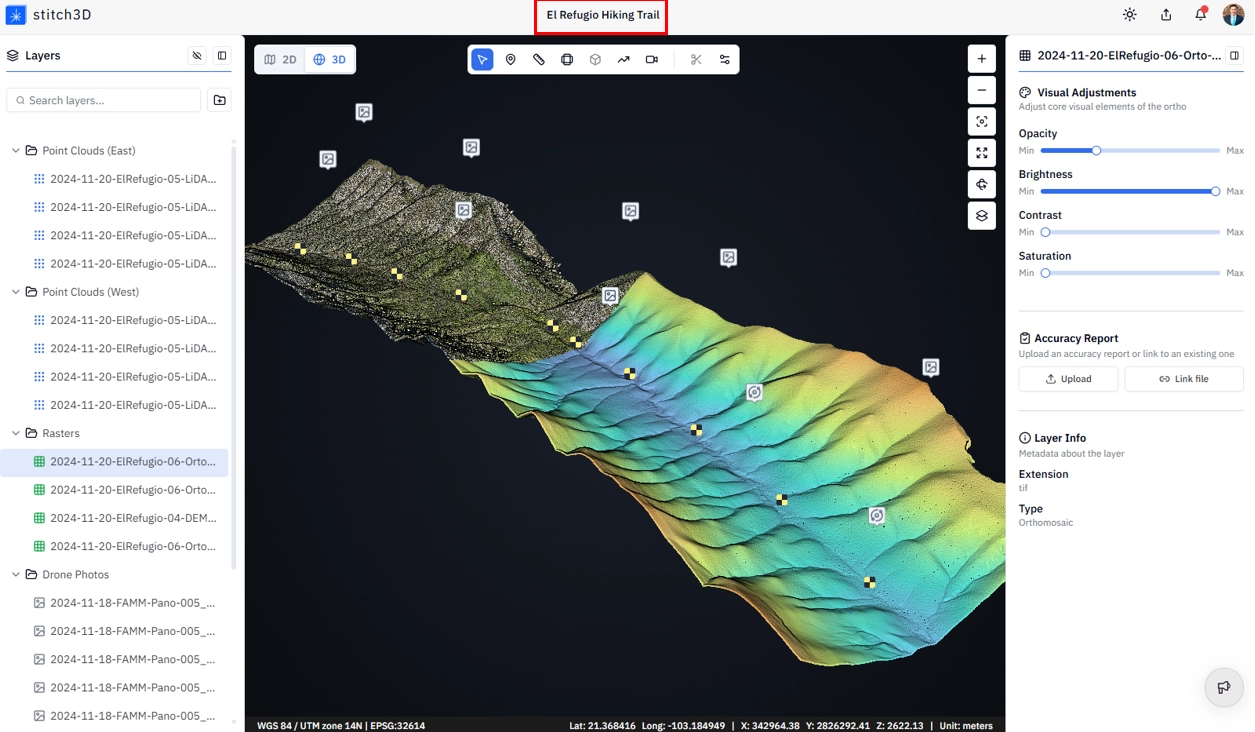
Open the Project and enter the viewer.
Click directly on the Project name at the top of the viewer.
Type the new name and press Rename to confirm.
Tips for naming Projects, files, and folders
💡 Tip: Consistent naming across your workspace makes files easier to find and sort. See Managing Projects, folders, and files for recommended naming patterns and conventions.
ℹ️ Note: Avoid special characters in names — characters like # % & * { } \ / : < > ? |
can cause issues. Use hyphens (-) or underscores (_) instead of spaces.
Related articles
Managing Projects, folders, and files