Finding your way around Stitch3D
🕐 Read time: 5 min
Written By Clark Yuan
Last updated 3 months ago
Overview
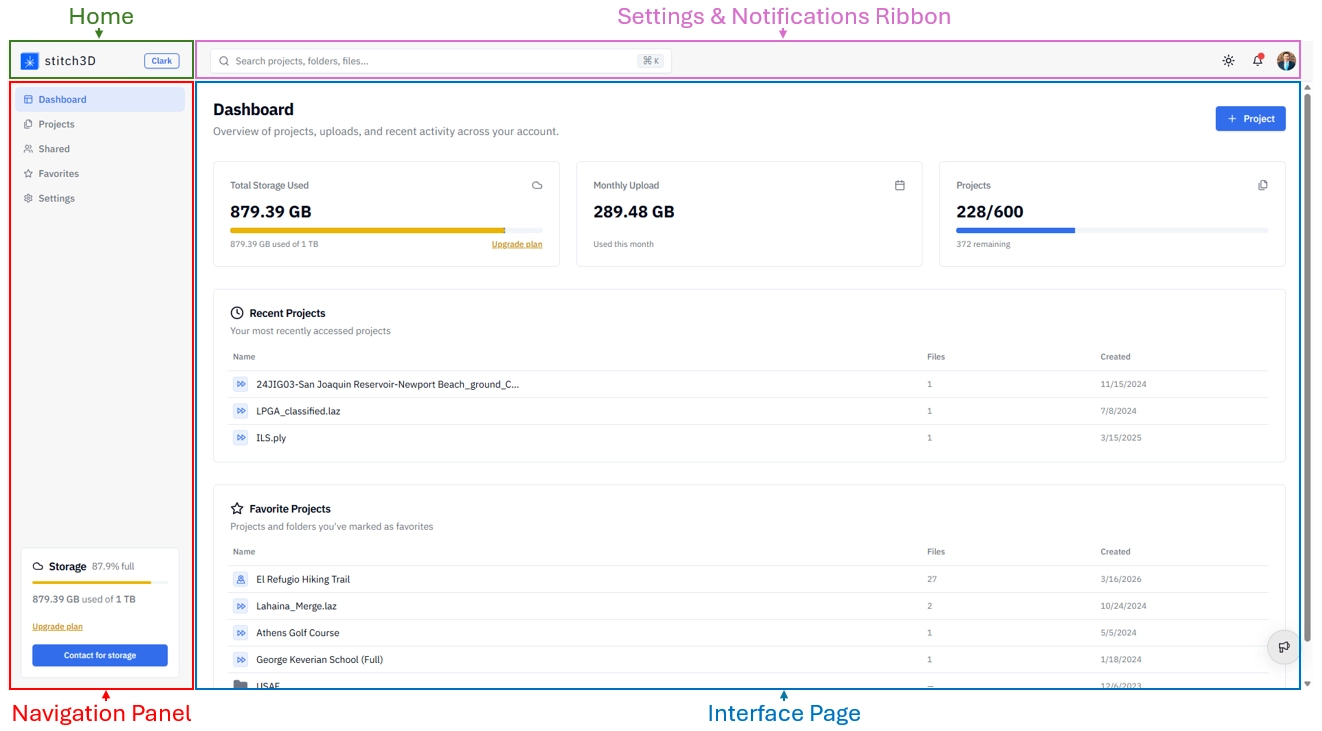
When you log in to Stitch3D for the first time, you land on the Dashboard — the home base for your entire account. This article walks through every page and navigation element in the platform so you know exactly where to go for any task, from uploading a Project to managing your public links to updating your subscription.
The navigation panel
The Navigation Panel runs along the left side of every page. It contains the five main sections of the platform and never changes regardless of which page you are on.
At the bottom of the Navigation Panel, the Storage indicator shows how much storage you have used, displayed as a percentage and as a raw figure (e.g. 42 GB out of 1 TB). Clicking the upgrade prompt here is a direct path to your plan options.
Dashboard
The Dashboard is your account homepage. It gives you a quick snapshot of where things stand:
Total Storage Used — how much of your plan's storage is currently in use
Monthly Upload — the total file size uploaded this month (not the number of files)
Projects — the total number of Projects in your account
Below the snapshot, the Dashboard displays two shortlists for fast access:
Recent Projects — up to five of your most recently accessed Projects
Favorite Projects — up to five of your starred Projects or folders
You can create a new Project directly from the Dashboard using the Create (+) Project button.
💡 Tip: The Dashboard is the fastest way to jump back into an active Project. If you are working on several Projects in rotation, favoriting them ensures they always appear here rather than requiring you to search.
Projects
The Projects page is where all your Projects and folders live. Everything you create in Stitch3D appears here.
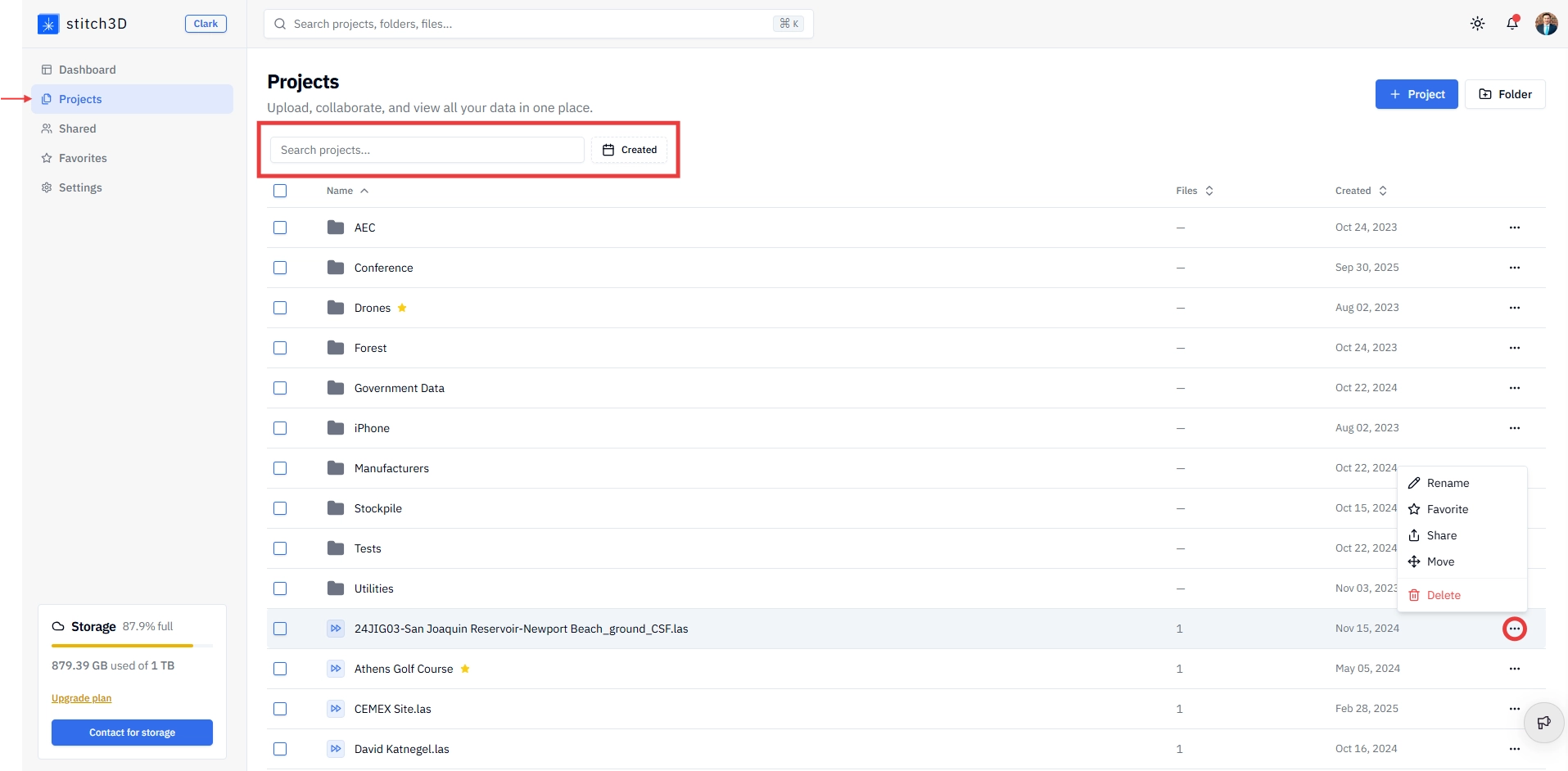
What you can do from the Projects page:
Search for a Project or folder by name using the search bar
Filter Projects by date
Sort by name, file count, or created date
Create new Projects and folders
Move Projects into folders
Rename, favorite, share, and delete Projects and folders
ℹ️ Note: You can also create a new Project from the Dashboard. Both paths lead to the same Project creation flow.
Shared
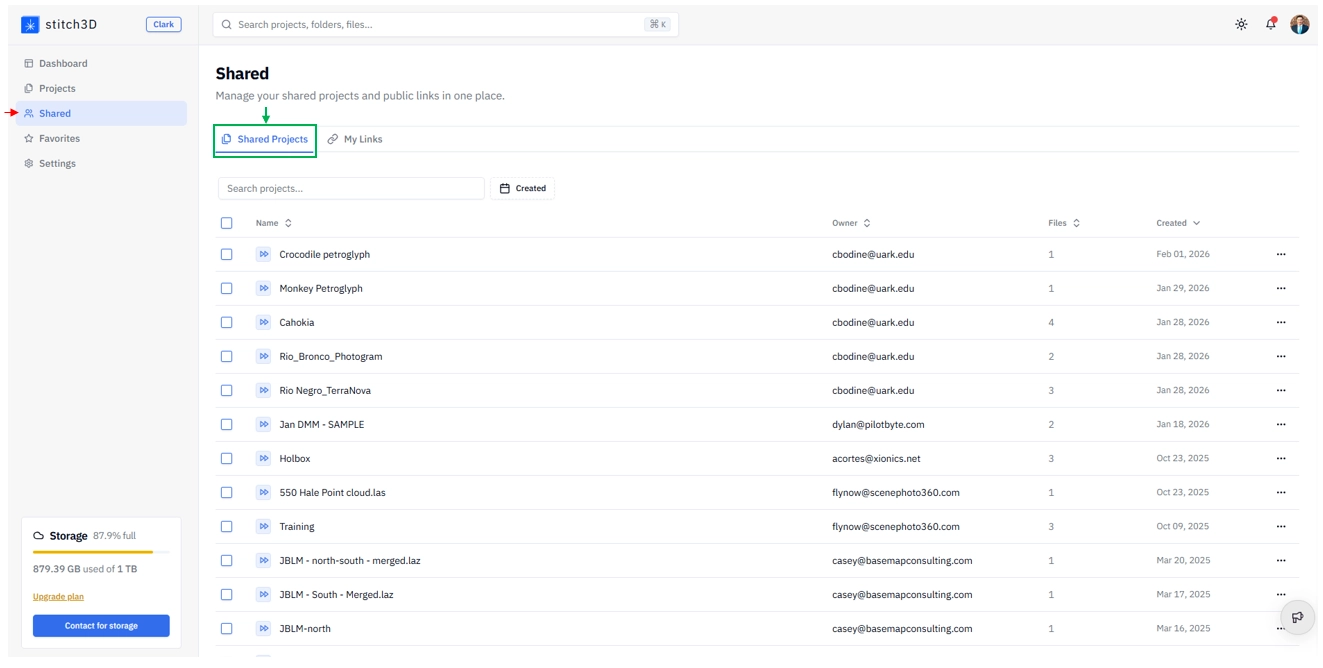
The Shared page has two tabs.
Shared Projects
This tab collects all the Projects that other Stitch3D users have shared with you via email invite. For each Project, you can see:
Project name
Owner — who shared it with you
Files — the number of files in the Project
Created — the date it was shared
My Links
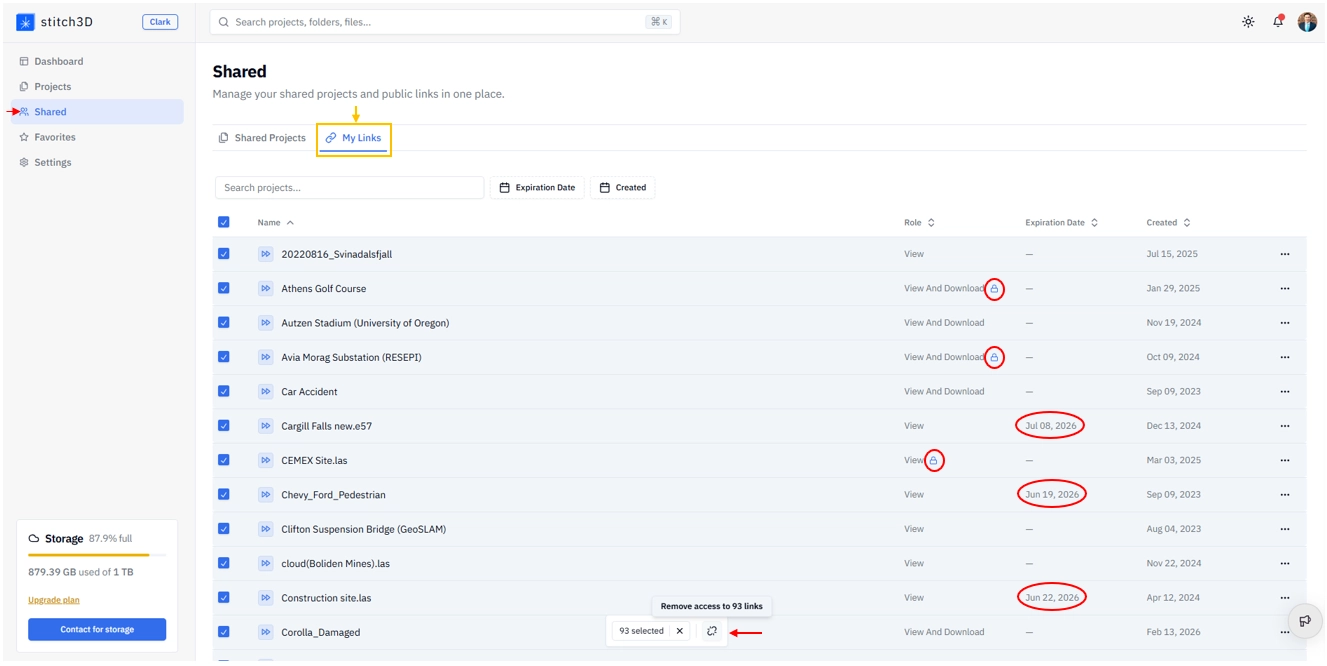
This tab shows all of your currently active public links (i.e., every public link you have generated from the Share dialog that is still live). For each link, you can see:
Name — the Project the link points to
Role — the permission level (View or View and Download), with an indicator if the link is password protected
Expiration date — when the link expires, if one has been set
Created date — when the link was generated
From this tab you can bulk-edit or remove access across multiple links at once:
Check the checkbox next to each link you want to manage, or use the select-all checkbox to select every link at once.
Use the action dialog that appears to remove access or edit link settings such as expiration date and password protection.
To remove all public link access at once, select all and click Remove access to links.
💡 Tip: The My Links tab is the fastest way to audit your active public links. If a Project is no longer current or a delivery window has passed, review this page to deactivate any links that should no longer be accessible.
You can use the search bar at the top of the Shared page to search across both tabs.
Favorites
The Favorites page displays every Project and folder you have starred. Anything you have favorited appears here and also in your Dashboard (up to five items).
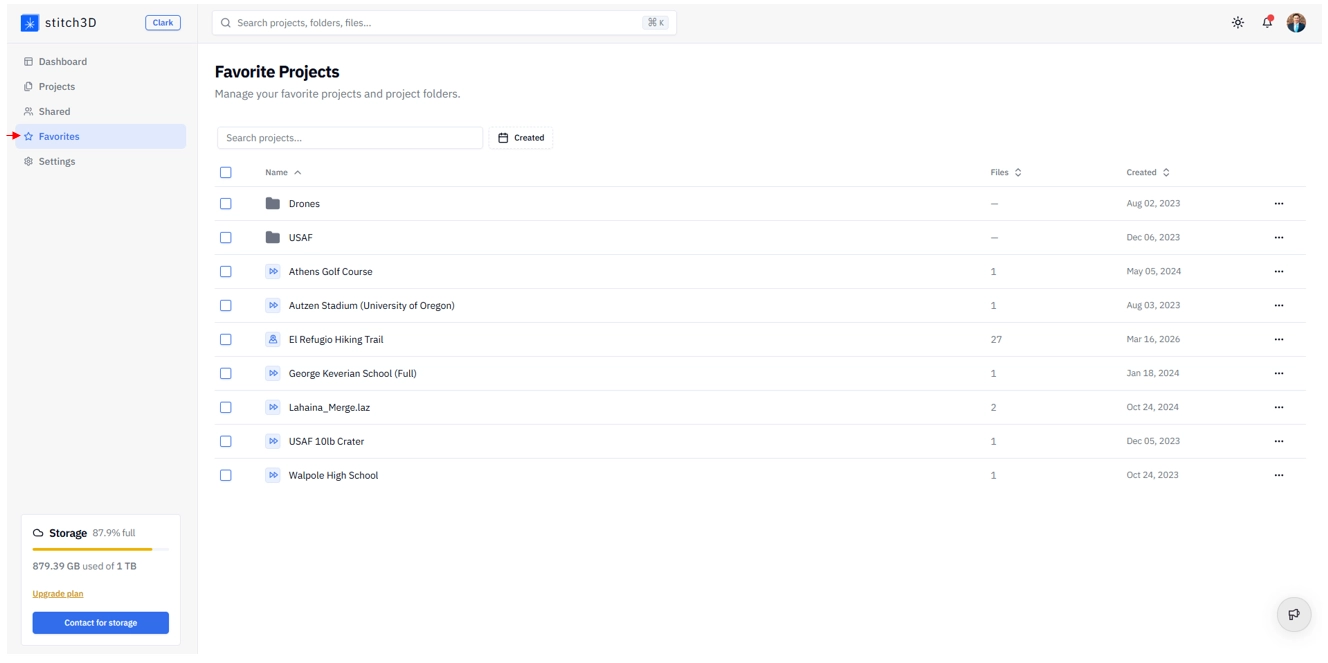
💡 Tip: Use Favorites to maintain a personal shortlist of your most active Projects. Since Favorites appear on the Dashboard, starring a Project is the fastest way to keep it one click away at all times.
For instructions on how to star a Project or folder, see How to favorite a Project or folder.
Settings
The Settings page has two tabs.
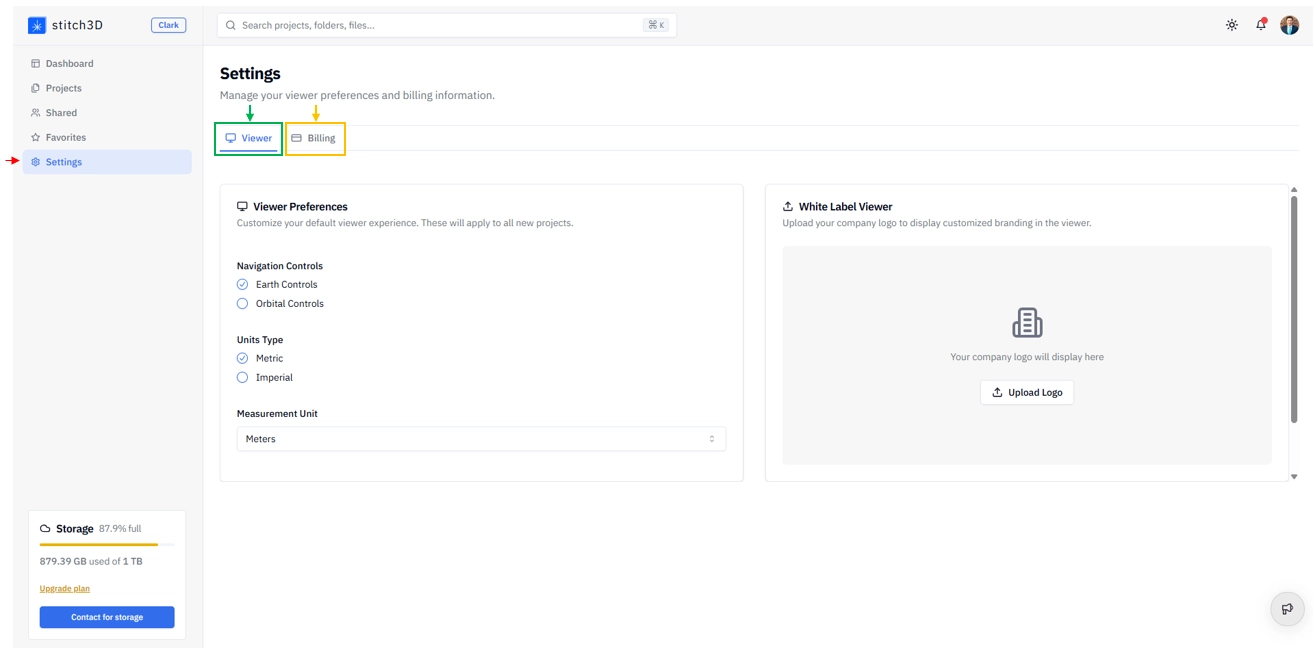
Viewer tab
The Viewer tab lets you set your default Viewer preferences:
Navigation controls — choose between Earth and Orbital camera modes
Unit type — choose between Metric and Imperial measurement systems
These preferences apply as your default each time you open the Viewer. You can also adjust them in real time from within the Viewer itself using the personal Viewer settings menu. See Stitch3D personal Viewer settings for details.
The Viewer tab is also where the White Label option lives for accounts where this feature is enabled.
Billing tab
The Billing tab is where you manage your subscription. Clicking Manage Subscription takes you to your Stripe account, where you can sign up, upgrade, or cancel your Stitch3D subscription. See How to change or cancel your Stitch3D subscription for a step-by-step guide.
The top ribbon
The ribbon that runs across the top of every page contains four elements, from left to right:
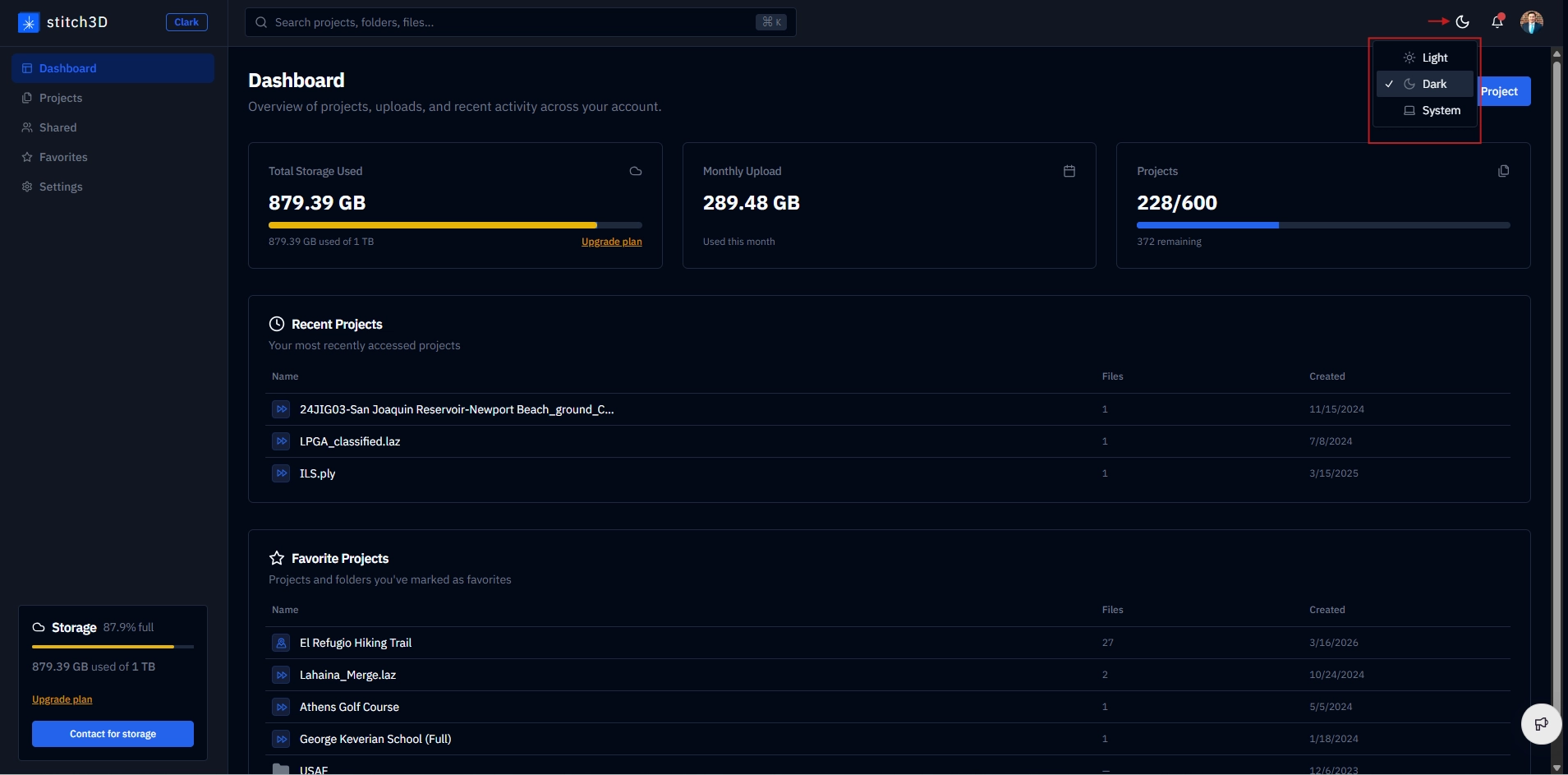
From the profile menu:
Manage Account — update your email, password, and account details.
Billing and Viewer Settings — alternative paths to the Settings page
Plans — view current Stitch3D subscription options and choose a plan
Sign Out — log out of your account
Other controls
Report a bug — a button in the bottom right corner of every page. Use this to report any unexpected behavior or errors directly to the Stitch3D team. See How to report a bug for details on what to include in your report.
Storage indicator — in the bottom left corner of the Navigation Panel, showing your current storage usage and a quick path to upgrade your plan.
Related articles
How to select your display setting