Create a Height Profile
🕐 Read time: 2 min
Written By Clark Yuan
Last updated 4 months ago
Overview
Use the Height Profile tool to analyze elevation changes along a custom path through your point cloud. Height profiles can be used to inspect terrain, stockpiles, road grades, trenches, and other elevation-based features. This tool is only available in 3D.
Height Profile steps
In the toolbar, click Height Profile. The tool is located next to the Volume tool.
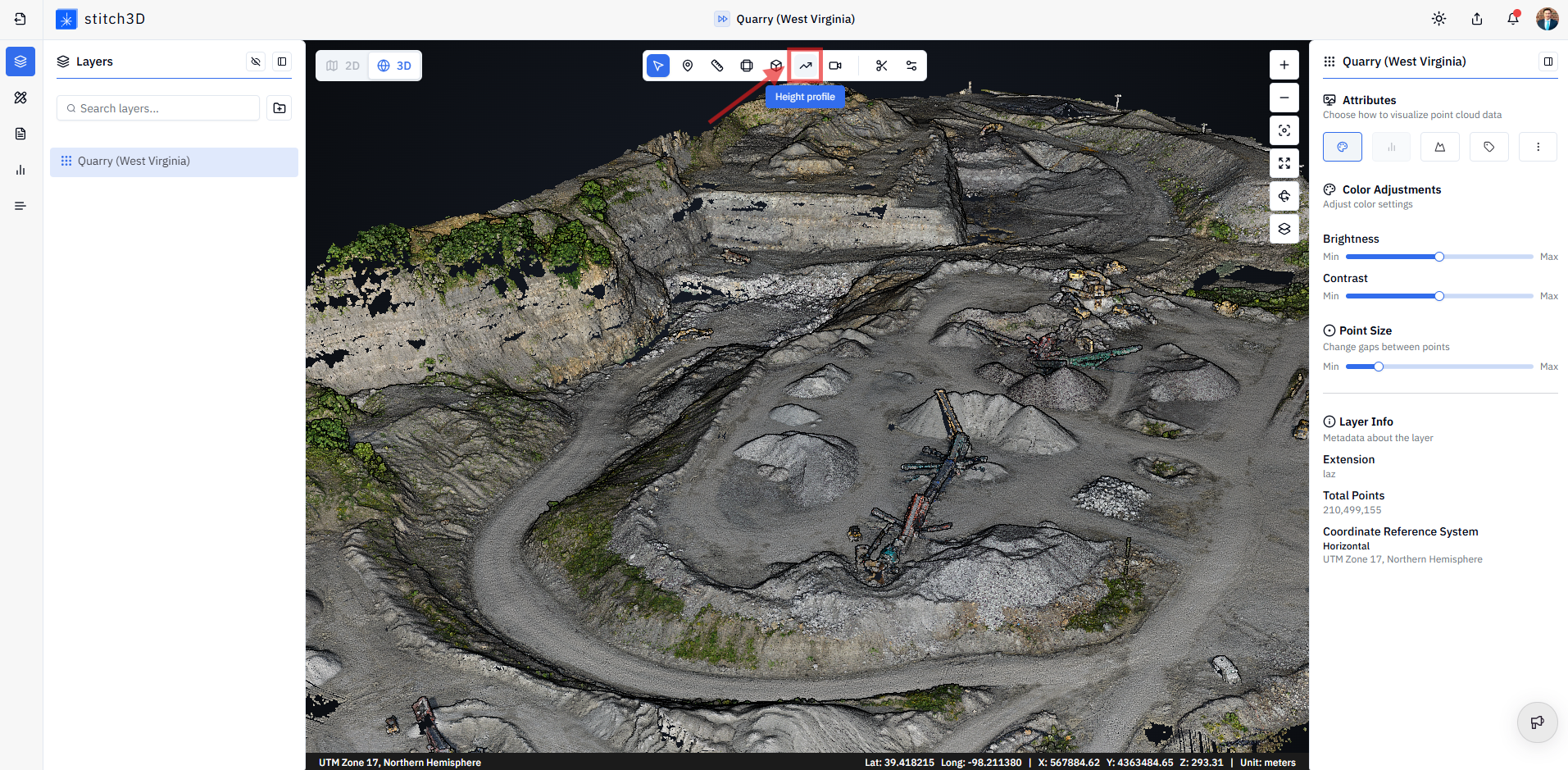
Left-click in the viewer to place profile vertices.
Continue left-clicking to add as many vertices as needed along your desired path.
Right-click to finish the profile.
✅ Confirmation: Once the profile is created, the Height Profile panel will open on the right side of the viewer.
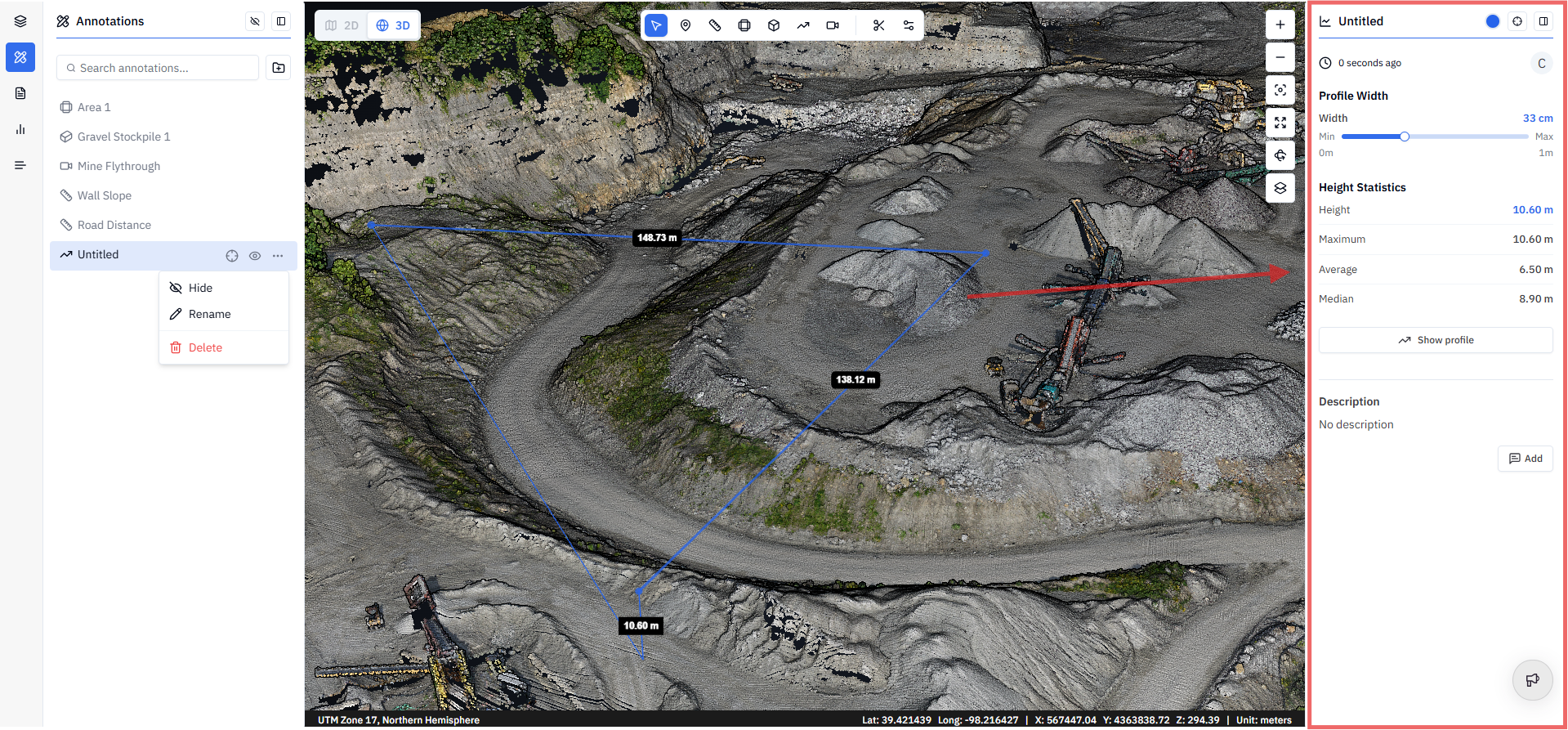
Adjust Profile Settings
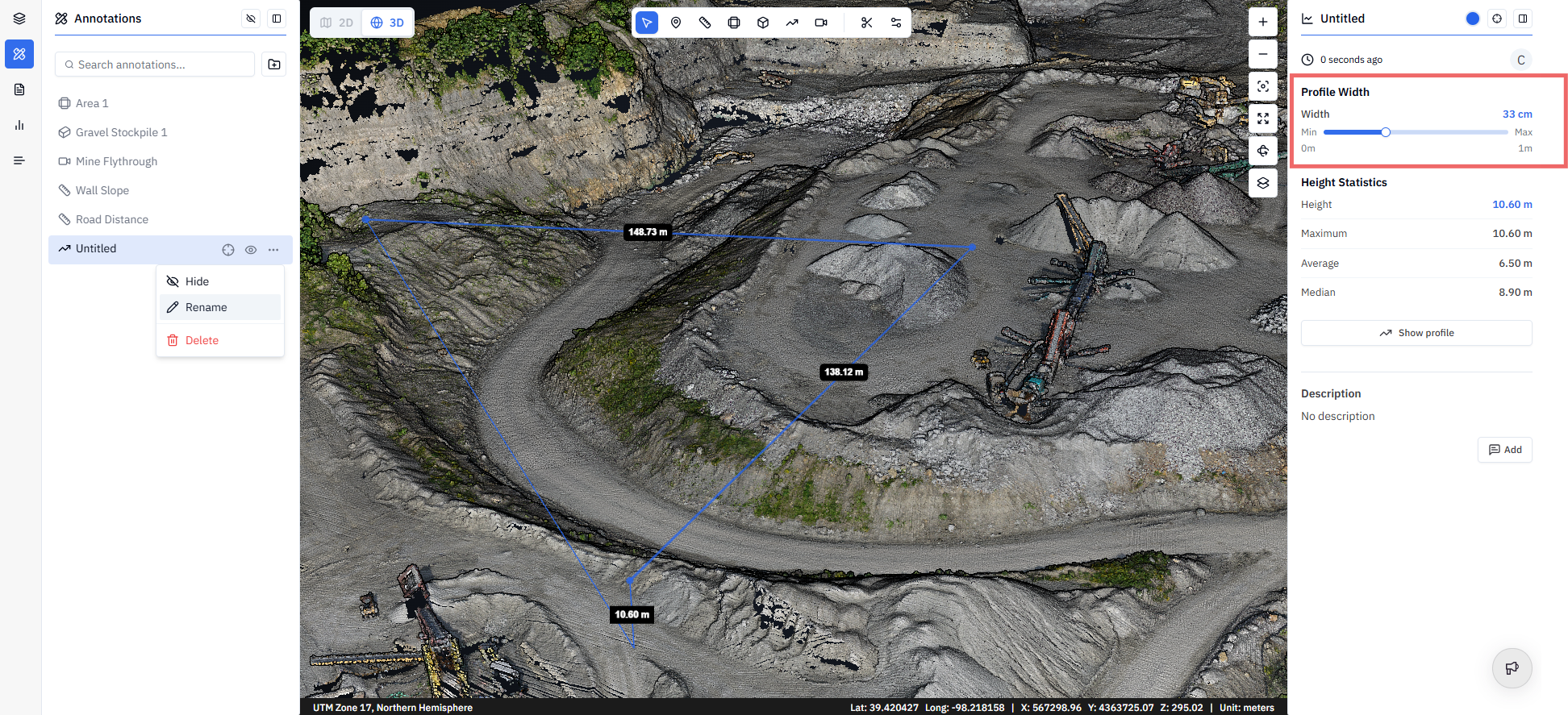
Within the Height Profile panel, you can:
Adjust the Profile Width between 0 and 1 meter
View elevation statistics, including:
Maximum Height
Average Height
Median Height
View the Height Profile
Click Show Profile to open the profile chart.
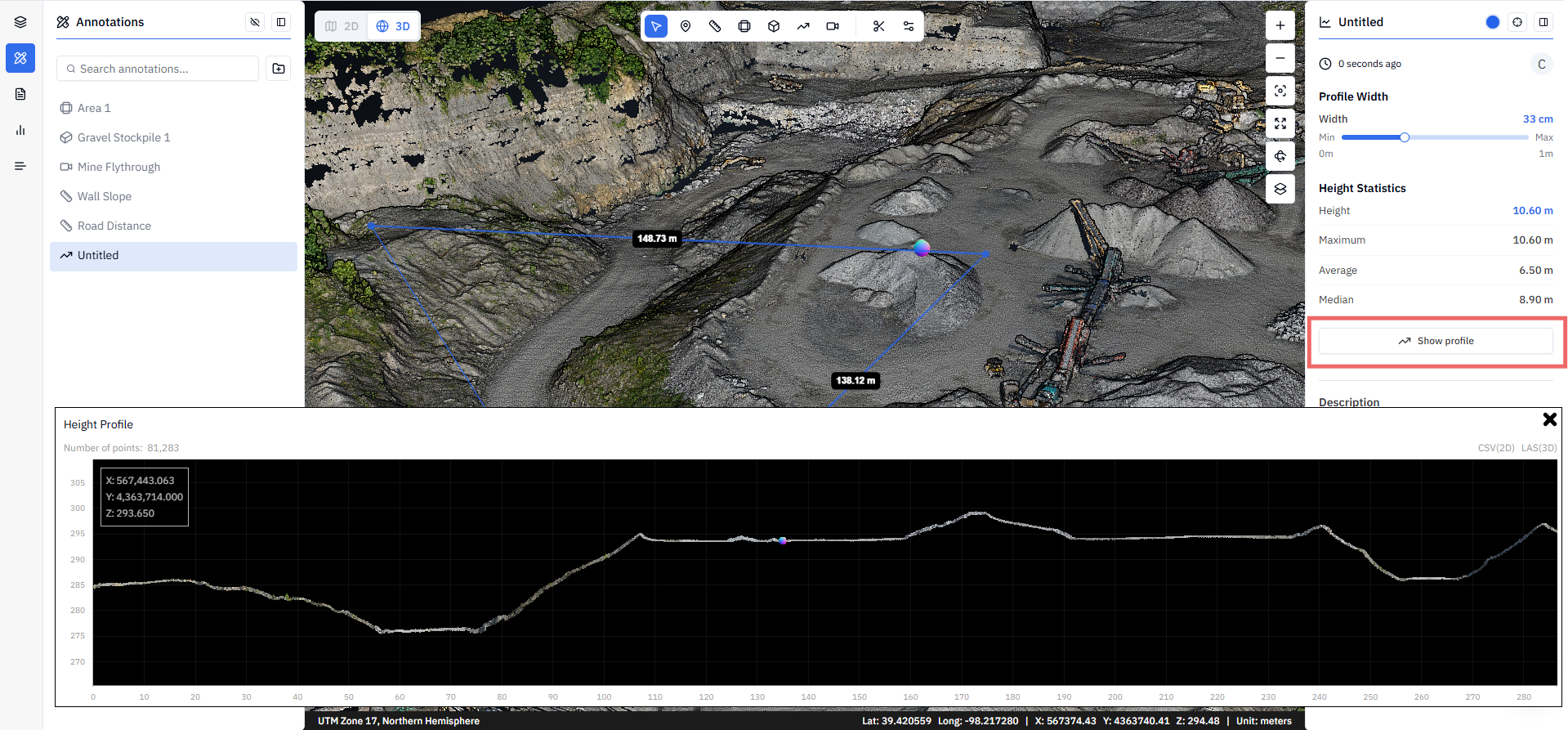
The profile display includes:
XYZ CRS information
Total number of points
A graph of the profile
The graph displays:
X-axis: Total distance along the profile
Y-axis: Elevation (Z value) in metres or feet, depending on your project settings
💡 Tip: To see the elevation of a specific point, hover your cursor over any area of the Height Profile graph. The elevation location appears as a dot in the annotation.
Export a Height Profile
You can export the profile data in either of the following formats:
CSV – Export profile measurements and elevation values.
LAS – Export the profile as a separate point cloud file.
Related articles
Was this helpful?
Still need help? Ask the team