Add a Point to your Project
🕐 Read time: 4 min
Written By Clark Yuan
Last updated 3 months ago
Overview
Points are a type of annotation in Stitch3D that let you mark specific locations on your data directly in the viewer. You can use points to flag areas of interest, document incidents on a site, and collaborate with teammates through threaded comments — all linked to a precise coordinate in your point cloud or raster layer.
Points are one of five annotation types in Stitch3D. The others are Distance, Area, Volume, and Profile.
ℹ️ Note: Anyone with a shared link can view annotations. To create, edit, or comment on annotations, a user must have Editor access to the Project. See What are permission levels in Stitch3D? for details.
How to create a point
Open a Project and enter the viewer.
Click the Point icon in the annotation toolbar. The toolbar is centered at the top of the viewer, directly beneath the banner.
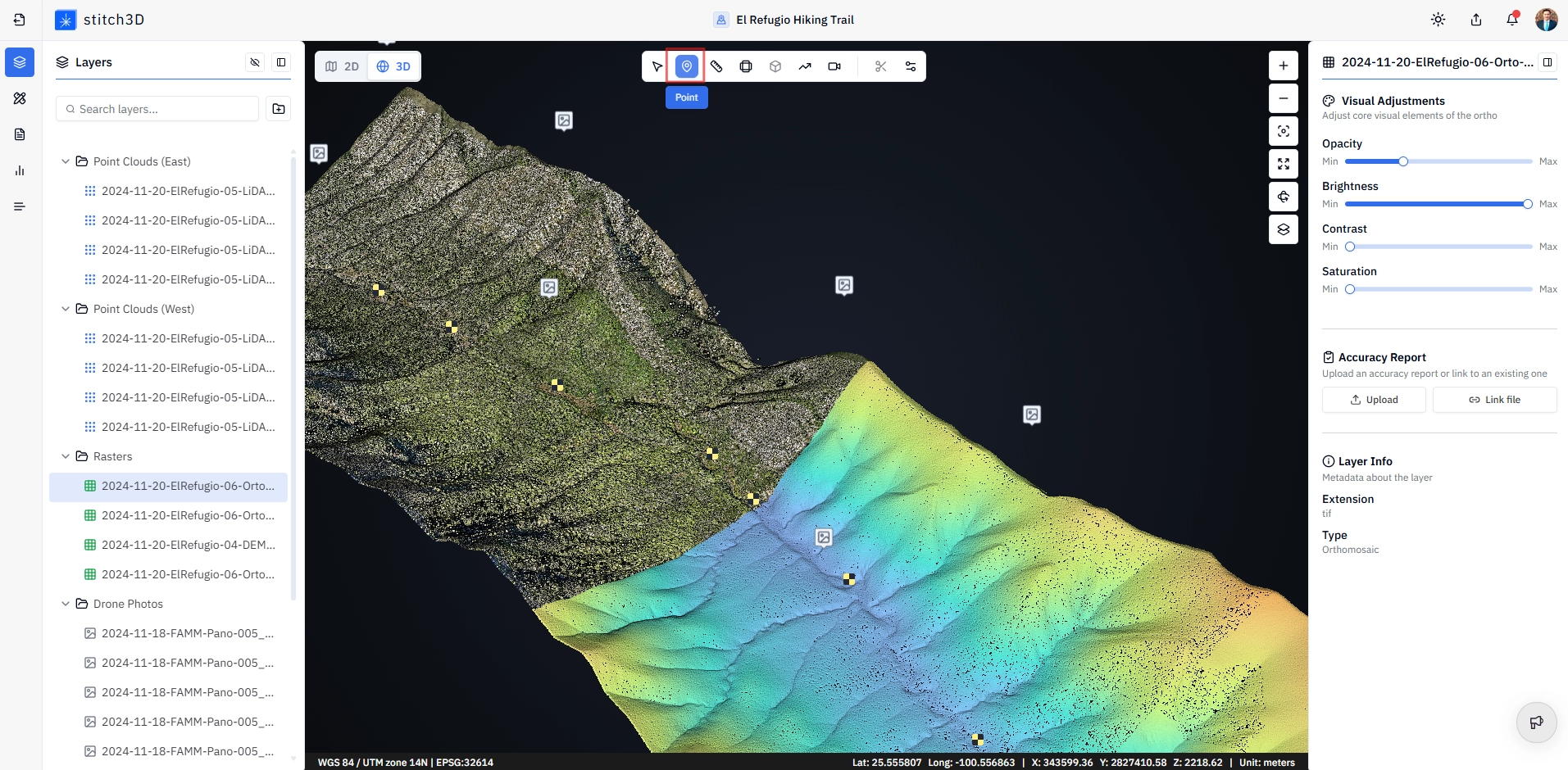
Left-click anywhere on the point cloud or raster layer to place your point.
✅ The point is created immediately and the annotation panel opens on the right-hand side of the viewer.
Locate, Rename, and Delete your point
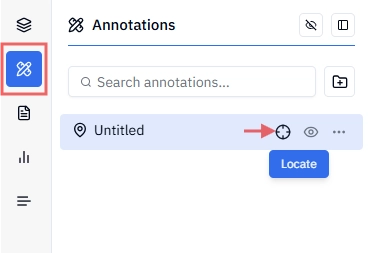
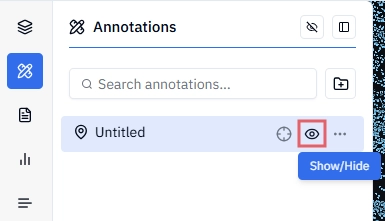
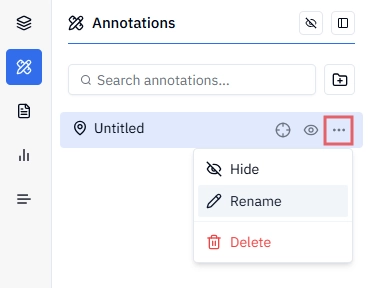
Once a point is placed, the Annotations panel opens on the left of the viewer, giving you options to zoom in, show/hide, rename, and delete the point.
Name and color
Locate — Click the Locate icon to zoom into your point.
Show/Hide — Click the Show/Hide button to toggle the point display on and off in the viewer. You can also open the … options menu and click Show or Hide.
Rename — Click the … options menu to open the dropdown menu. Rename your point and hit Enter.
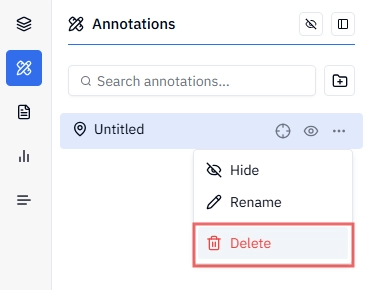
Delete — Click the … options menu to open the dropdown menu. Click the Delete button and confirm or cancel the action.
Configure your Point
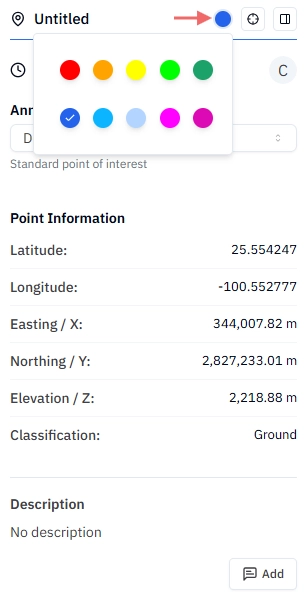
Clicking on your Point annotation will open the Information panel to the right of the viewer.
Color — click the color wheel to change the point's display color in the viewer.
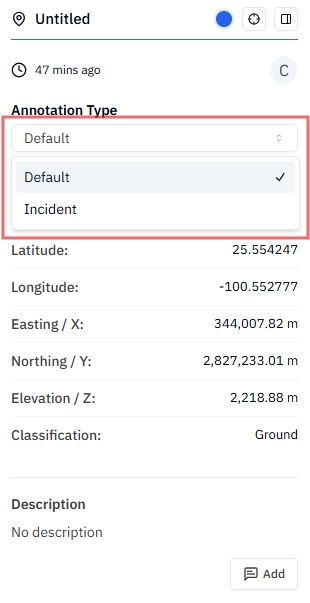
Point Type — Every point starts as a Default type. You can change the type to Incident in the annotation panel when documenting a specific issue or event that requires follow-up. Switching to Incident unlocks three additional fields:
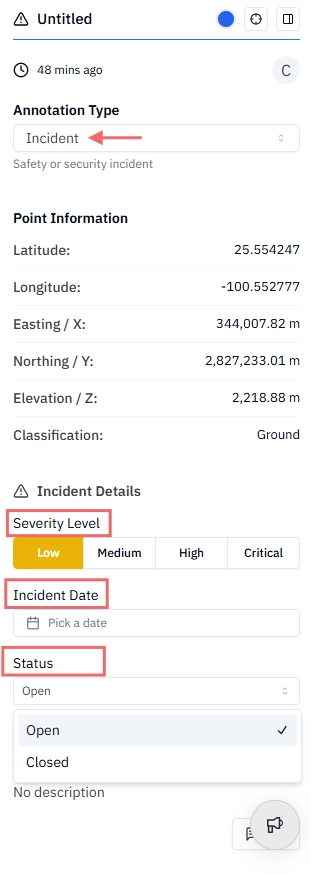
💡 Tip: Use the Incident type with severity and status fields for site inspection workflows — you can track which issues are open vs. closed and filter by severity to prioritize follow-up.
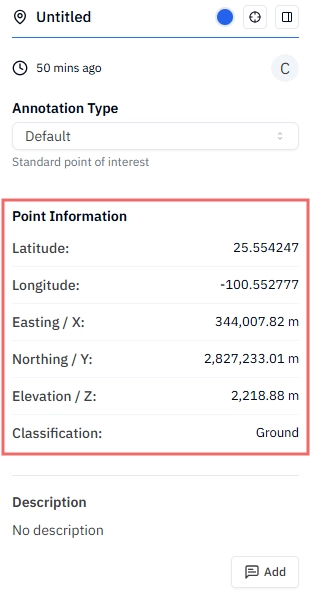
Point Information — The annotation panel also displays metadata about the point's location, automatically captured at the time of placement:
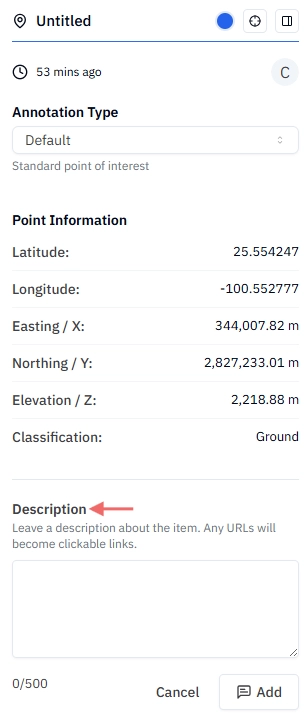
Description — Add a description about the point or incident.
Collaborating with comments
If one or more Editors are invited to the Project, each point annotation has a threaded comment section at the bottom of the annotation panel. Comments work similarly to a post thread. Team members can reply, discuss, and resolve issues directly inside the annotation.
Place or select a point annotation.
Scroll to the bottom of the point information panel on the right side of the viewer.
Type your comment in the comment field and press Enter to post.
Teammates with Editor access can reply to your comment in the same thread.
💡 Tip: Use comment threads to keep all discussion about a specific location tied to the data itself — rather than in a separate email chain or chat thread where the spatial context gets lost.
ℹ️ Note: Comment threads are visible to all users who have access to the Project, including View only and View and download users. Only Editors can post or reply to comments.
Export your Point annotation report
You can export all of your points into a CSV report that can be uploaded into other geospatial software.
Click on the Reports button in the navigation toolbar.
Select the Points report button.
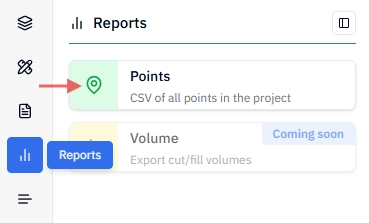
A CSV file will download automatically and display the following: PointID, Northing, Easting, Elevation, Lat, Long, Name, Description, Type, Severity, and Incident Date