Selecting a Viewer unit of measurement
🕐 Read time: 2 min
Written By Clark Yuan
Last updated 4 months ago
Overview
Viewer measurement units control how measurements are displayed in the Viewer, regardless of what unit your point cloud files use internally. When you take a measurement, the result is always converted to and displayed in your chosen display unit.
Display units vs. base units
These are two separate settings. It is important to understand the difference:
Example in practice: If your point cloud has a base unit of Meters but your Viewer display unit is set to Centimeters, a measured distance of 2 meters will be shown as 200 cm in the Viewer. The underlying data is unchanged; only the display is converted.
How to set your display units
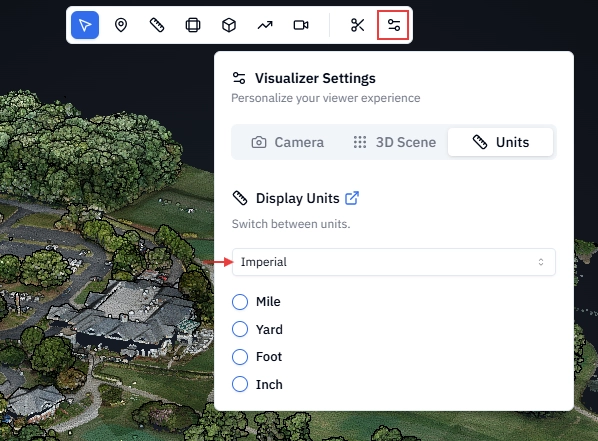
Click the Viewer Settings icon in the toolbar at the top of the Viewer.
Select the Units tab.
Select a unit system: Metric or Imperial.
Select your preferred unit within that system.
Metric options: Centimeter · Meter · Kilometer
Imperial options: Inch · Foot · Yard · Mile
Your selection applies immediately to all active measurements in the Viewer.
Important
Changing your display unit:
Applies to all measurements shown in the Viewer
Does not affect the base unit of any file
Does not modify or reproject any point cloud data
Can be changed at any time without data loss
Related articles
Setting measurement units for non-georeferenced point clouds