Viewer navigation
🕐 Read time: 2 min
Written By Clark Yuan
Last updated 4 months ago
Overview
The Stitch3D Viewer supports mouse, keyboard, and touchscreen navigation. The controls differ slightly between 3D and 2D views.
3D Viewer navigation
Mouse controls
Mouse | Control | Action |
 | Left click + drag | Rotate |
 | Right click + drag | Pan |
 | Scroll wheel | Zoom in / out |
Keyboard controls
💡 Tip: Combine any WASD key with a left click and drag for a first-person navigation feel. For example, hold W while dragging with the left mouse button to zoom in and rotate simultaneously. This is useful for immersive walkthroughs of large scenes.
Interacting with icons and annotations
Click any icon (GCP pin, media file) or annotation (point, distance, area, volume) to open its Information Panel on the right.
Hover over any icon to see a preview tooltip above it without opening the full panel.
2D Viewer navigation
Mouse | Control | Action |
| Left click + drag | Pan |
| Scroll wheel | Zoom in / out |
ℹ️ Note: Right click and WASD keyboard navigation are not available in 2D view.
Navigation Bar controls
The Navigation Bar sits in the top right corner of the Viewer and is available in both 2D and 3D views unless otherwise noted.
Control | Icon | Available in | What it does |
Zoom in |  | 2D and 3D | Zooms in incrementally |
Zoom out |  | 2D and 3D | Zooms out incrementally |
Focus |  | 2D and 3D | Recenters the view on all loaded data. Use this if you navigate away from your scene and need to quickly bring everything back into view. |
Full screen |  | 2D and 3D | Expands the Viewer to fill the entire browser window |
Viewer Orientation |  | 3D only | Snaps the camera to a preset view angle (see below) |
Basemap |  | 2D and 3D | Opens the Basemap menu |
Viewer Orientation shortcuts
The Viewer Orientation button snaps your camera to one of six preset angles. Each angle also has a keyboard shortcut:
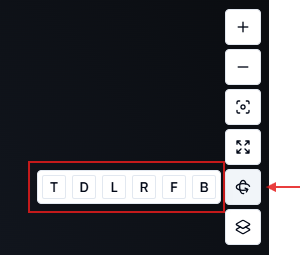
💡 Tip: The Top view (T) is the fastest way to get an overhead perspective of your entire scene. It is useful for confirming spatial coverage, checking annotation placement from above, and taking area measurements where a plan view gives you the most accuracy.
Touchscreen navigation
Stitch3D works on smartphones and tablets. The following touch gestures are supported in the 3D Viewer:
💡 Tip: Touchscreen navigation works well for presenting data on a tablet to a client in the field. Share a Project link in advance and open it on a tablet so the client can explore the data themselves using familiar touch gestures.
Camera control modes
Stitch3D offers two camera control modes that change how mouse navigation behaves in 3D. You can switch between them in the personal Viewer settings.
Tips for navigating large point clouds
💡 Tip: If the Viewer feels sluggish while navigating a large dataset, adjust the Performance slider in your personal Viewer settings toward Speed. This reduces the point budget and makes navigation smoother on slower hardware or networks.
💡 Tip: Use the Focus button if you get lost in a large scene. It instantly recenters the view on all loaded data regardless of where your camera currently is.