How to fix a raster CRS error in Stitch3D
🕐 Read time: 5 min
Written By Clark Yuan
Last updated 3 months ago
Overview
When you upload a GeoTIFF to Stitch3D, we read its embedded coordinate reference system (CRS) to position and display your data correctly. If we cannot identify a recognized CRS in the file's headers, you will see this message:
⚠️ Error: No valid CRS found in file headers
This does not mean your data is corrupted or that its coordinates are wrong. It means the file is missing the metadata that tells Stitch3D which coordinate system those numbers belong to. Without it, we have no way to know where on Earth your data is located.
Why this happens
This error is almost always caused by how the file was exported from your photogrammetry or GIS software. The three most common causes are:
Photogrammetry software writing an anonymous datum Tools like Agisoft Metashape, Pix4D, DJI Terra, and OpenDroneMap sometimes write correct projection parameters but fail to embed a recognized authority code such as an EPSG code. The result is a file that describes a projection in detail without ever identifying it by name.
Exporting without specifying a CRS Some software exports a GeoTIFF using the project's internal coordinate system without writing a standard EPSG code to the file header.
Custom or user-defined CRS If your project uses a local or custom coordinate system, the file may contain a 32767 value — the GeoTIFF spec's placeholder for "user-defined" — which is not a real EPSG code and cannot be interpreted by Stitch3D.
💡 Tip: If you are unsure of your EPSG code, look it up at epsg.io by searching your state, country, or survey zone.
The best fix: re-export with an explicit EPSG code
The cleanest solution is to return to your source software and re-export the file with a valid EPSG code explicitly set. This writes the CRS correctly into the file headers rather than patching it afterward.
Open your project in your photogrammetry or GIS software.
Locate the Coordinate Reference System or Projection setting in the export dialog.
Search for your CRS by its EPSG code; for example,
32614for WGS 84 / UTM Zone 14N.Export as GeoTIFF with that CRS explicitly selected.
Re-upload the file to Stitch3D.
ℹ️ Note: Re-exporting from source is always the preferred approach. It ensures the CRS is embedded correctly in the file rather than applied as a header correction after the fact.
If you cannot re-export: fix the file headers
If re-exporting is not possible — for example, if the original project file is no longer available — you can correct the CRS header directly using QGIS (free, no coding required) or GDAL (command line, fastest option).
⚠️ Important: Both methods below only correct the file header. They do not move or transform any pixel data. Only use these methods if you are certain you know the correct EPSG code for your data. Assigning the wrong CRS will cause your data to display in the wrong location.
Option A: Fix using QGIS
QGIS is a free, open-source GIS application. Download it at qgis.org.
The key distinction to understand before you start: Assign CRS corrects the header label. Reproject moves the underlying data. You want to assign — not reproject.
Step 1. Open your file in QGIS
Go to Layer → Add Layer → Add Raster Layer and open your file. QGIS may prompt you to select a CRS or show a warning about an unknown CRS — this confirms the problem exists and you are in the right place.
Step 2. Assign the correct CRS
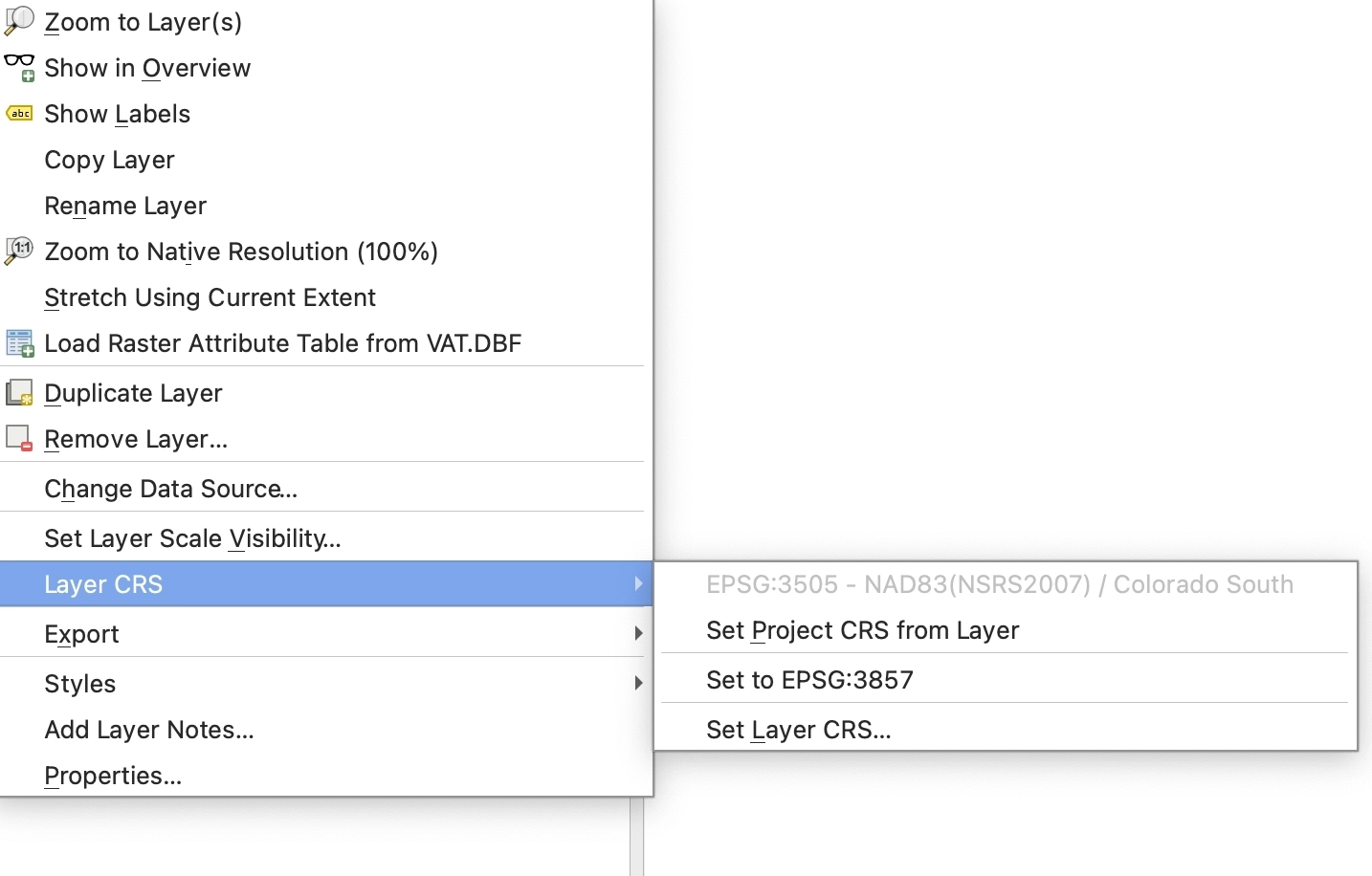
Right-click the layer in the Layers panel and choose Layer CRS → Set Layer CRS.
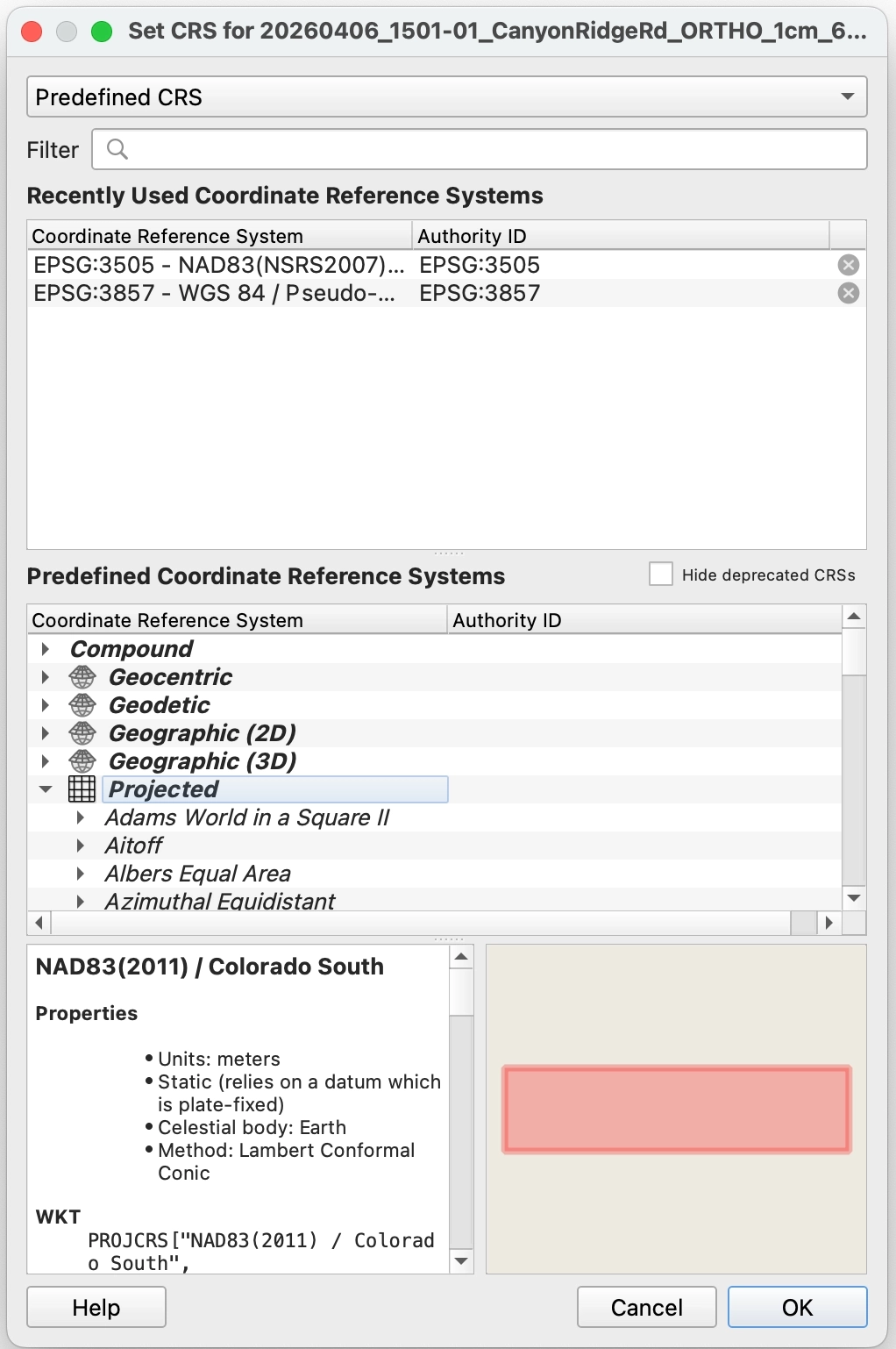
In the CRS Selector dialog, type your EPSG code into the Filter box (e.g. 6431) and select the matching result. Click OK.
Step 3. Export a corrected copy
Assigning the CRS in QGIS only applies it for the current session — you must save a new file to make it permanent.
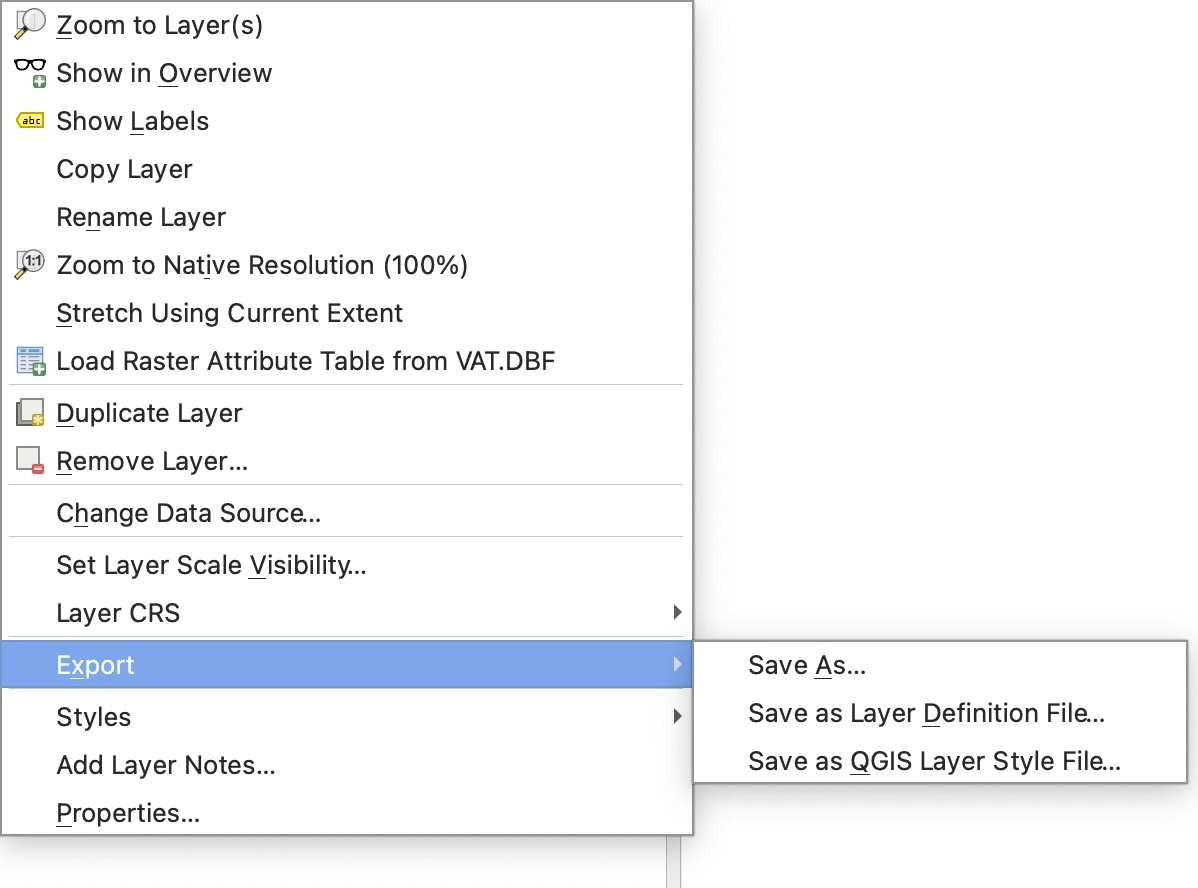
Right-click the layer and choose Export → Save As.
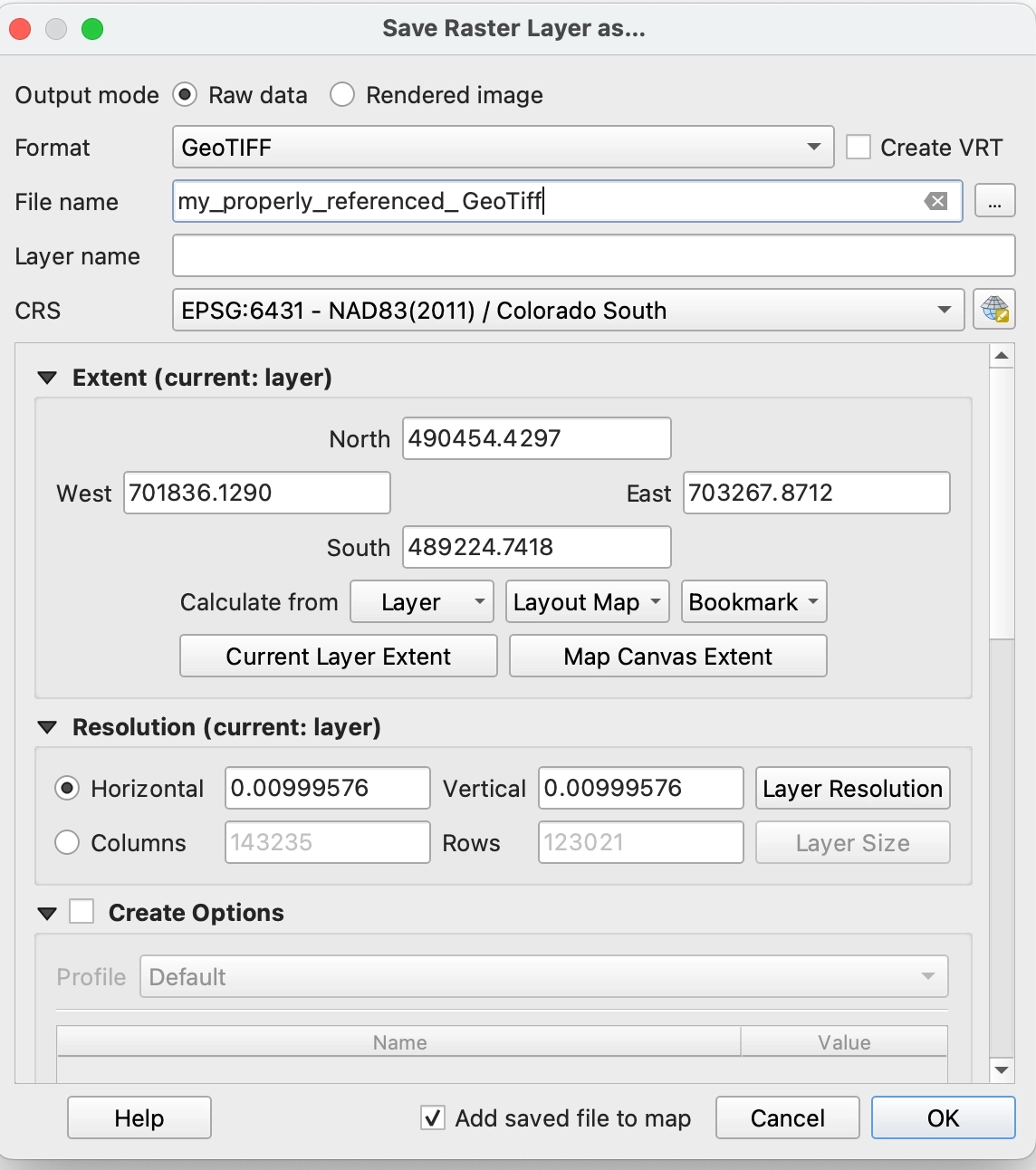
In the Save dialog:
Set Format to GeoTIFF
Confirm the CRS field shows your chosen EPSG code
Choose an output file path
Click OK
Upload the newly saved file to Stitch3D.
Option B: Fix using GDAL (command line)
GDAL is a geospatial library bundled with QGIS. If you have QGIS installed, GDAL is already available via the OSGeo4W Shell on Windows or your terminal on macOS and Linux.
This method edits the file's CRS header in place with a single command. No pixel data is rewritten.
Run this command:
gdal_edit.py -a_srs EPSG:YOUR_CODE your_file.tif
Example:
gdal_edit.py -a_srs EPSG:6431 survey_ortho.tif
On Windows with QGIS installed, open the OSGeo4W Shell from your Start menu, navigate to your file's directory, and run the command above.
Verify it worked by running:
gdalinfo your_file.tif
Look for a Coordinate System block that shows your EPSG code and a recognized datum name (e.g. NAD83(2011)). If it still shows Unknown or unnamed, double-check your EPSG code and try again.
Upload the corrected file to Stitch3D.
Troubleshooting
I re-exported with an EPSG code but still get the error Confirm that the EPSG code you selected in your export software matches the actual coordinate system your data was captured in. A common mistake is exporting in WGS 84 (EPSG:4326) when the data is actually in a projected CRS such as UTM. Check your original flight or processing settings to confirm the correct CRS.
I am not sure which EPSG code to use Search epsg.io using your state, country, or region. For US-based surveys, UTM zone codes (e.g. 32614 for UTM Zone 14N) and state plane codes are the most common. Your drone processing software's project settings should also show the CRS that was used during processing.
QGIS is showing "Unknown CRS" even after I assign it Make sure you are using the Set Layer CRS option, not Set Project CRS. The project CRS and the layer CRS are separate settings. After setting the layer CRS, always export a new file; changes made in the Layers panel do not persist unless you save a new copy.
Still need help?
If you have tried the steps above and are still seeing the error, contact our support team. Include your file name and, if you have run gdalinfo, paste the output into your message — it helps our team diagnose the issue faster.