How to add supporting documents
🕐 Read time: 2 min
Written By Clark Yuan
Last updated 2 months ago
Overview
Stitch3D lets you attach supporting documents to any Project alongside your spatial data. These are non-spatial files that do not appear in the Viewer, but are delivered to clients and collaborators on the same shared link or email invite as your point clouds, rasters, and other spatial files. Everything a client needs is in one place.
Common examples include:
PDF CAD drawings and plans
CAD disclaimers and terms of use
NDA forms
PowerPoint presentations
CSV cost schedules and quantity reports
Plain text notes and logs
Supported file types
How to upload a supporting document
Open your Project from the workspace dashboard.
Click the Upload button in the Project page.
Select Documents from the upload options.
Select your file from your computer. You can upload multiple files at once.
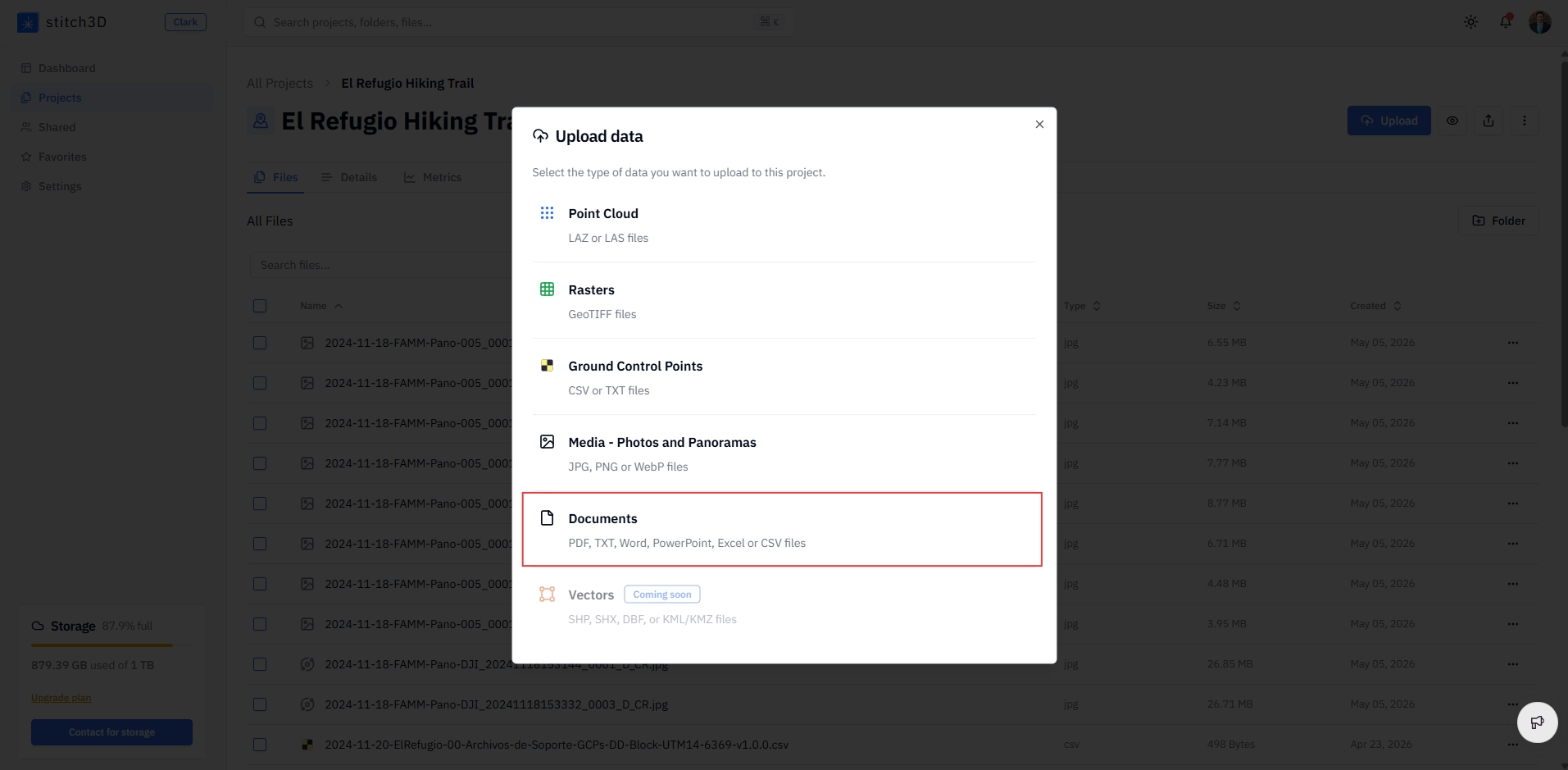
✅ Once uploaded, the document appears on your Project page and is immediately accessible to anyone you share the Project with, subject to their permission level.
ℹ️ Note: Supporting documents are shared at the Project level. Anyone with access to the Project via public link, QR code, or email invite can see and download your documents based on their permission level. See What are permission levels in Stitch3D? for details.
Accessing documents in the Viewer
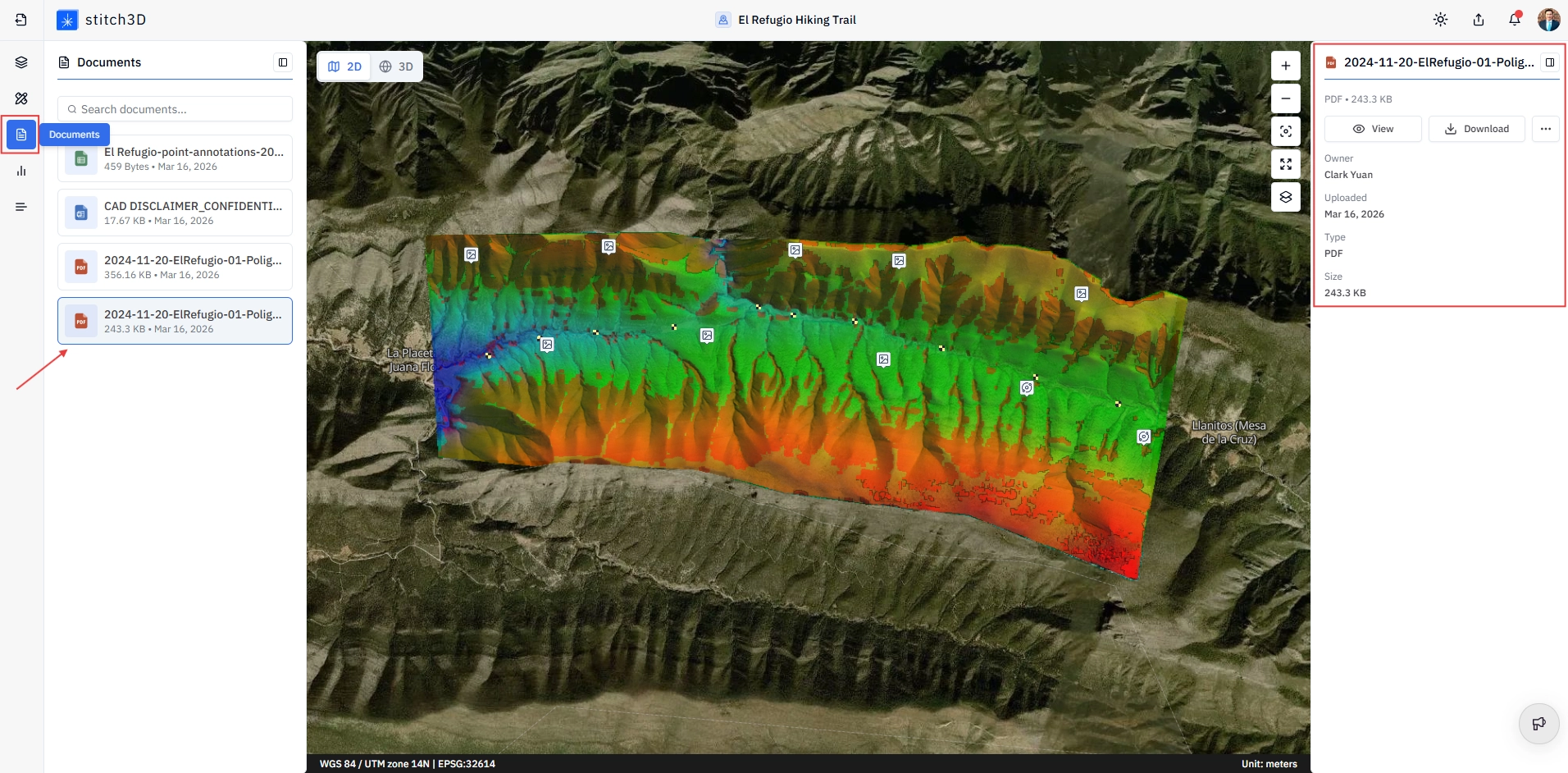
Documents uploaded to a Project are accessible from inside the Viewer through the Documents Panel.
Open the Project and enter the Viewer.
Click the Documents icon in the Control Panel on the far left.
The Documents Panel opens, listing all supporting documents attached to the Project.
Click on a file to open the Information Panel on the right.
From the Information Panel you can:
The Information Panel also displays metadata for each document: Owner, Upload date, File type, and Size.
💡 Tip: Use the View option for PDF drawings and plans during a client review call. You can open the PDF in the browser alongside the Viewer without the client needing to download anything. This keeps the review experience contained within Stitch3D.