How to upload vector data
🕐 Read time: 6 min
Written By Clark Yuan
Last updated About 1 month ago
Overview
Stitch3D supports vector data — DXF, Shapefiles, KML, KMZ, GeoJSON, and GeoPackage — in both Quickstart and Georeferenced Projects, alongside your point clouds and rasters. Before your files upload, Stitch3D reads each one and tells you exactly where it will appear: in the 2D Viewer, the 3D Viewer, or both.
Before you start
Vector uploads work in both Quickstart and Georeferenced Projects, but the two accept different formats and behave differently. See the format table below.
Each file must be 100 MB or smaller.
Your account must have enough storage remaining.
You can upload multiple vector files at once.
Project type determines what you can upload
Only the formats supported by your selected Project type appear in the file picker.
ℹ️ Only Shapefiles can appear in the 3D Viewer. All other formats render in the 2D Viewer only. GeoJSON, KML, and KMZ are always in WGS84 by specification so they will always be available in 2D.
ℹ️ Why GeoPackage and DXF are blocked in Quickstart Projects. Neither format carries a coordinate reference system that Stitch3D can read, and a Quickstart Project has no CRS of its own to fall back on. Use a Georeferenced Project for these two formats.
How to upload a vector file
Open the Project you want to add the file(s) to.
Click Upload.
Select Vectors from the list of upload types.
Drag your files into the upload area, or click to browse.
Review each file's status message — see the “How to read the review screen” section below. Remove any file you do not want by clicking the Delete button next to it.
If any file shows a CRS mismatch warning, Stitch3D will reproject it.
Click Upload.
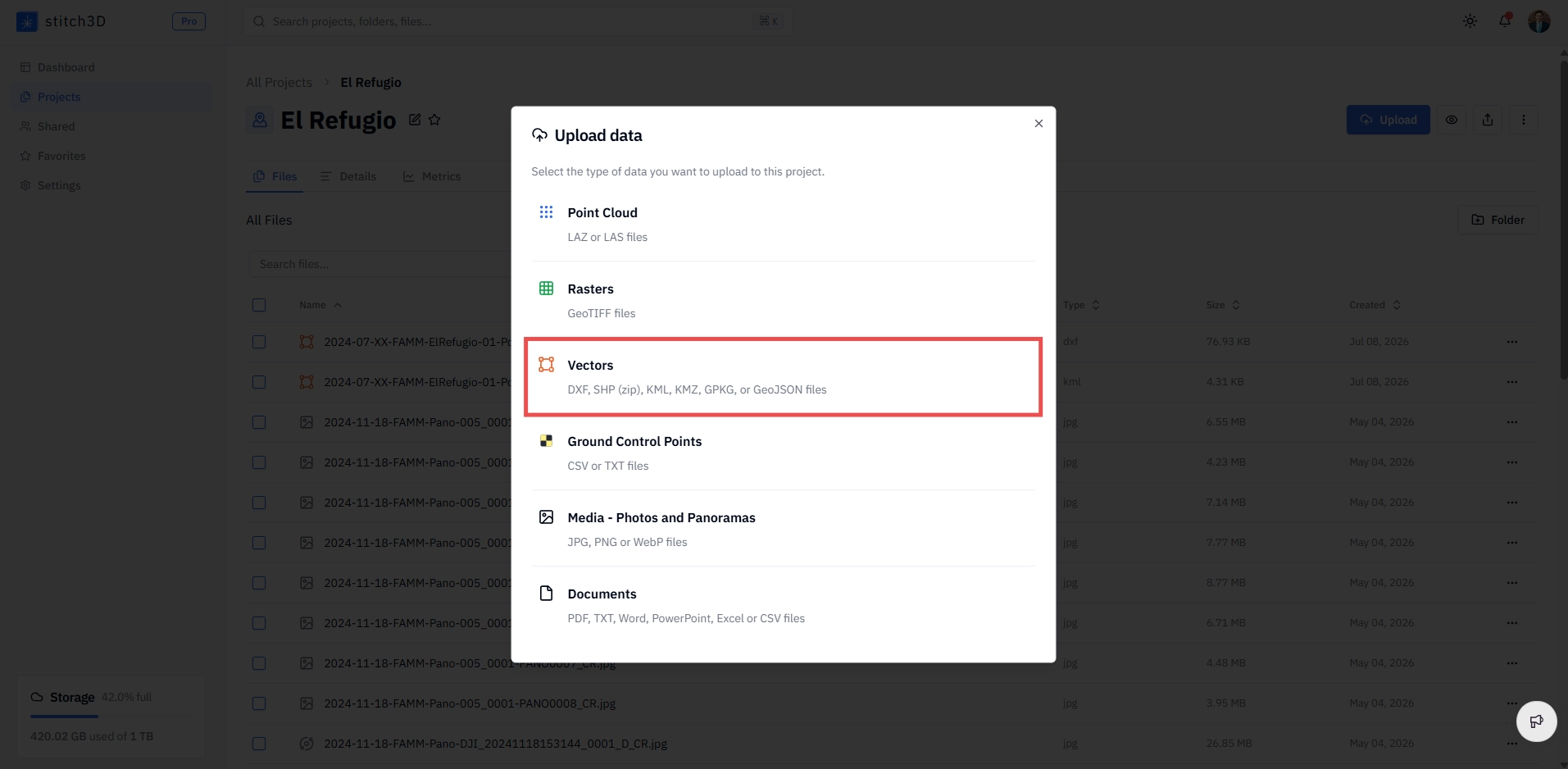
✅ Your files appear in the upload drawer with a progress indicator. Vector files are processed on our servers after the transfer finishes, so they take a short time to become viewable. The drawer will show them as processing before they appear in your Layers Panel.
How to read the review screen
The status icon next to the file after upload provides information about your file status, including the CRS Stitch3D detected in your .prj.
ℹ️ Informational messages are not errors. A message like "2D only" or "Project CRS assumed" tells you where your data will appear. The file still uploads normally. Only red error rows will block the upload.
In a Georeferenced Project
In a Quickstart Project
How to prepare a Shapefile for upload
Shapefiles consist of several component files that must travel together. Stitch3D accepts Shapefiles only as a .zip archive — a bare .shp file cannot be processed on its own.
Locate all component files of your Shapefile.
Select all and compress them into a single
.ziparchive.Confirm the zip contains, at minimum:
Upload the
.zipusing the steps above.
⚠️ Upload one Shapefile per zip archive. If a zip contains multiple Shapefiles, Stitch3D applies the CRS from the first .prj it finds to the entire archive and treats the whole upload as 3D-capable if any Shapefile in the zip has elevation. Mixed archives can be positioned incorrectly. Upload each Shapefile as its own zip.
What to include in a Shapefile ZIP
The 2D and 3D Viewers have different requirements, and they are independent of each other. Your file can qualify for one, both, or neither.
The 3D Viewer needs elevation (Z) values. It does not need a CRS. Stitch3D loads your coordinates exactly as they are, so a Shapefile without a .prj can still appear in 3D. Stitch3D reads the actual Z values from the geometry records and not from the file header so a header that declares Z but carries no real values will not qualify.
The 2D Viewer needs a CRS. Stitch3D places your file on the map using the CRS from the .prj inside your zip. If there is no .prj, a Georeferenced Project falls back to the specified Project CRS. A Quickstart Project has no CRS so a Shapefile without a .prj cannot be placed in 2D.
⚠️ Where CRS affects 3D. If your file's horizontal CRS differs from the Project's defined CRS, Stitch3D will reproject it. Reprojecting into 3D requires a complete CRS so if the .prj has a mismatched horizontal CRS and no vertical CRS, the file is placed in 2D only. Add a vertical CRS to your .prj to unlock 3D.
Important notes
⚠️ A file with a red error status blocks the whole upload. The Upload button stays disabled until every error is resolved. You can delete the specific files with errors or click Start over to clear your selection and choose different files.
⚠️ Shapefiles must be zipped with their required component files. A zip missing the .shx or .dbf is rejected.
⚠️ Reprojection changes your coordinates. When your Shapefile's CRS differs from the Project's, Stitch3D reprojects the data to match the Project’s CRS on upload.
⚠️ Password-protected archives are not supported. Encrypted .zip and .kmz files are rejected. Remove the password and re-compress before uploading.
ℹ️ File name rules. File names must use standard English characters only. Accented letters, emoji, and non-Latin scripts are not supported. Rename the file and try again.
ℹ️ A .prj with only a vertical CRS is treated as having no CRS. Stitch3D needs a horizontal CRS to position your data. If only a vertical CRS is present, Stitch3D falls back to the Project's CRS and shows "Project CRS assumed: Invalid .prj (CRS) file."
Related articles
How to upload orthomosaics (raster)