Downloading files on Stitch3D
🕐 Read time: 3 min
Written By Clark Yuan
Last updated 3 months ago
Overview
Files can be downloaded from Stitch3D by Project owners and by anyone the owner has shared the Project with at View and download or Editor permissions. This article covers how to download files as the owner and as an invited user.
ℹ️ Note: Users with View only permission cannot download files. To allow downloads, the Project owner must grant View and download or Editor access. See What are permission levels in Stitch3D? for details.
As the Project owner
If you own the Project, you can download files in two ways.
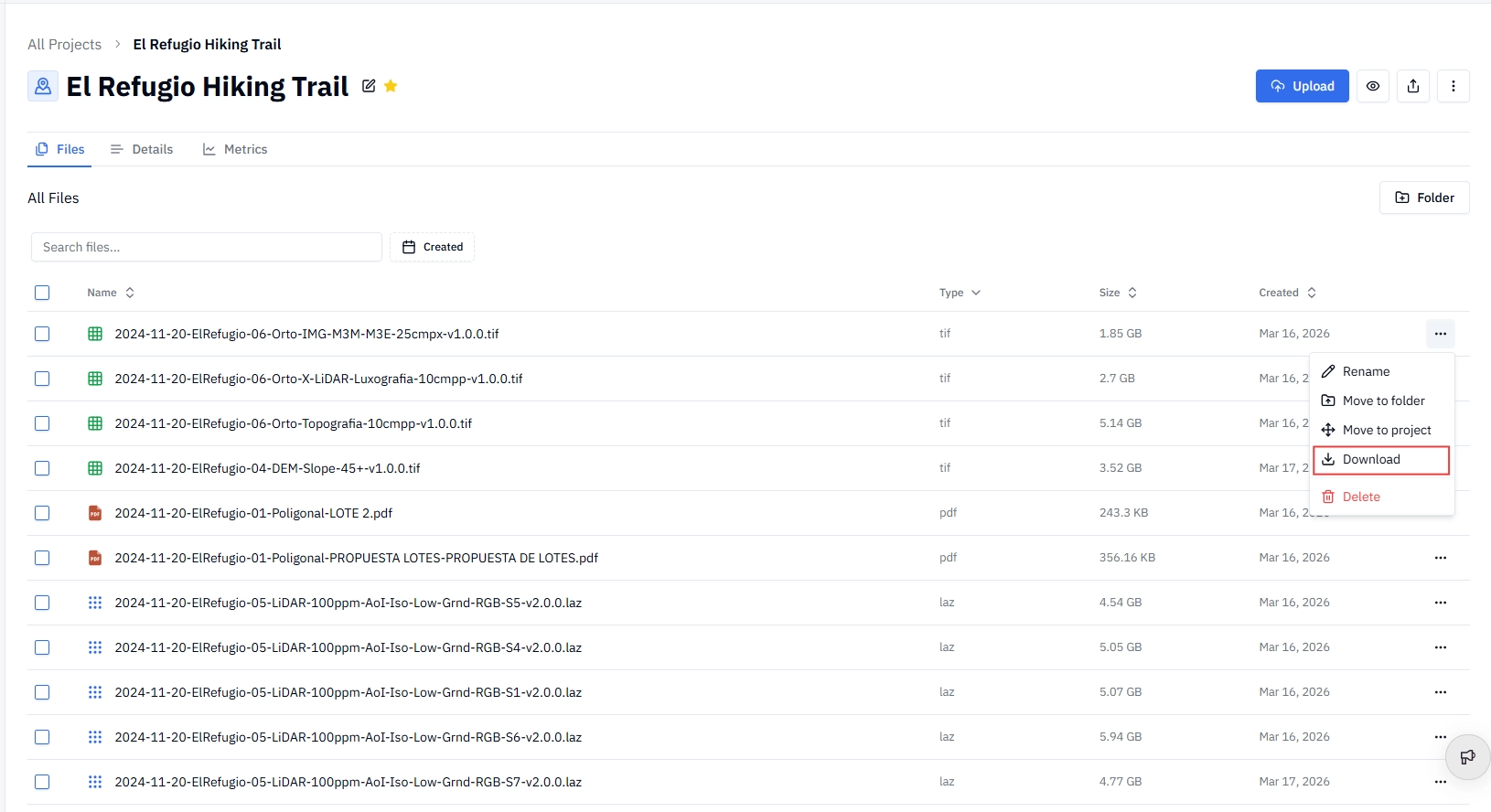
Method 1 — From the Project page
Open the Project.
Locate the file you want to download in the file list.
Click the ⋯ (three dot) menu at the far right of the file name.
Select Download.
Method 2 — From the Viewer
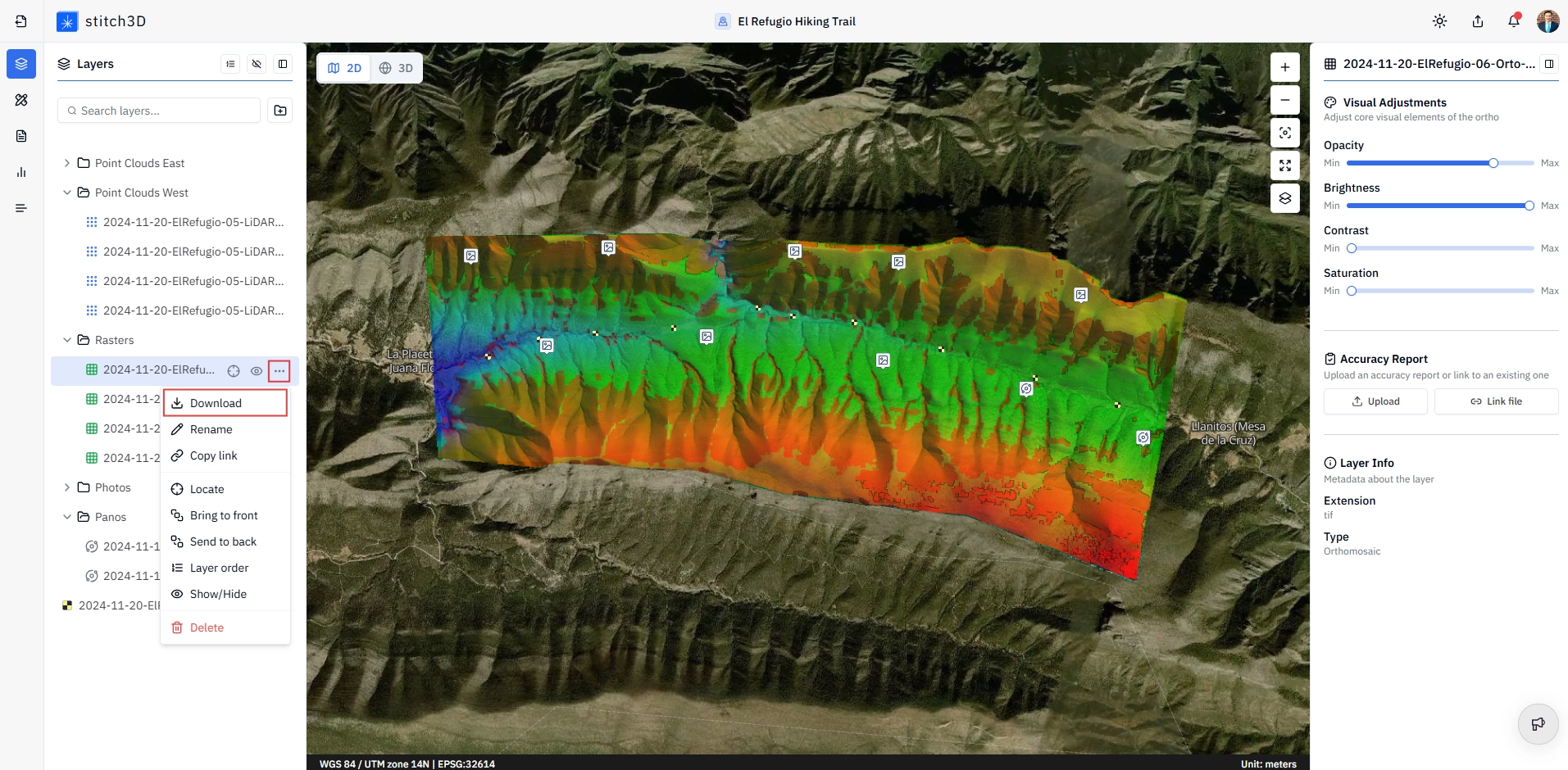
Open the Project and enter the Viewer.
In the Layers Panel on the left, hover over the file you want to download.
The ⋯ (three dot) menu appears, along with the Locate and visibility toggle buttons.
Click the ⋯ menu and select Download (the first option at the top).
As an invited user
If a Project has been shared with you, your ability to download files depends on the permission level the owner has granted.
If you have View and download or Editor access, you can download files from the Viewer:
Open the shared Project link (via email invite or public link) and enter the Viewer.
In the Layers Panel on the left, hover over the file you want to download.
Click the ⋯ (three dot) menu that appears.
Select Download (the first option at the top).
ℹ️ Note: Invited users download files from the Viewer's Layers Panel only. The Project page download option in Method 1 above is only available to the Project owner.
Related articles
What are permission levels for shared files?