What happens when my storage or Project count is full?
🕐 Read time: 3 min
Written By Clark Yuan
Last updated 3 months ago
Overview
Stitch3D tracks two account limits depending on your plan: storage capacity and Project count. When you reach either limit, certain actions in your account are restricted until you free up space or upgrade your plan.
Plan limits at a glance
🔗 View full plan details: stitch3d.io/pricing
What gets restricted when you hit a limit
If you meet or exceed your storage capacity or Project count, the following actions are immediately restricted:
Creating new Projects — you will not be able to start a new Project until you are back within your limit
Uploading new files — uploads to existing Projects are also blocked until storage is available
Sharing Projects — you will not be able to share Projects via public link or email invite while your account is at its limit
Your existing Projects, files, and any previously shared links are not affected. You can still view, and manage the data you have already uploaded, as well as create measurements and add annotations. You just cannot add or share anything new until the limit is resolved.
ℹ️ Note: Previously shared public links remain active even when your account is at its limit. Only new sharing actions are blocked.
How to resolve a limit
You have two options.
Option 1 — Upgrade your plan
Upgrading gives you more storage and a higher Project count immediately. You can upgrade directly from within Stitch3D.
Click your profile picture in the top-right corner.
Select Plans to view current subscription options.
Choose the plan that fits your needs and follow the prompts to upgrade through Stripe.
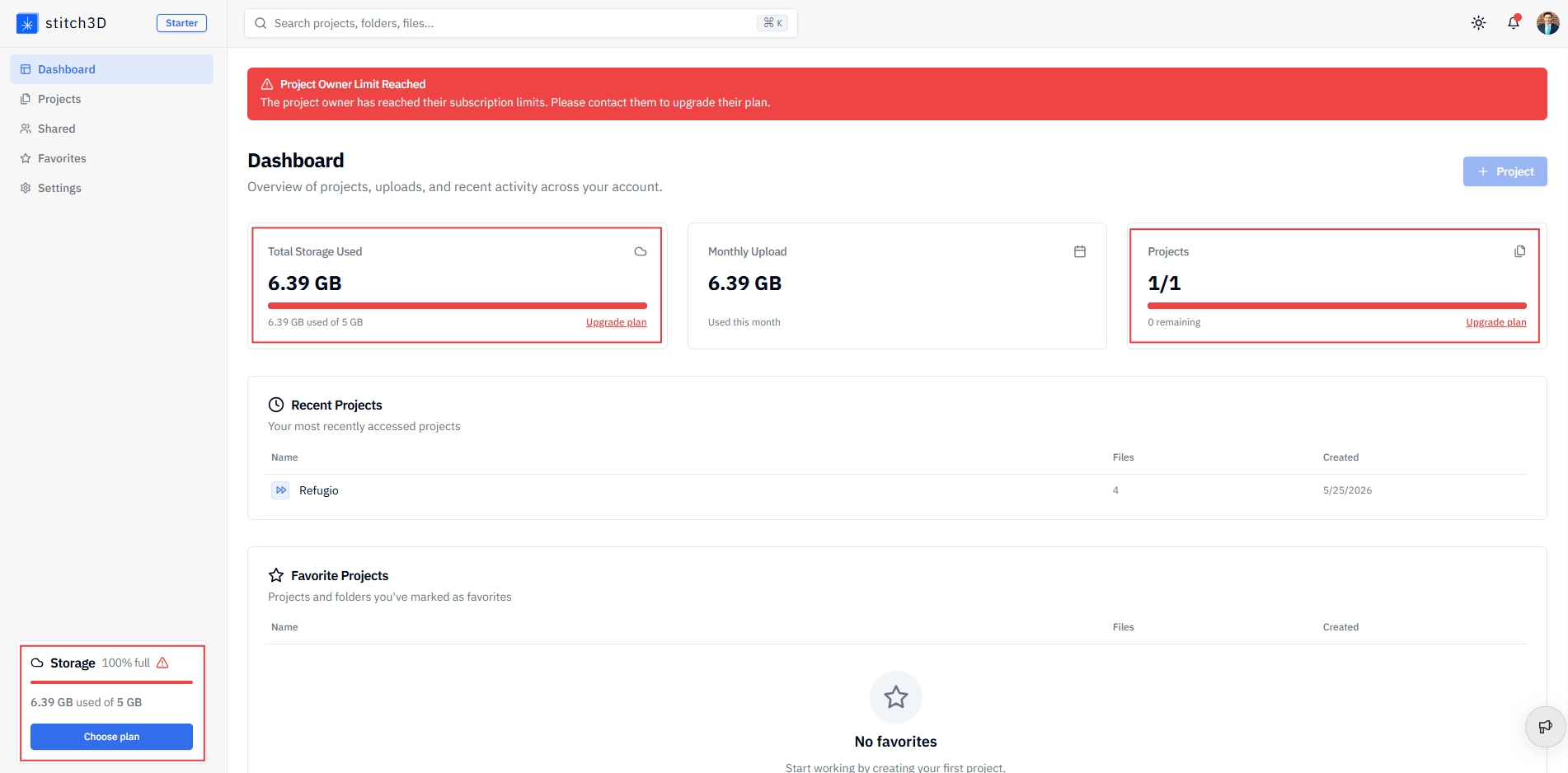
Alternatively, click Manage Subscription from the Settings page or use the upgrade prompt in the Storage indicator in the Dashboard and at the bottom of the Navigation Panel.
Option 2 — Free up space
If you do not need to upgrade, you can delete Projects or files to bring your account back within its current limit.
To reduce storage: delete large files or Projects you no longer need.
To reduce Project count: delete Projects that are no longer active or consolidate files into existing Projects.
⚠️ Warning: Before deleting anything, download the files you want to keep. Deletion in Stitch3D is permanent and cannot be undone. See How to delete a Project, folder, or file for the full warning.
How to check your current usage
Your current storage usage is always visible in the Storage indicator at the bottom left of the Navigation Panel, showing your usage as both a percentage and a raw figure (e.g. 4.2 GB out of 5 GB).
For Project count, go to the Dashboard — the total number of Projects in your account is shown in the account snapshot at the top of the page.
Frequently asked questions
Will my shared links stop working if I hit my limit? No. Previously shared public links remain active. Only new sharing actions are blocked until you upgrade or free up space.
What happens to my data if I downgrade to a lower plan? If you downgrade to a plan with less storage or fewer Projects than you currently use, you will not be able to upload new files or create new Projects until your usage falls within the new plan's limits. Your existing data is not deleted automatically; you will need to remove files manually to get back within limits. Contact our support team if you need help managing a plan change.
Can I buy extra storage without changing my plan? Enterprise plans include add-on storage options. If you are on a Personal or Pro plan and need more capacity without moving to a higher tier, contact our support team to discuss your options.
Related articles
How to change or cancel your Stitch3D subscription