How we track Project metrics
🕐 Read time: 2 min
Written By Jeff Jakinovich
Last updated 4 months ago
Overview
Project metrics show you how your shared Projects are performing — who is viewing them, what is being downloaded, and how many people have visited. This article explains what each metric means, how we calculate it, and how to filter data by time period.
💡 Tip: For a guide on where to find metrics in the Viewer, see Understanding the Metrics tab.
What we track
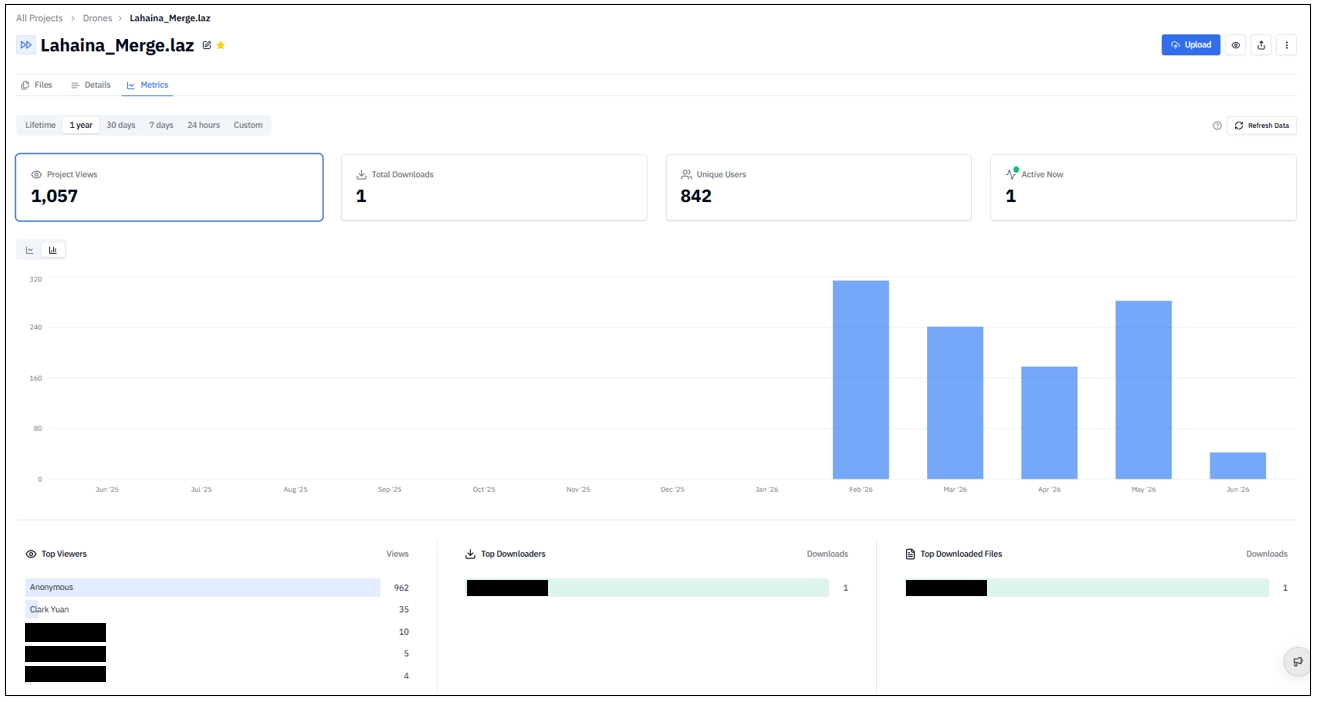
👀 Project Views
Each time someone opens your Project in the Viewer, we count it as a view. Views are tracked for both logged-in users and anonymous visitors who access your Project via a public link.
📁 Total Downloads
Each time someone downloads a file from your Project, we count it as a download.
👤 Unique Users
The number of distinct visitors who viewed your Project during the selected time period. We identify visitors using browser sessions, so the same person visiting from different devices counts as separate unique users.
🟢 Active Now
The number of users currently viewing your Project in the Viewer right now. This count updates in real time and reflects live sessions only. It resets to zero when no one has the Project open.
How we count
Session-based deduplication
If the same visitor opens your Project multiple times within 30 minutes, we count it as one view. After 30 minutes of inactivity, a new session begins and the next view counts again. This approach matches industry standards used by platforms such as Google Analytics.
Logged-in vs. anonymous visitors
Your own views count
When you view your own Project, it counts toward the total. This gives you an accurate picture of all traffic to your Project, including your own activity.
Date ranges
You can filter metrics by the following time periods:
The chart automatically adjusts how it groups data based on the selected range. Shorter ranges show more granular data; longer ranges aggregate into larger time buckets.
Refresh interval
Metrics update every few minutes. Click the Refresh button to fetch the latest data. A timestamp shows when the data was last updated.
Privacy
We collect the minimum data needed to provide accurate metrics. We do not track personal information about your visitors beyond what is necessary for deduplication. Session identifiers expire after one year and cannot be used to identify individuals. For more information, see our Privacy Policy.
Related articles
What is the Stitch3D file sharing “Metrics” tab?