What is the Stitch3D file sharing “Metrics” tab?
🕐 Read time: 3 min
Written By Clark Yuan
Last updated 3 months ago
Overview
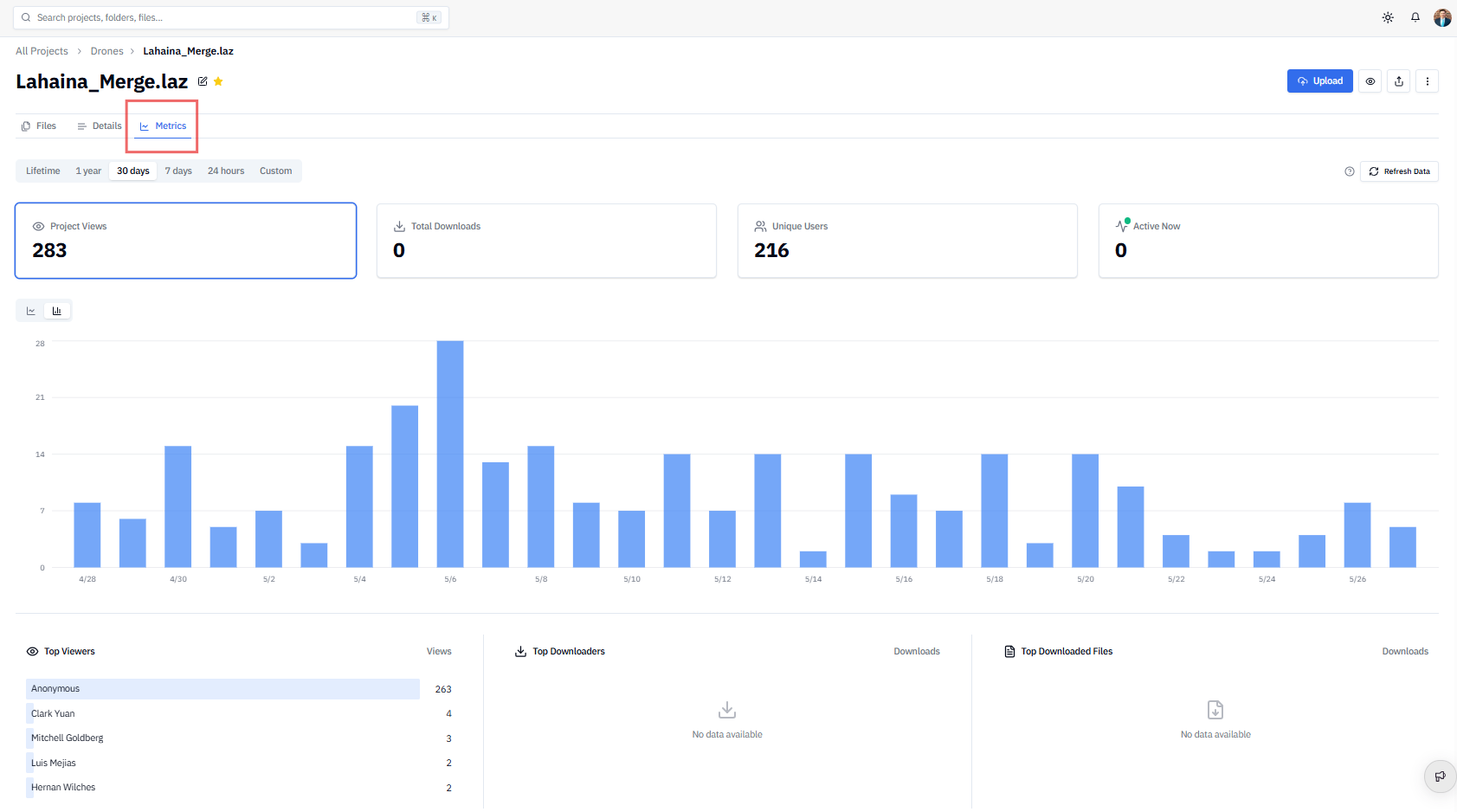
The Metrics tab is a Stitch3D Pro feature that gives you a live dashboard of how your Project is being used including who's viewing it, who's downloading files, and how many people are active right now. It's the fastest way to confirm that a client has accessed the data you shared, track engagement over time, and see which files are getting the most attention.
What you'll find in the Metrics tab
Views and downloads over time
See a count of how many times your Project has been viewed and how many files have been downloaded, filtered by time period. You can switch between the following time ranges:
24 hours — activity in the last day
7 days — activity over the last week
30 days — activity over the last month
1 year — activity over the last 365 days
Lifetime — all activity since the project was created
Custom — choose a specific date range
💡 Tip: Use the 24 hours or 7 days view right after sharing a Project with a client to quickly confirm they've opened it.
Top Downloaded Files
A ranked list of the files in your Project that have been downloaded most frequently. Each entry shows the file name and its download count for the selected time period.
💡 Tip: If a particular file is getting significantly more downloads than others, it may be worth checking in with your client to make sure they have everything they need or that the right version is in the Project.
Top Downloaders
A breakdown of which users have downloaded files from your Project most frequently, ranked by download count for the selected time period.
ℹ️ Note: Only users who have an active Stitch3D account are identified by name. Downloads by users accessing a project via a public share link will appear as Anonymous.
Unique Users
The total number of individual users who have visited the project during the selected time period. This counts each user once, regardless of how many times they've opened the project.
ℹ️ Note: Unique visitors counts distinct user accounts. If the same person opens the project five times in a week, they count as one unique visitor for that period.
Currently active users
A live count of how many users are “Active Now” and have the project open in the viewer. This updates in real time.
💡 Tip: Use this during a collaborative review session to confirm that all participants have the Project loaded before you begin.
How to access the Metrics tab
Open a project from your workspace.
Click the Metrics tab near the top of the project page (next to Files and Details).
Select a time range — 24 hours, 7 days, 30 days, 1 year, Lifetime, or Custom — to filter the data.
ℹ️ Note: This feature is only available for users on the Stitch3D Pro or Enterprise plans.