How to add Ground Control Points (GCPs)
🕐 Read time: 4 min
Written By Clark Yuan
Last updated About 1 month ago
Overview
Ground Control Points (GCPs) are marked points on the ground with known, surveyed coordinates. Uploading a GCP file to Stitch3D allows you to visualize your data with global spatial accuracy for client delivery.
Unlike some platforms that require reprocessing your data after adding GCPs, Stitch3D applies GCPs directly to an already-uploaded project.
⚠️ GCPs are only available in Georeferenced Projects. If your Project is a Quickstart Project, GCP upload is not supported.
Before you start
Your GCP file must be exported from your processing software (Metashape, PIX4D, DJI Terra, RealityCapture, etc.) as a CSV or TXT file with comma, tab, or semicolon-separated values. Comma-separated is most common.
Your GCP data must be in your project's CRS. Stitch3D cannot validate this automatically so ensure that the GCP file is exported in the correct CRS before uploading. Points in the wrong CRS will appear in the wrong location or fail the upload entirely.
Your file must include at minimum: a point name, Easting (X), Northing (Y), and Elevation (Z) for each GCP.
Minimum required CSV structure:
💡 Tip: Make sure your elevation units match your project's vertical CRS. For example, if your project uses NAVD88 in US feet, your Z values must also be in US feet.
Step 1 — Select your file
Open your Georeferenced Project.
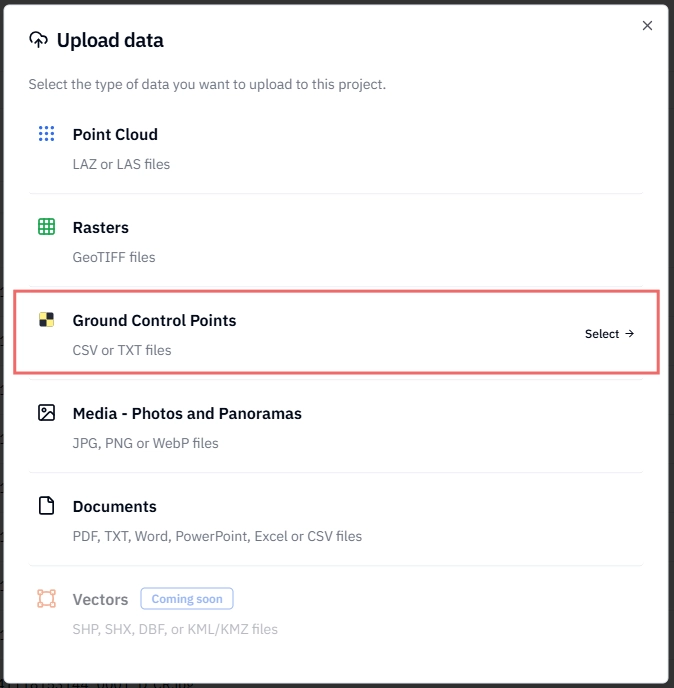
Click Upload in the top-right corner of the Project page and select the Ground Control Points option.
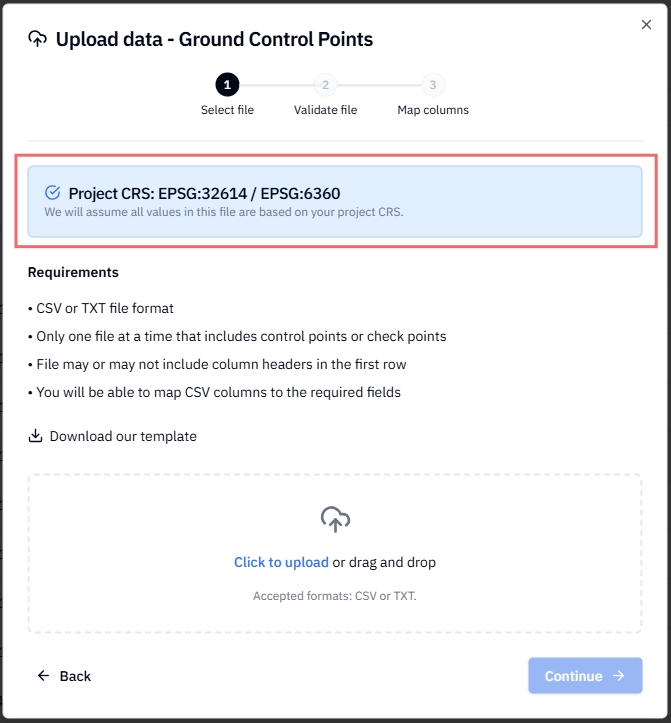
Click to upload or drag and drop your CSV file to the upload area..
Select your
.csvor.txtfile from your computer.
ℹ️ Note: The Project CRS is displayed at the top of the upload dialog. Confirm your GCP file is exported in this CRS before proceeding.
Step 2 — Validate your file
Stitch3D checks your file to confirm it can be parsed correctly. You'll see:
File name — the name of the file you selected
Row count — the number of point rows detected
Status indicator — whether the file passed or failed validation
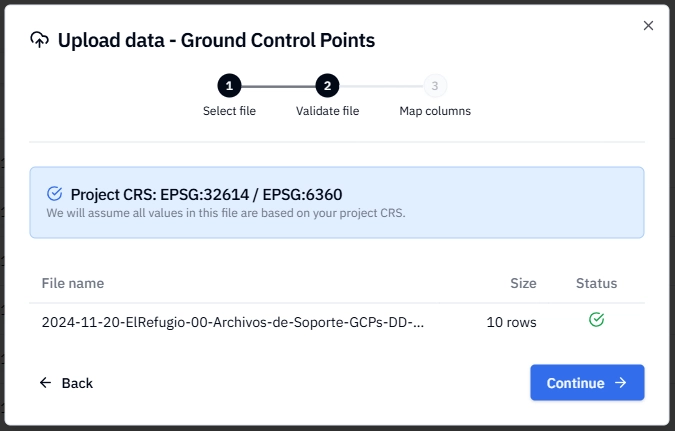
If your file passes validation, click Continue to proceed to column mapping.
💡 If validation fails: The most common cause is an unsupported delimiter or a formatting issue in the file. Open your file in a spreadsheet application, confirm values are comma, tab, or semicolon-separated, and re-export.
Step 3 — Map your columns
Column mapping tells Stitch3D which column in your file corresponds to each required field.
Using a standard format: If your file follows a standard layout, select one of the preset formats from the Column format dropdown:
Selecting a preset maps your columns automatically.
Handling the header row: Stitch3D attempts to detect whether your file includes a header row automatically. Use the Ignore first row checkbox to override this (leave it unchecked if you want the first row included as data).
Adding a description field: PENZ and PNEZ presets do not include a description field by default. If your file has a description column, manually map it to the description field after applying the preset format.
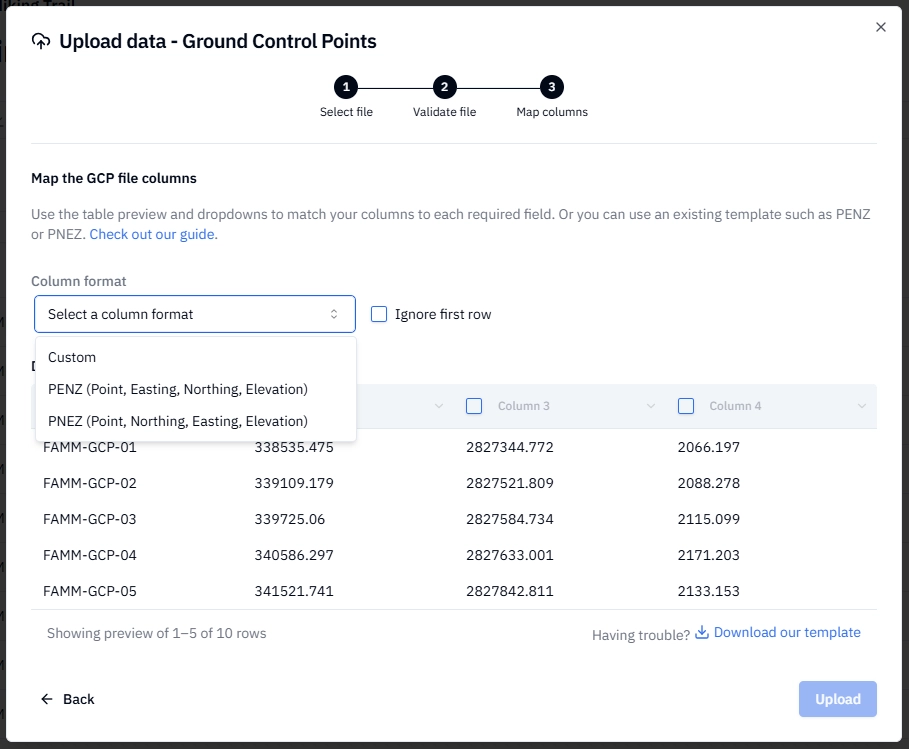
⚠️ If any required field is missing data in any row, the upload will not proceed. Stitch3D does not support row-level editing; correct the issue in your original file and re-upload.
Once all required fields are mapped and complete, click Upload.
Viewing and managing GCPs after upload
Once uploaded, your GCP points are visible in the viewer:
3D view — available if your project contains a 3D point cloud file
2D view — available if your project contains only 2D data
Designating GCPs vs. Checkpoints All uploaded points are treated as GCPs by default. Click on the GCP file to open the point list — you can designate individual points as either a GCP or a Checkpoint. Map icons update automatically to reflect any changes.
Attaching an Accuracy Report
From the viewer, you can attach an Accuracy Report PDF to your GCP file. These are typically exported directly from your processing software (Metashape, PIX4D, etc.).
Click Upload on the Project page.
Upload the Accuracy Report PDF file(s).
Open the viewer.
Select either a point cloud or raster file.
Upload the Accuracy Report via the information panel on the right-hand side of the viewer.
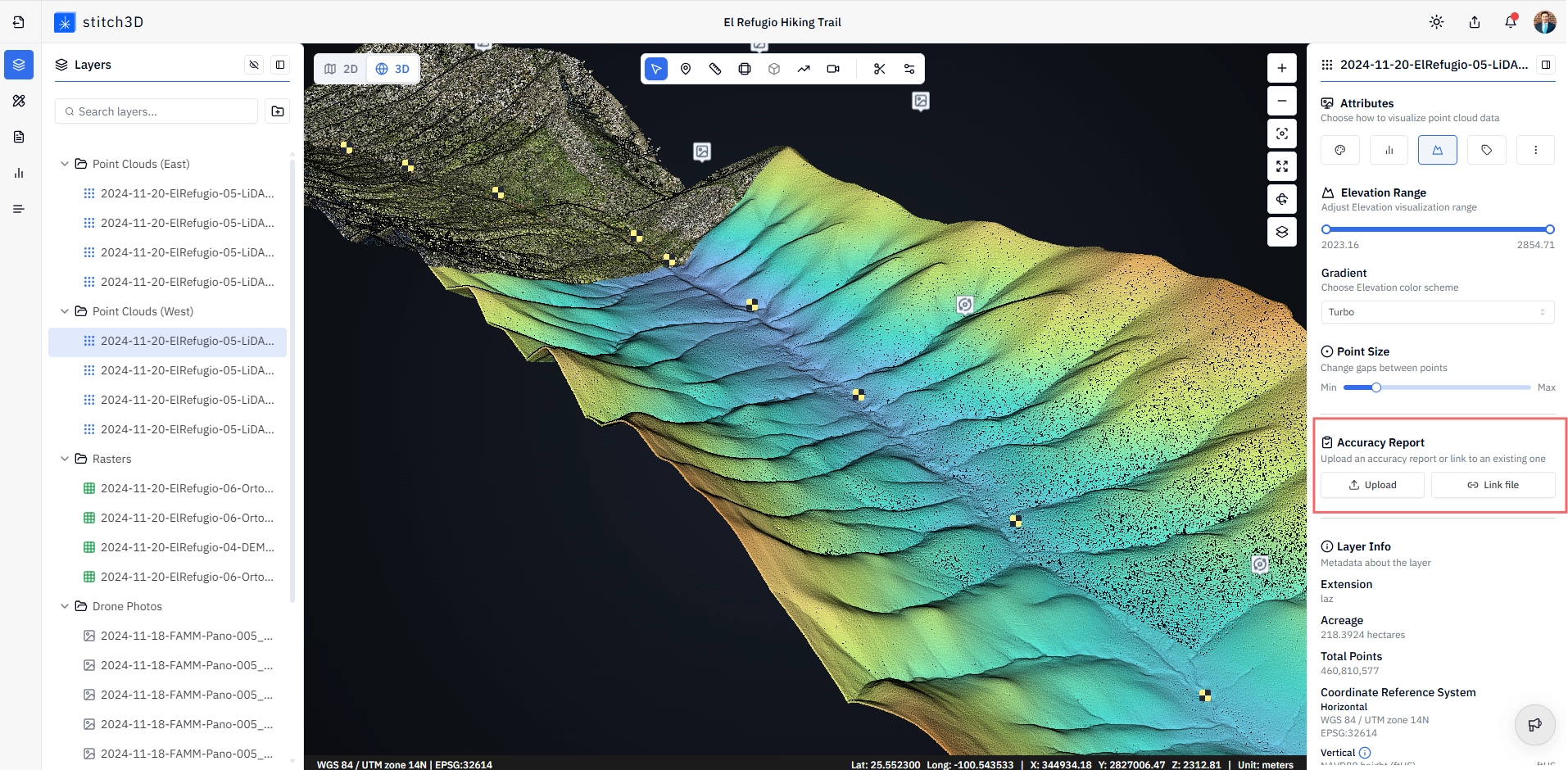
Once attached, the accuracy report is available for download by any user you share the project with, provided they have the appropriate download permissions.
💡 Tip: Attaching an accuracy report is one of the fastest ways to add professional credibility to a client delivery. It gives clients documented proof of spatial accuracy without any additional email attachments.
Troubleshooting
My points uploaded but appear in the wrong location This is almost always a CRS mismatch. Confirm that your GCP file was exported in the same CRS as your Stitch3D project. If not, re-export from your processing software in the correct CRS and re-upload.
My upload failed at the validation step Check that your file is a .csv or .txt with comma, tab, or semicolon-separated values. Open it in a spreadsheet application to confirm there are no blank rows, merged cells, or formatting issues, then re-upload.
A required field is missing and I can't proceed Stitch3D does not support row-level editing inside the upload dialog. Open your original file, correct the missing data, save, and re-upload.
I can only see my GCPs in 2D, not 3D GCPs display in 3D only when your project contains an uploaded 3D point cloud. Upload a point cloud first, then return to the GCP viewer.
Related articles
Ground Control Point (GCP) Overview