How to share a Project
🕐 Read time: 5 min
Written By Clark Yuan
Last updated 3 months ago
Overview
Stitch3D makes it easy to share reality capture Projects with clients, contractors, and teams. You can share via a public link, email invite, or QR code, and control exactly what recipients can do with the data using permission levels, password protection, and expiration dates. If sharing with a public link, recipients do NOT need a Stitch3D account to view deliverables.
Before you decide how to share
Before you share, decide two things:
1. Who are you sharing with?
2. What do you want them to be able to do?
Method 1 — Share via email invite
Email invites are the most secure way to share Projects. Recipients receive an email notification and the shared Project will populate in their Shared page.
Open the Project you want to share.
Click Share in the top-right corner.
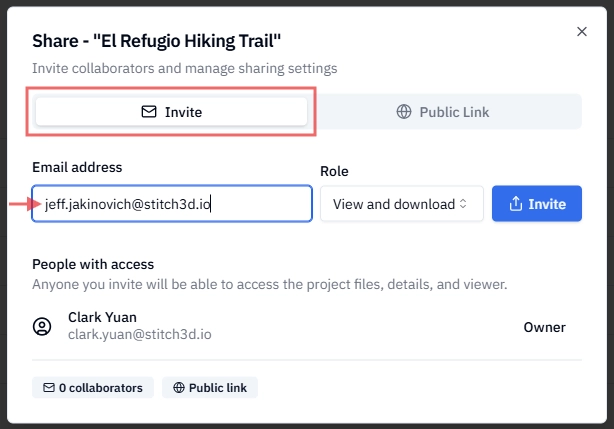
Select the Invite tab.
Enter the recipient's email address.
Choose a permission level: View, View and download, or Editor.
Click the Invite button.
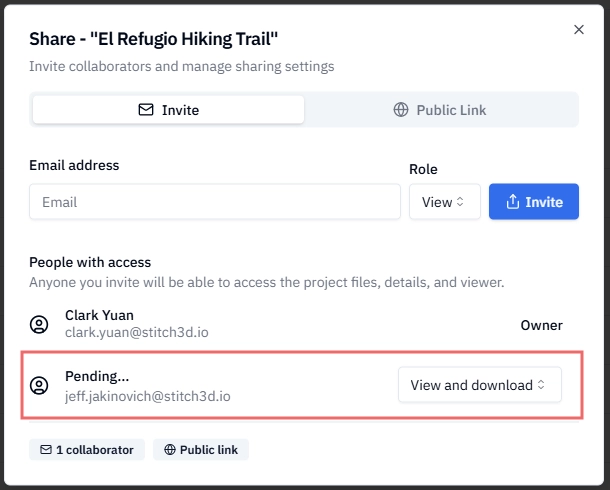
If the recipient does not have a Stitch3D account, you will see Pending… above the recipient’s email address.
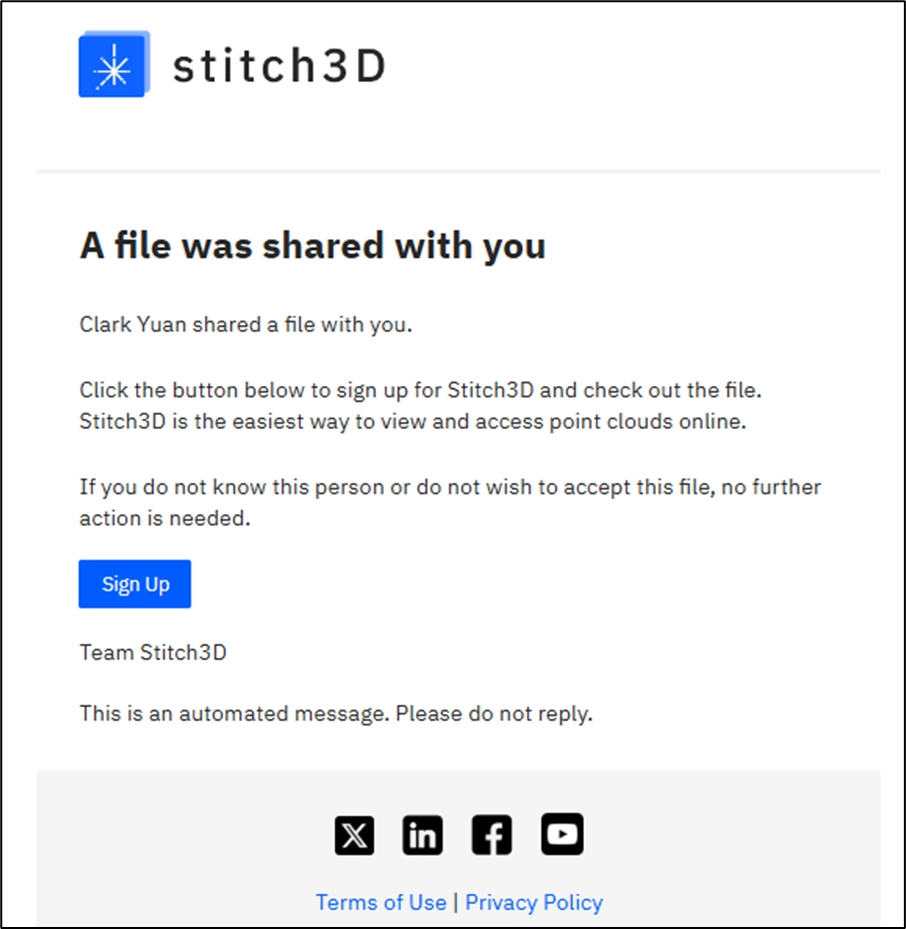
The recipient will be prompted to create a Stitch3D account in order to receive the email invite. If the recipient does not create a Stitch3D account, they will not be able to receive the Project.
If the recipient does have a Stitch3D account, you will see their account name above the email address.
The shared Project will be available for view and/or download in the recipient’s Shared page.
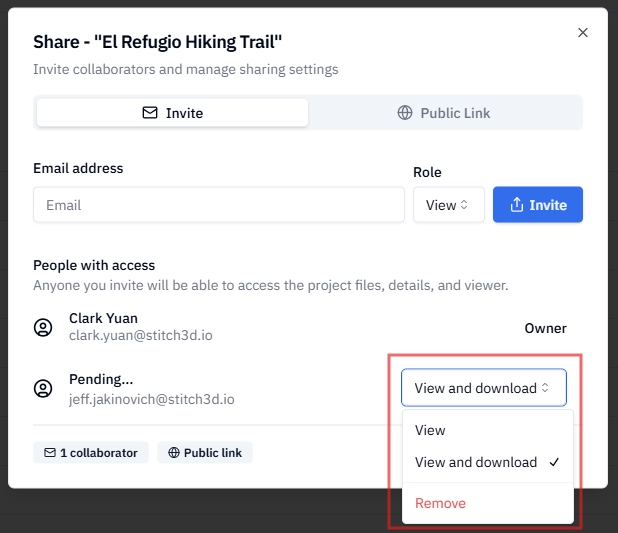
You can change or remove the recipient’s access to the shared Project using the dropdown menu next to their name.
ℹ️ Note: The person receiving a shared Project via email invite must have an active Stitch3D account. If not, the recipient will receive a Stitch3D email prompting them to create an account first. Once the account has been created, the shared Project will be available in the Shared page in the recipient’s account.
ℹ️ Note: If the recipient does not wish to create a Stitch3D account, then the alternative is to share the Project via Public Link or QR Code.
Method 2 — Share via public link
A public link lets anyone with the URL access the Project — no Stitch3D account required. This is the fastest way to deliver data to a client.
Open the Project you want to share.
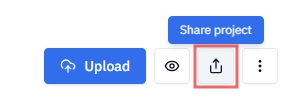
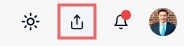
Click the Share project button in the top-right corner of the Project page or the Project viewer.
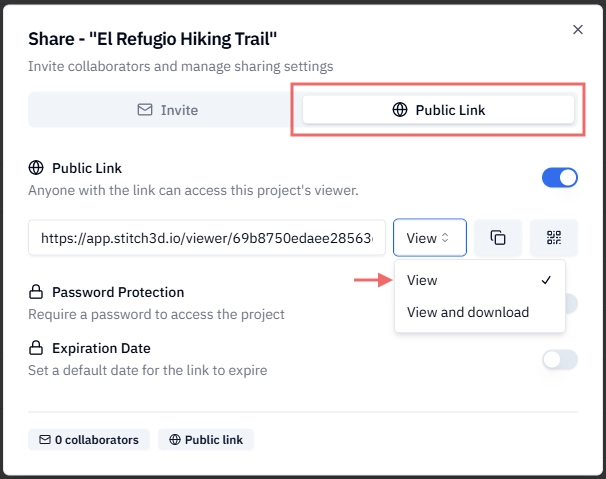
Select the Public Link tab.
Turn on the Public Link toggle.
Choose a permission level: View, View and download, or Editor.
Optionally, set a password and/or an expiration date (see Link security options below).
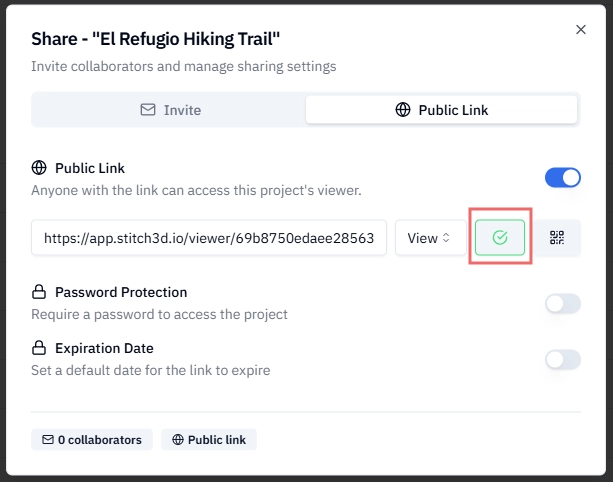
Click Copy link and share it with your recipient.
ℹ️ Note: Anyone with the public link can access the Project at the permission level you set. If your data is sensitive, consider adding a password or switching to an email invite instead.
ℹ️ Note: Public links will stay active as long as the toggle is turned on. To disable the public link, turn off the toggle. If you turn the toggle back on, the same link will be reactivated.
Method 3 — Share via QR code
QR codes are ideal for on-the-go accessibility. Display the QR Code at a conference booth to show off your work or include it in a presentation so anyone can scan and view the Project instantly on their phone.
Open the Project you want to share.
Click the Share project button in the top-right corner of the Project page or the viewer.
Select the Public Link tab.
Turn on the Public Link toggle.
Choose a permission level: View, View and download, or Editor.
Click the QR code button.
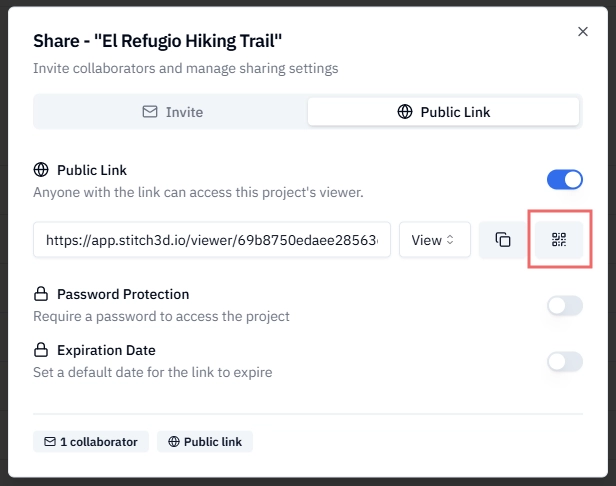
Display the QR code on the screen or copy/save the image.
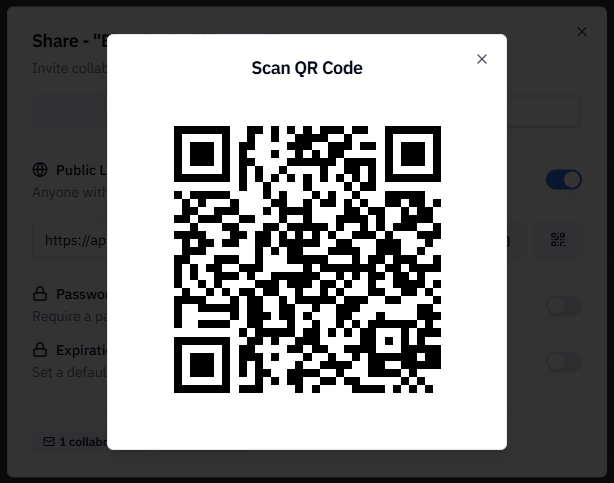
💡 Tip: QR codes link to the same public URL as a shared link. Setting a password on the link also protects the QR code.
Public Link security options
Both public links and QR codes support two optional security layers.
Password protection
Add a password to prevent anyone without it from accessing the Project — even if they have the link.
In the Share dialog, toggle on Password Protection.
Enter a password.
Share the password with your intended recipients separately.
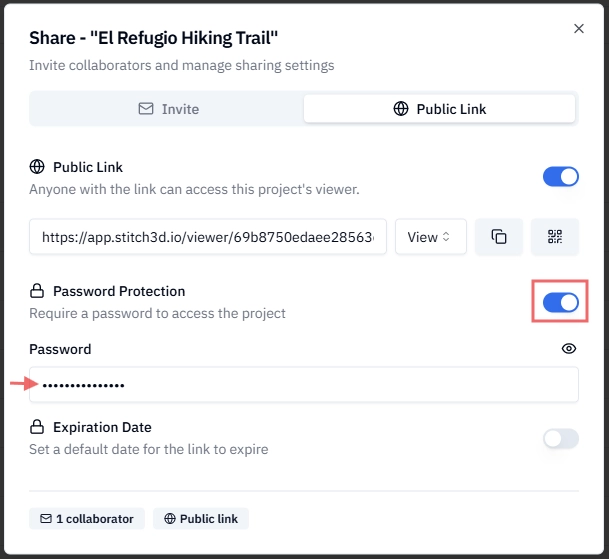
⚠️ Important: If you update the password on a shared link, anyone using the old password will lose access immediately. Make sure to communicate the new password to your recipients.
Expiration dates
Set a date after which the link automatically becomes inactive. Useful for time-limited client deliveries or project handoffs.
In the Share dialog, toggle on Expiration Date.
Select a date from the calendar by clicking on the date.
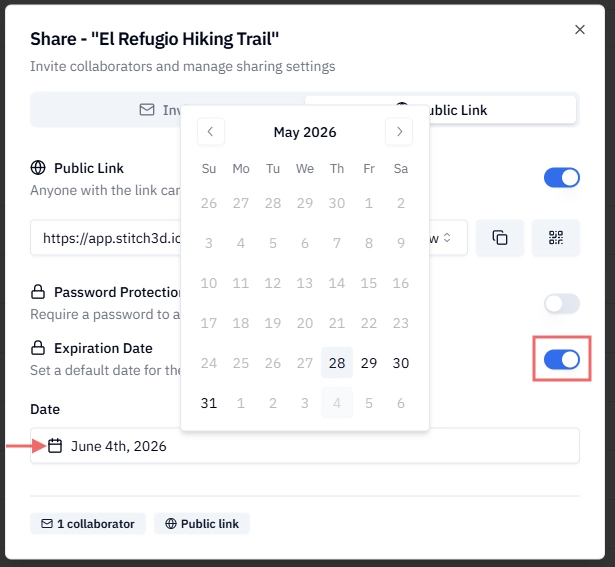
ℹ️ Note: After the expiration date, the link returns a "no longer available" message. The Project itself is not affected, only the shared link becomes inactive. You can turn on both Password Protection and Expiration Date at the same time.
Managing Public Link Access
You can view, update, or revoke access to all of your public links for anyone you've shared a Project with at any time. Stitch3D tracks all of your active public links
Open the Shared page from your workspace.
Click the My Links tab.
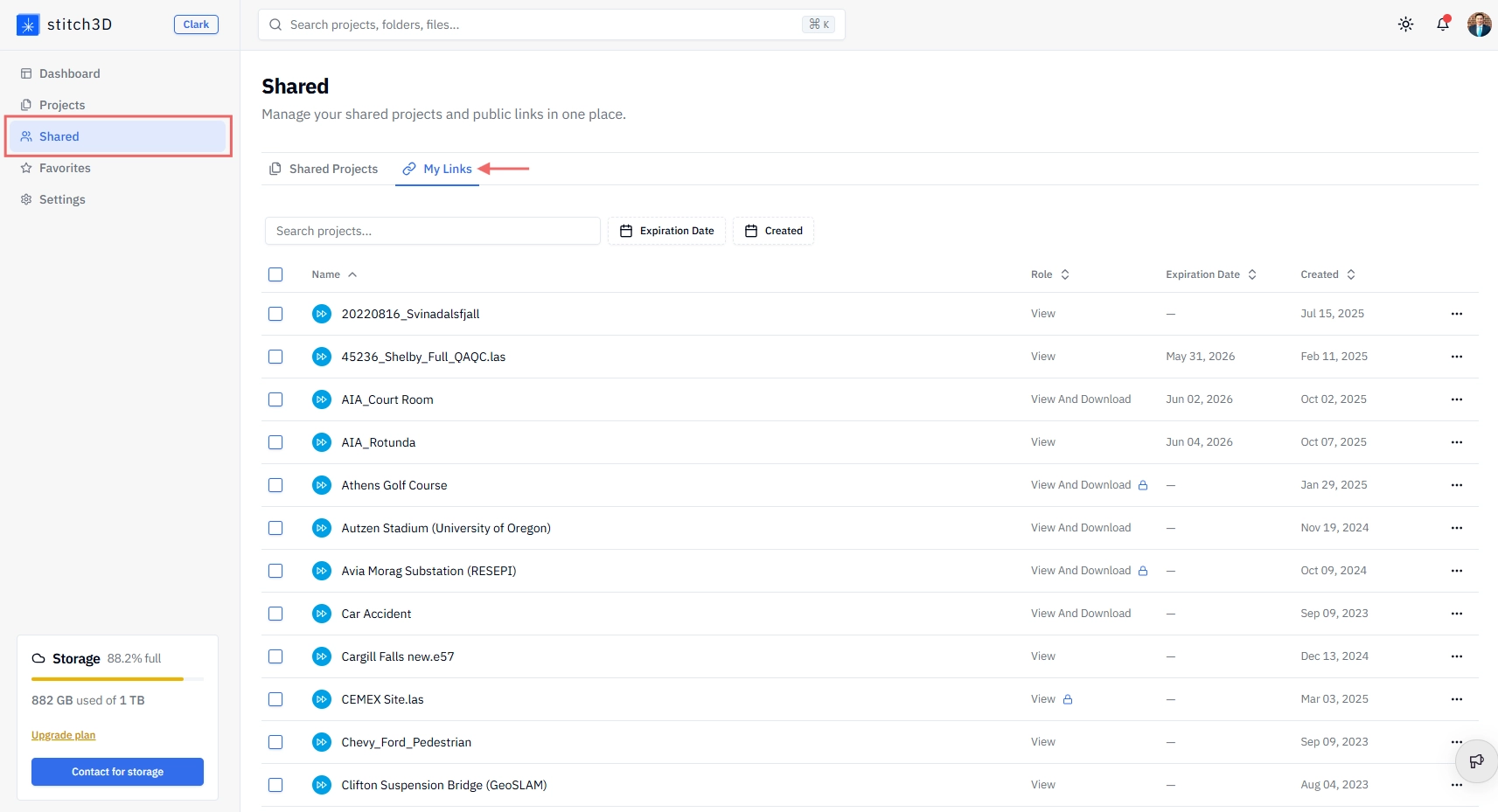
You'll see a list of all active shared links along with their permission levels, expiration dates, password protection status, and creation date.
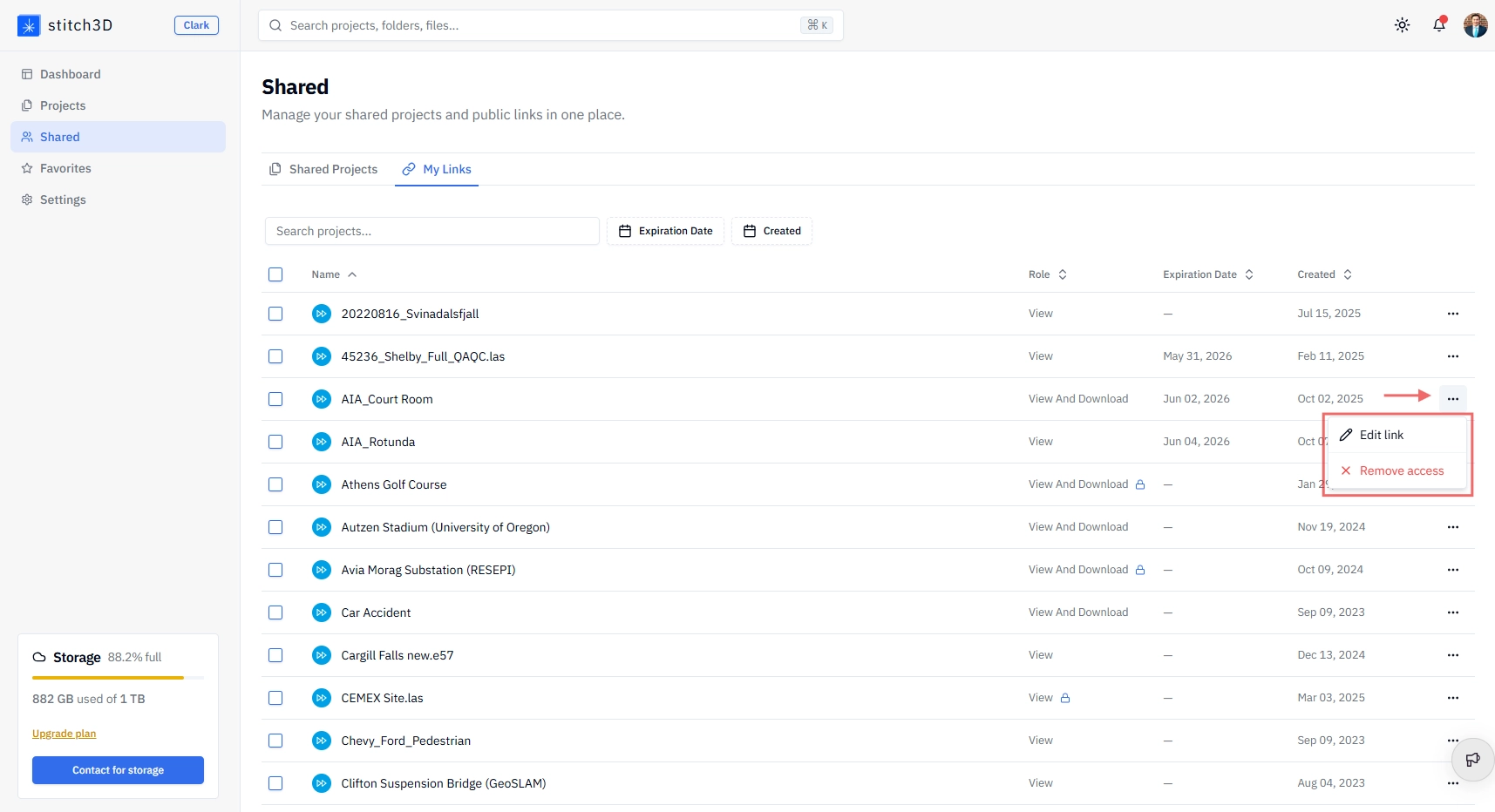
To change a permission level, click the … action button select Edit link or Remove access.
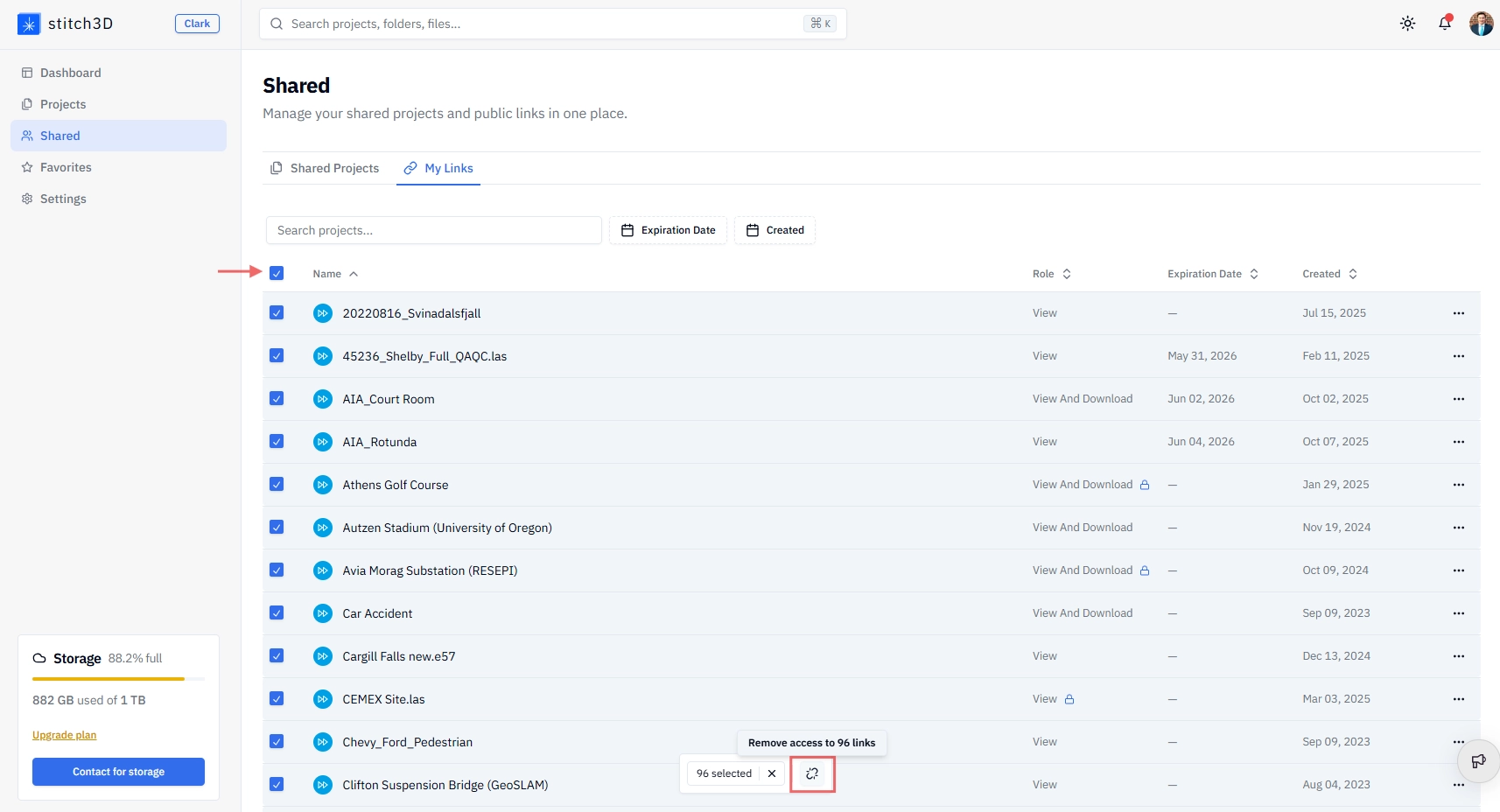
To quickly remove access to multiple or all of your shared links, click the select all checkbox and then click the Remove access button.
⚠️ Important: Revoking a public link immediately deactivates it for everyone using that link. If you need to update access for one person without affecting others, use email invites instead of a single shared link.
Common reasons to share a Project
Most Stitch3D users share Projects for one of these reasons, each with an optimal sharing method:
Troubleshooting
My recipient says the link isn't working Ask them to try the following in order:
Confirm they're using an up-to-date version of Google Chrome or another modern browser.
Check whether the link has an expiration date set. If it has passed, the link will be inactive. Generate a new link and reshare.
Check whether the link is password-protected and confirm the recipient has the correct password.
If none of the above apply, contact support with the Project name and the shared link URL.
I shared a public link but want to stop access Go to Shared → My Links, find the link, and click Remove. The link is deactivated immediately for everyone using it.
My recipient received the email invite but can't access the Project Check that the permission level on the invite is correct and that the invite hasn't expired. Make sure the recipient has created an active Stitch3D account.
Frequently asked questions
Does the recipient need a Stitch3D account to view a shared Project? Yes and No. If you are sharing a Project via email, the recipient must have an active Stitch3D account to receive the files. If you are sharing a Project with a shared link or QR code, anyone can view the Project without creating an account.
Can I share a Project with someone outside my organization? Yes. All three sharing methods — public link, email invite, and QR code — work for anyone, inside or outside your organization.
What happens when a shared link expires? The link returns a "no longer available" message to anyone who tries to open it. The Project and all its files remain intact, only the shared link is deactivated.
Can I see who has viewed my shared Project? Yes. Visit the Metrics tab in your Project to see view counts, unique visitors, most downloaded files, and top downloaders. See Understanding the Metrics tab for details.
Related articles
What does Stitch3D do with my data?
Setting a password or expiration date for shared links