Setting a password or expiration date for shared links
🕐 Read time: 3 min
Written By Clark Yuan
Last updated 3 months ago
Overview
Project owners can add an extra layer of security to any public link using Password Protection, an Expiration Date, or both. These options are available whenever you generate a public link, whether from the Project page or from inside the Viewer.
How to set a password or expiration date
Open the Project and click Share.
Select the Public link tab.
Choose a permission level: View only, View and download, or Editor.
Toggle on Password Protection, Expiration Date, or both.
Password Protection
Toggling on Password Protection prompts you to set a password for the link.
Enter a password in the field provided.
Click the visibility icon to show or hide the password as you type, so you can confirm it before sharing.
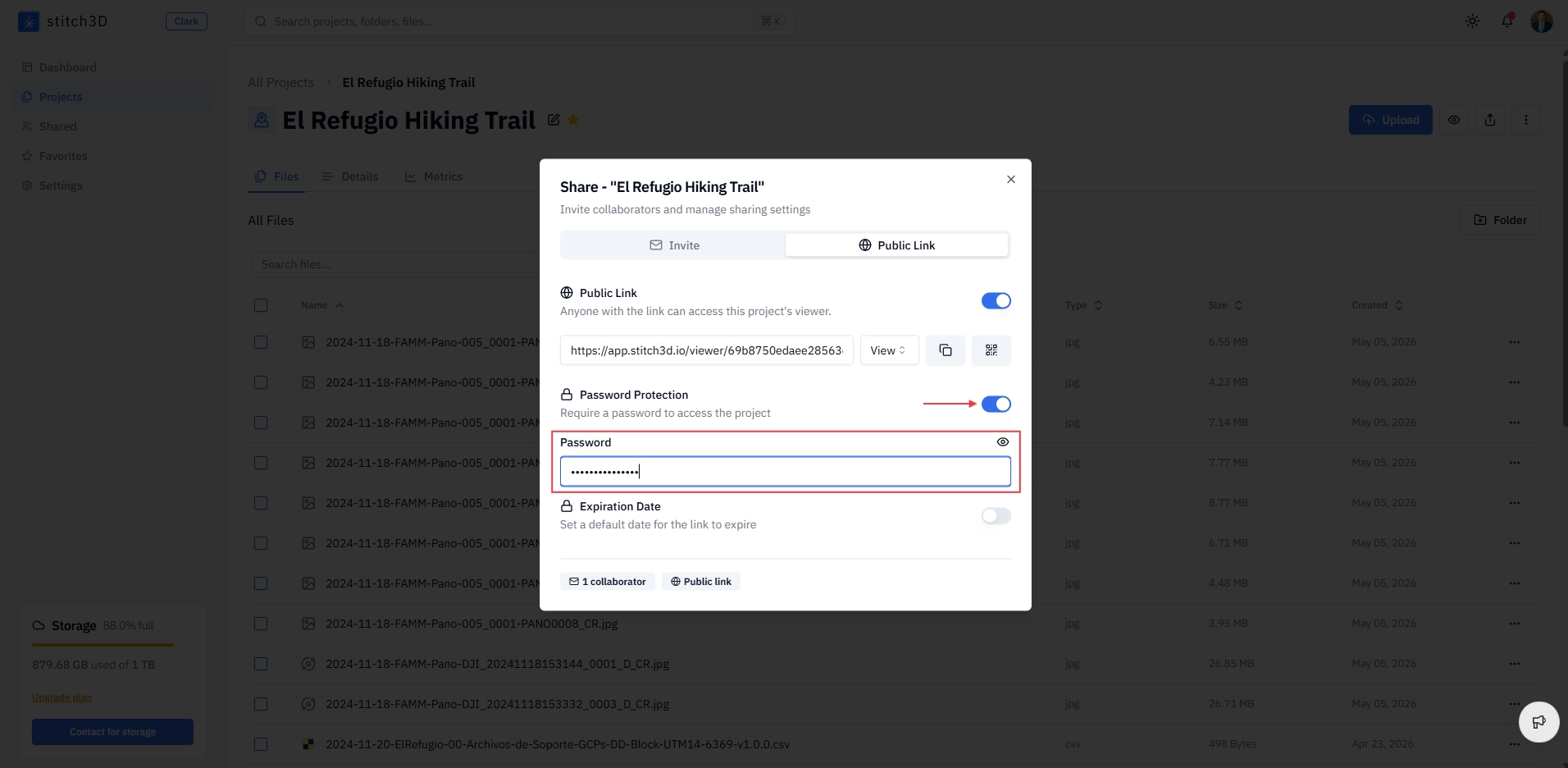
Once enabled, anyone who opens the link will be prompted to enter the password before the Project loads.
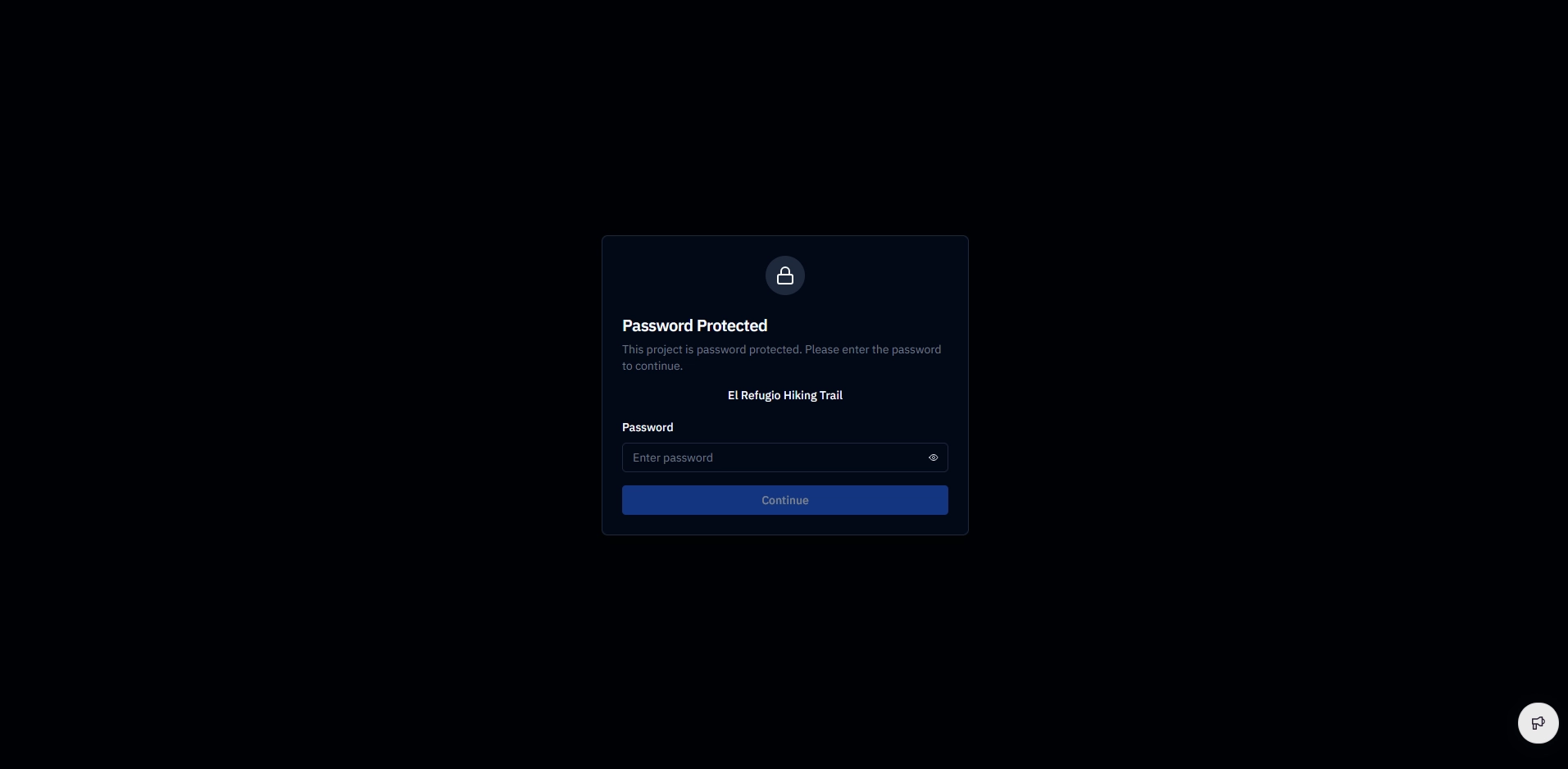
💡 Tip: Share the password separately from the link itself, by a different communication channel (e.g. a phone call or a separate message) for an extra layer of security.
Expiration Date
Toggling on Expiration Date opens a calendar. Click the date field and select the date on which the link should stop working.
After the expiration date passes, the link behaves the same as if Public link had been toggled off entirely. Anyone who opens it will see a "no longer available" message.
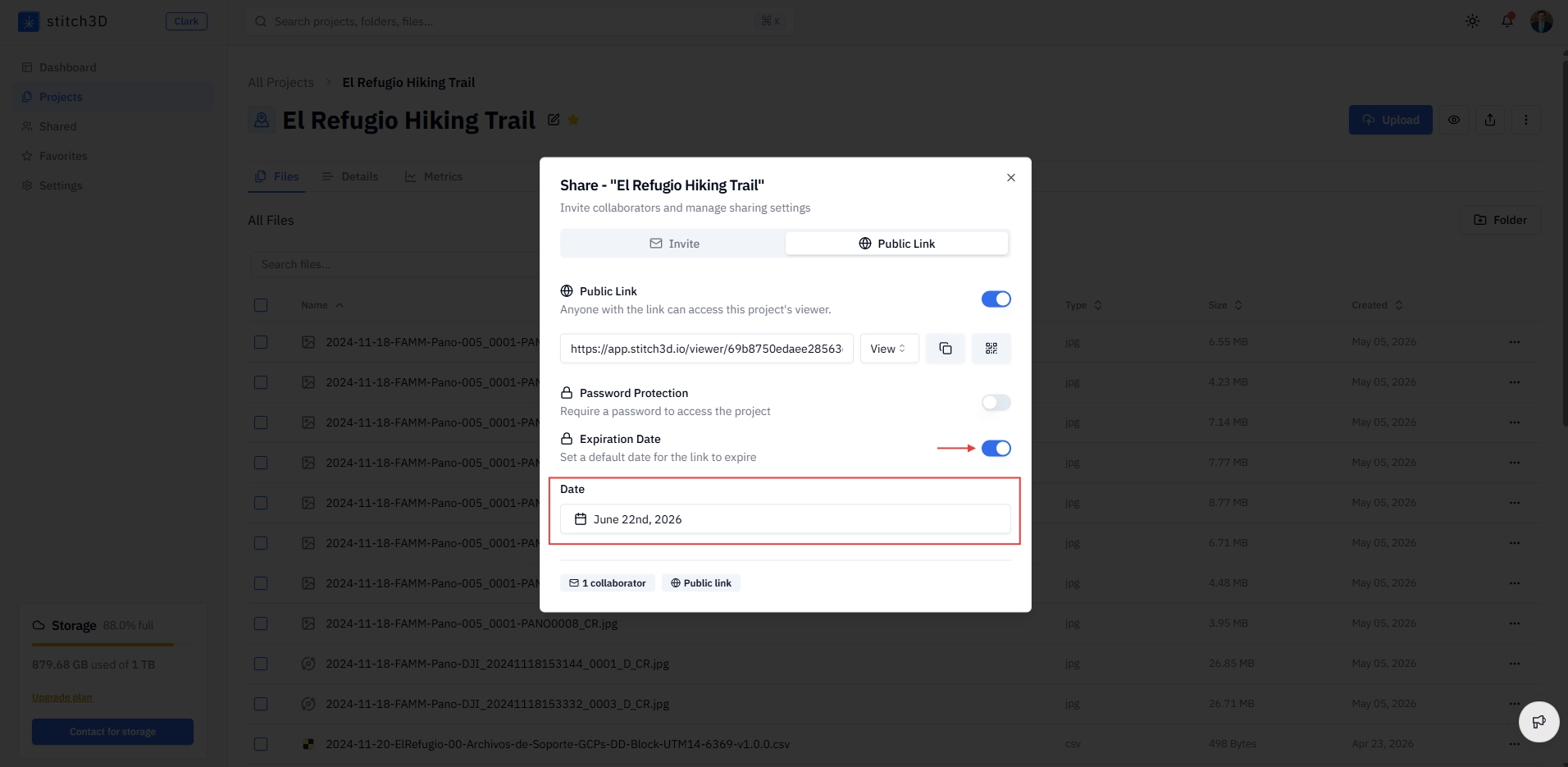
ℹ️ Note: The Project itself is not affected when a link expires. Only the link becomes inactive. You can generate a new link at any time.
Using both together
Password Protection and Expiration Date are independent settings. You can enable either one on its own, or both at the same time for maximum control. For example, a link could be password protected and also set to expire automatically at the end of a two-week client review period.
Reviewing your protected links
To see which of your public links currently have Password Protection or an Expiration Date enabled:
Go to the Shared page from the Navigation Panel.
Click the My Links tab.
Review the Role column for a password indicator and the Expiration Date column for any set dates.
This gives you a quick way to scan all your active public links and confirm which ones are protected, without opening each Project individually.
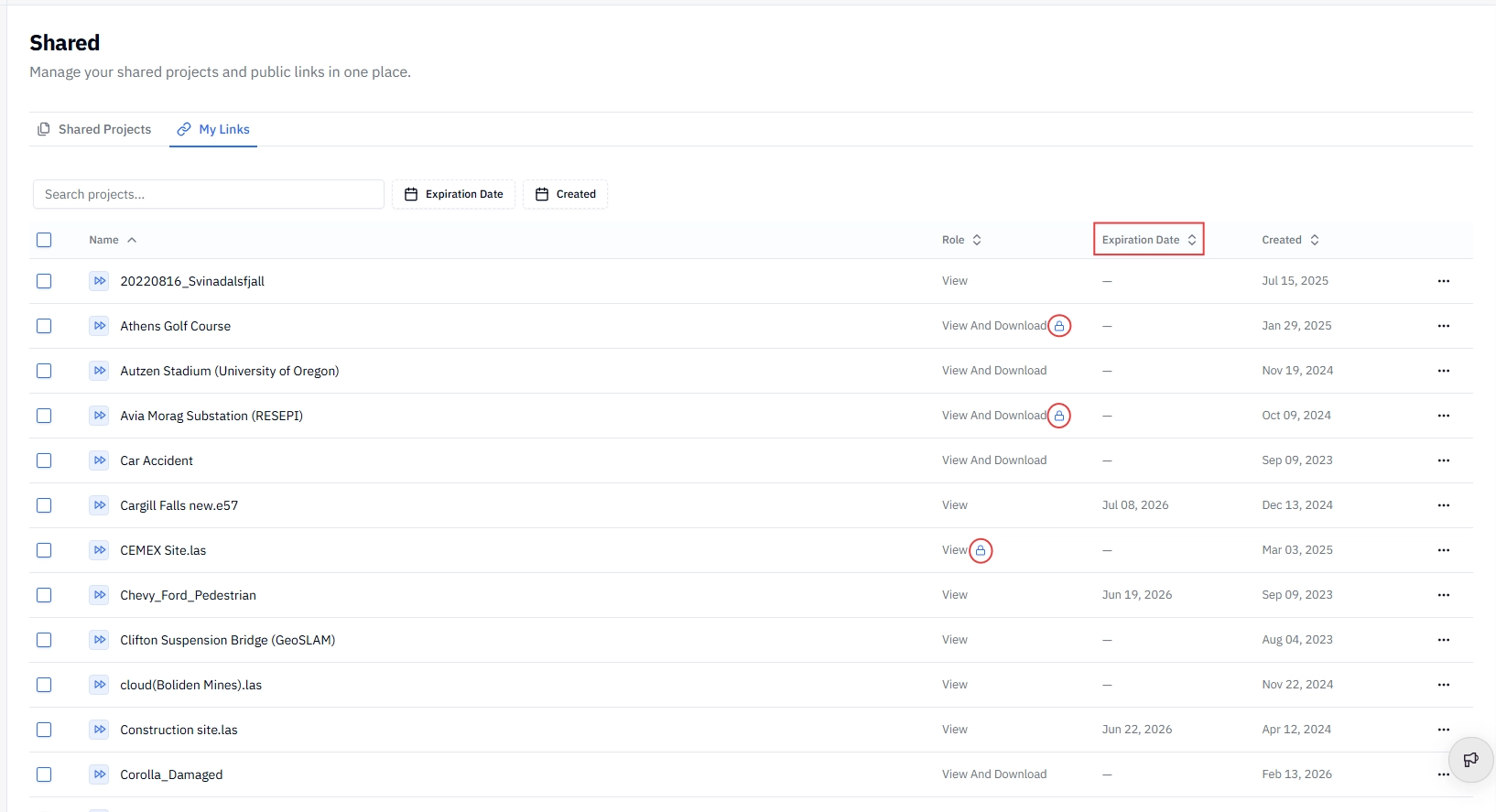
💡 Tip: Make a habit of reviewing the My Links tab periodically, especially if you share Projects with external clients regularly. It is an easy way to catch links that should have an expiration date set but do not.
Related articles
What are permission levels for shared files?