Using the QR code to share Projects
🕐 Read time: 2 min
Written By Clark Yuan
Last updated 4 months ago
Overview
Stitch3D generates a Project QR code for any Public Link you share. Anyone who scans it is taken directly to your Project in the viewer — no Stitch3D account required, no link to copy and paste, no email needed. It's the fastest way to share spatial data in person, on-site, or in a presentation.
How to generate a QR code
Open the Project you want to share.
Click the Share project button in the top-right corner of the Project page or the viewer.
Select the Public Link tab.
Turn on the Public Link toggle.
Choose a permission level: View, View and download, or Editor.
Click QR code to generate the code.
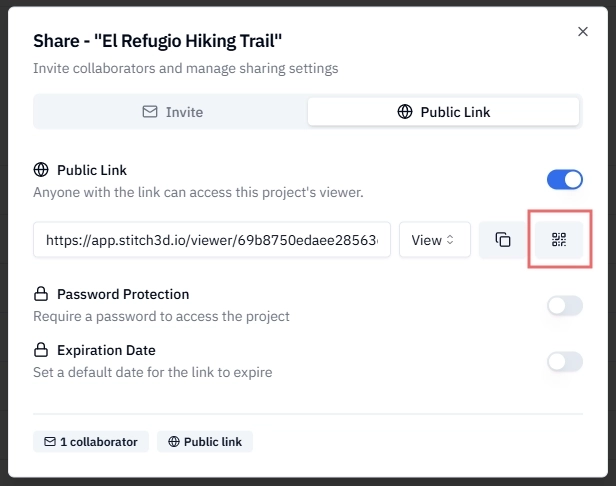
Click save the QR code as an image file or display it directly in the browser.
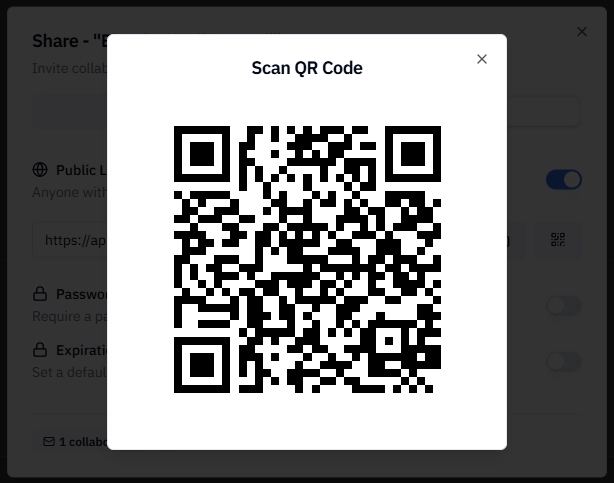
ℹ️ Note: The QR code links to the same public URL as your shared link. Any security settings on the link — password protection or an expiration date — also apply to the QR code. See How to share a Project for details on link security options.
When to use a QR code
QR codes are most useful when sharing a link by text or email isn't practical and on-the-go data accessibility is needed.
Tips for using QR codes effectively
💡 Tip: Always add a short label near the QR code so people know what they're scanning. "Scan to view the 3D site survey" is far more likely to get scanned than a bare QR code with no context. A clear call-to-action makes a significant difference in whether people actually scan it.
💡 Tip: Test your QR code before distributing it. Scan it yourself on your phone to confirm it opens the correct Project at the right permission level before you print it on a report or display it in a presentation.
💡 Tip: For printed materials, use the highest resolution version of the QR code image available. A blurry or pixelated QR code is difficult to scan, especially on smaller prints. Download the image at the largest available size and let your design software scale it down.
💡 Tip: Maintain adequate white space (called a "quiet zone") around the QR code when placing it in a design. Crowding the code with text or graphics right up to the edge makes it harder for phone cameras to detect and read.
ℹ️ Note: QR codes work best at a minimum printed size of about 2 cm × 2 cm (roughly 0.8 inches). Anything smaller risks being unreadable, especially on a phone camera with standard zoom.
Password-protecting a QR code
If your Project contains sensitive data, you can add a password to the underlying public link. Anyone who scans the QR code will be prompted to enter the password before the Project opens.
In the Share dialog, toggle on Password protection before generating the QR code.
Set a password and click Save.
Download the QR code.
Share the password with intended recipients separately — by email, message, or verbally on-site.
⚠️ Important: If you update the password after distributing the QR code, anyone scanning the old code will need the new password to access the Project. The QR code image itself does not change — only the password required to enter it.
Setting an expiration date on a QR code
For time-limited deliveries — for example, a Project shared during a client review period — set an expiration date on the public link before generating the QR code. Once the date passes, anyone scanning the code will see a "no longer available" message.
In the Share dialog, toggle on Expiration date and select a date.
Click Save, then generate and download the QR code.
ℹ️ Note: After the expiration date, the QR code becomes inactive but the Project itself is unaffected. You can generate a new link and QR code at any time.
Related articles
What are permission levels for shared files?
What is the Stitch3D file sharing “Metrics” tab?